How to Build a Website with Google AI Studio
Google AI Studio can generate a working website with Gemini, but the real win is knowing how to move that project from a preview screen to a live domain. This guide walks through planning, prompting, exporting, GitHub, deployment, build settings, environment variables, and SEO launch checks.
Quick Answer
To build a website with Google AI Studio, open Build mode, describe the website you want, let Gemini generate the app, test the live preview, then export the code or push it to GitHub. For the cleanest production path, deploy to Cloud Run from AI Studio or connect the GitHub repository to a host that supports your stack. Add required environment variables such as GEMINI_API_KEY, confirm build settings, connect a custom domain, and test the live site before sharing it.
Inspiration credit: This article is inspired by the deployment tutorial and channel by Darrel Wilson on YouTube. The written guide below is original, expanded for SEO, and cross-checked against official Google documentation.
AI website builders are getting better at the fun part: making a polished-looking site from a prompt. The part that still confuses many creators is deployment. A Google AI Studio preview is not the same thing as a production website. If your site uses Gemini, you also have to think about API keys, server-side calls, environment variables, billing, and what happens when real visitors start using the app.
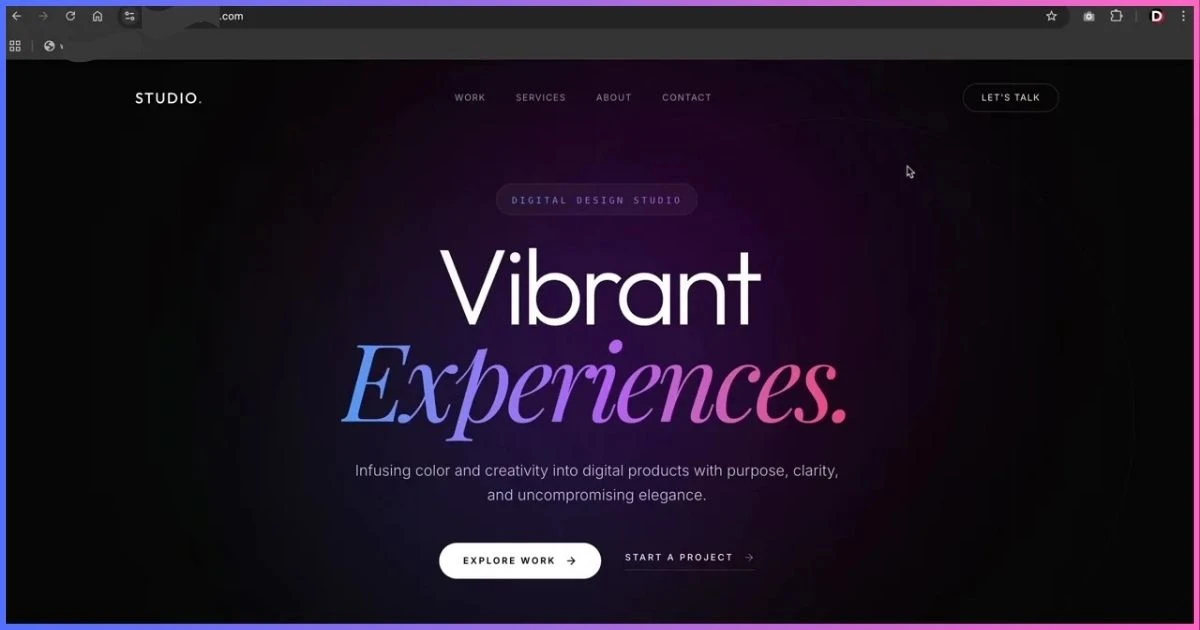
The reference video used for this article demonstrates a practical workflow: build a creative agency style website in Google AI Studio, push or connect the code, set up hosting, configure environment variables, and get the site working on a real domain.
Helpful related guides:
- How to Build a Website with Lovable AI if you want to compare Google AI Studio with another AI website builder.
- Hostinger Web Hosting Review if you want a deeper look at the hosting platform used in this deployment workflow.
- Cheapest Web Hosting Providers if you are comparing budget-friendly hosting options before launching your AI-generated site.
What Is Google AI Studio?
Google AI Studio is Google’s browser-based environment for prototyping with Gemini. Build mode lets you describe an app or website in natural language and generate a working project with code, files, and a live preview. According to Google’s official Build mode documentation, AI Studio can create web apps with a React frontend by default and a Node.js server-side runtime for secure API calls, npm packages, database connections, and backend logic.
That server-side runtime matters. A simple static landing page can run almost anywhere, but an AI-powered website often needs to call Gemini. If your app calls Gemini from browser-only JavaScript and exposes the API key, you create a security and billing problem. Google AI Studio’s current approach is designed to keep Gemini calls on the server side, with secrets handled outside the client bundle.
Google AI Studio is best for builders who want to move quickly: creators, marketers, web designers, founders, and developers who want Gemini to generate the first version of an app. It is also useful for prototyping AI-powered tools, forms, dashboards, content generators, chat experiences, calculators, and interactive demos. If you want a no-code AI website builder comparison, read the companion guide on how to build a website with Lovable AI.
Important: Treat Google AI Studio as a fast app builder, not a magic publish button. Before sharing a website publicly, you still need to review code, test forms and AI features, secure API keys, confirm build settings, and run SEO checks.
Before You Build Your Website
Google AI Studio can produce a strong first draft, but only if you give it a strong brief. Before opening Build mode, decide what the website should do and how it should be deployed.
Prepare these details first:
- Website type: portfolio, agency site, SaaS landing page, tool, directory, ecommerce page, or AI-powered app.
- Goal: collect leads, book calls, sell a service, demonstrate an app, or publish a useful tool.
- Pages or sections: hero, services, work, pricing, about, testimonials, FAQ, contact, privacy policy, terms.
- AI features: decide whether Gemini is actually needed. A simple brochure site may not need an API key at all.
- Deployment route: Cloud Run from AI Studio, GitHub to a host, ZIP download, or another hosting provider.
- Domain: choose the live domain or subdomain before deploying.
- SEO target: pick one main keyword for each important page.
Ready to Host the Website After Building?
Build the project in Google AI Studio, then use Hostinger when you need a hosting dashboard, domain setup, GitHub deployment, and environment variable controls.
How to Build a Website with Google AI Studio: Step by Step
Step 1: Open Google AI Studio Build Mode
Go to Google AI Studio and open Build mode. You can start with a prompt, use the “I’m Feeling Lucky” option for an idea, or remix a gallery project. For a serious website, start with your own prompt so the design and structure match your business goal.
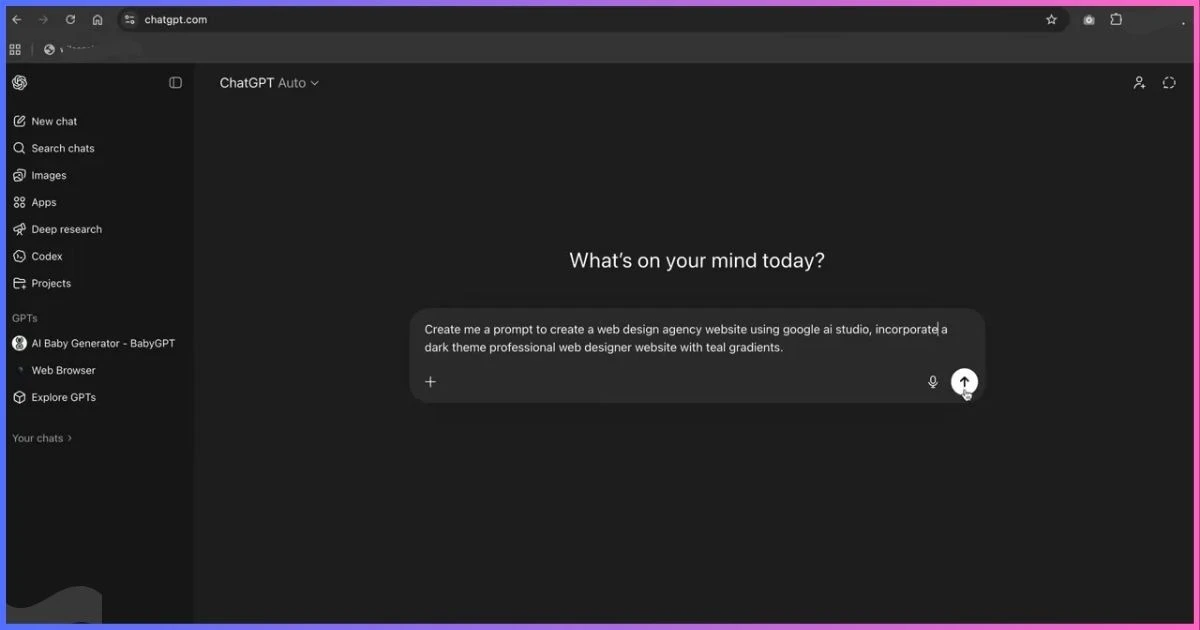
Step 2: Write a Detailed Website Prompt
A vague prompt creates a vague website. Give Gemini the same information you would give a human designer: business type, audience, page sections, tone, layout preferences, brand style, and conversion goal. If you want a creative studio website like the video example, mention the dark premium style, portfolio feel, contact CTA, and the sections you expect.
Step 3: Review the Generated Preview
After Gemini generates the site, inspect the preview before doing anything else. Look for layout quality, navigation, responsiveness, copy quality, broken interactions, and whether the page actually matches your prompt.
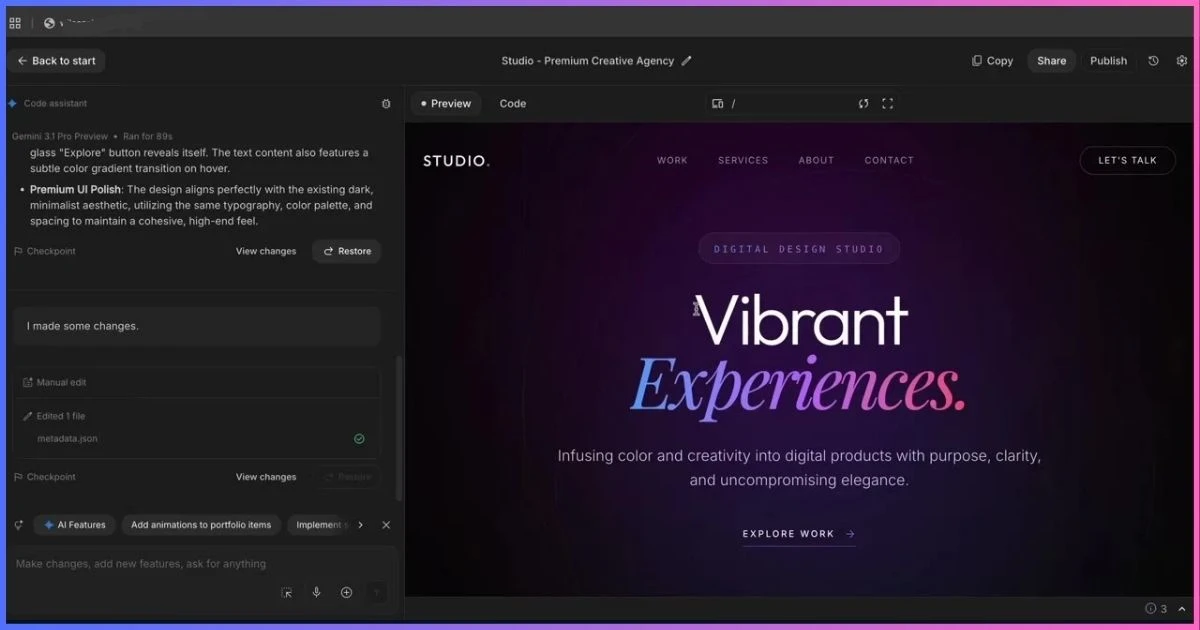
Do not deploy the first version just because it looks impressive. Ask Gemini to fix weak areas in smaller rounds. For example: “Make the services section more specific,” “Improve mobile spacing,” “Add a stronger contact CTA,” or “Remove generic placeholder text from the testimonials.”
Step 4: Check the Code and Framework
Open the code tab and confirm the project structure. Google says web apps in AI Studio are React by default, with server-side runtime support. Depending on your settings and generated app, you may see React, Next.js, Node.js files, package dependencies, environment variable references, and server routes.
If you plan to deploy to a third-party host, this step is critical. Your hosting provider needs the correct framework preset, build command, output directory, and environment variables. If those are wrong, the deployment may succeed but the website or AI features may fail.
Step 5: Decide Whether the Website Needs Gemini at Runtime
Some Google AI Studio websites are just static marketing pages. Others use Gemini for live chat, content generation, image analysis, personalization, or AI tools. This distinction affects deployment.
| Website Type | Needs Gemini API at Runtime? | Deployment Complexity |
|---|---|---|
| Static business website | No, unless you add AI features | Low |
| Portfolio or agency site with contact form | Usually no, unless AI powers the form or chat | Low to medium |
| AI content generator | Yes | Medium |
| AI chatbot or assistant | Yes | Medium to high |
| Dashboard with auth and database | Maybe | High |
The Right Way to Deploy a Google AI Studio Website
Google AI Studio gives you multiple ways forward after the site is generated. Officially, you can continue building inside AI Studio, edit code directly, download the project as a ZIP, push the project to GitHub, or deploy to Cloud Run. The best option depends on your skill level and hosting goal.
Option 1: Deploy to Cloud Run from Google AI Studio
Cloud Run is the most Google-native production path. Google’s Build mode documentation says AI Studio can deploy your app to Cloud Run, with your API key included securely in the server-side environment. Cloud Run is a managed platform for scalable web services and AI applications, and Google specifically documents it as a place to run apps created with AI-assisted tools like Google AI Studio.
Choose Cloud Run if your app uses Gemini, server-side routes, databases, or more advanced backend functionality. You will need a Google Cloud project, and depending on usage, billing may apply.
Option 2: Push to GitHub and Deploy with a Hosting Provider
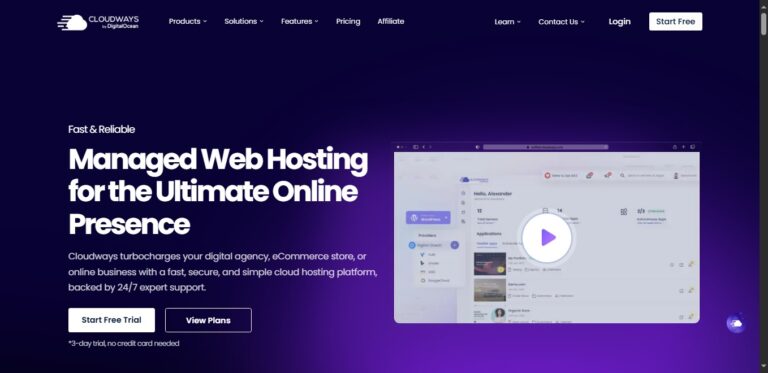
The video workflow highlights a practical route many creators understand: connect the Google AI Studio project to GitHub, then deploy from GitHub using a hosting provider. This is useful when your host can detect the framework, run the build command, and let you add environment variables. For a deeper platform breakdown, see the full Hostinger web hosting review.
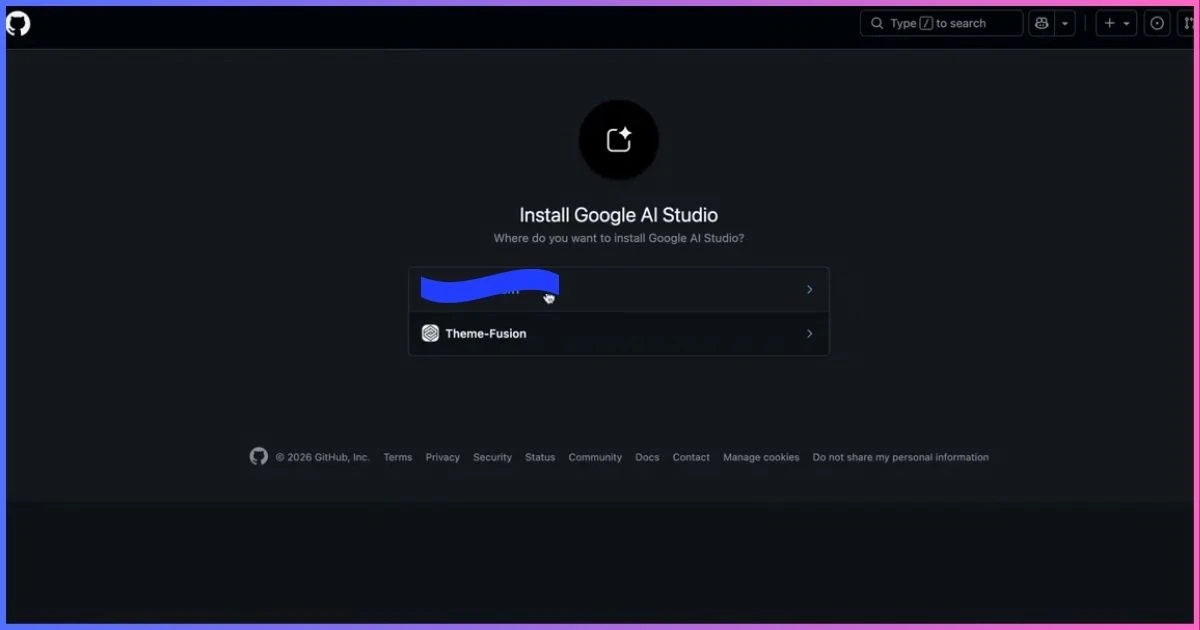
Google’s Build mode FAQ notes that AI Studio’s GitHub integration can create a repository and commit your latest changes, but it does not currently support pulling remote changes back into AI Studio. That means GitHub is excellent for export and deployment, but you should be intentional about where future edits happen.
Option 3: Download ZIP and Upload Manually
If you download the project as a ZIP, you can host it elsewhere. However, Google states that ZIP deployments require you to set the GEMINI_API_KEY environment variable in your hosting environment when Gemini is used. Since Gemini calls should be server-side, avoid pasting the key into public client-side JavaScript.
Option 4: Static Hosting for Simple Sites
If the final website is only HTML, CSS, JavaScript, and images with no server-side Gemini calls, you may be able to deploy it as a static site. But if the generated app uses a Node.js runtime, API routes, server-side rendering, or environment variables, use a host that supports those features. If price is the main concern, compare the cheapest web hosting providers before choosing a plan.
Deployment Rule of Thumb
If the website uses Gemini while visitors interact with it, deploy it like a server-side app. If it is just a brochure website, static hosting may be enough.
API Keys and Environment Variables
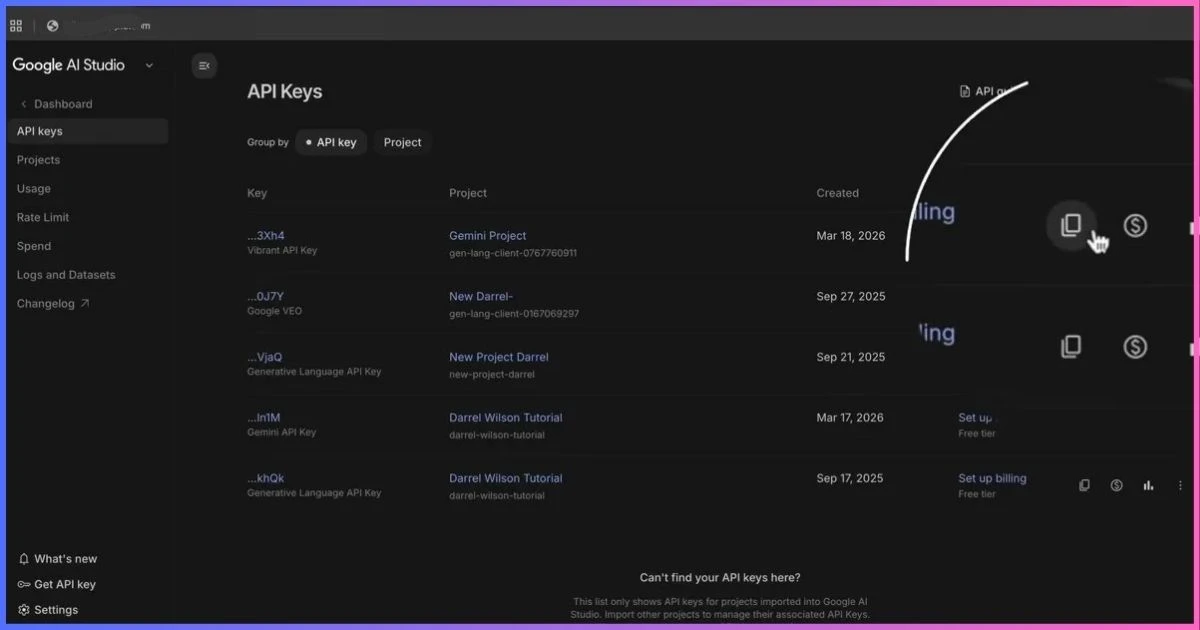
The most important deployment issue is your Gemini API key. Google’s API key documentation says Gemini API keys can be created and managed in Google AI Studio. It also recommends using environment variables such as GEMINI_API_KEY or GOOGLE_API_KEY, and notes that if both are set, GOOGLE_API_KEY takes precedence.
For Google AI Studio Build mode, Google says new apps that use Gemini automatically configure the API key as a server-side secret. When you deploy to Cloud Run from AI Studio, the key is included securely in the server-side environment. When you download a ZIP or deploy elsewhere, you must recreate that setup in your hosting provider.
Common Environment Variable Names
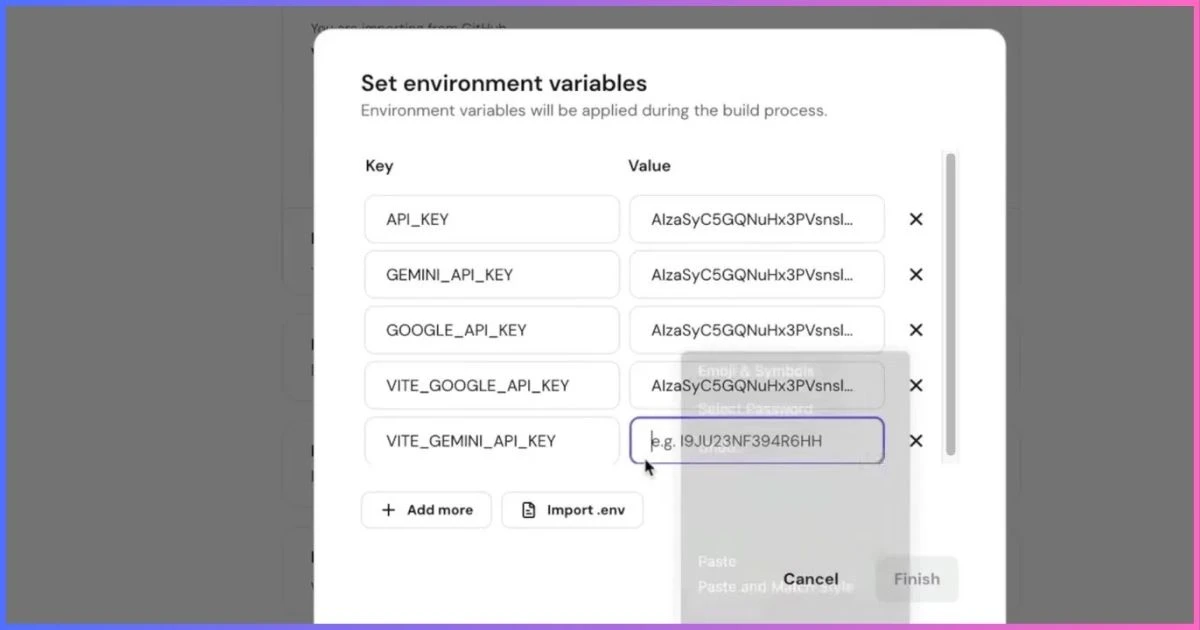
Different generated projects may reference different variable names. The video shows multiple possibilities being added in a hosting environment. Your job is to check the generated code and match the exact variable name it expects.
| Variable Name | When You Might See It | What to Check |
|---|---|---|
GEMINI_API_KEY | Recommended Gemini API environment variable in Google docs. | Use this when the generated server code expects it. |
GOOGLE_API_KEY | Also supported by Gemini API libraries. | If both are set, Google says this one takes precedence. |
API_KEY | Some generated code may use a generic key name. | Search the project files before deploying. |
VITE_GEMINI_API_KEY | Sometimes appears in frontend-oriented Vite projects. | Be careful. Variables exposed to the frontend can end up in client code. |
Security reminder: Do not paste Gemini API keys into public GitHub repositories, public JavaScript bundles, screenshots, or frontend config unless you understand the exposure risk. Google also documents newer API key security requirements and recommends restricting keys appropriately.
Build Settings for Hosting Providers
When you deploy from GitHub, your host must know how to build the website. Some providers detect the framework automatically. Others require you to set the framework preset, branch, root directory, install command, build command, and output directory.
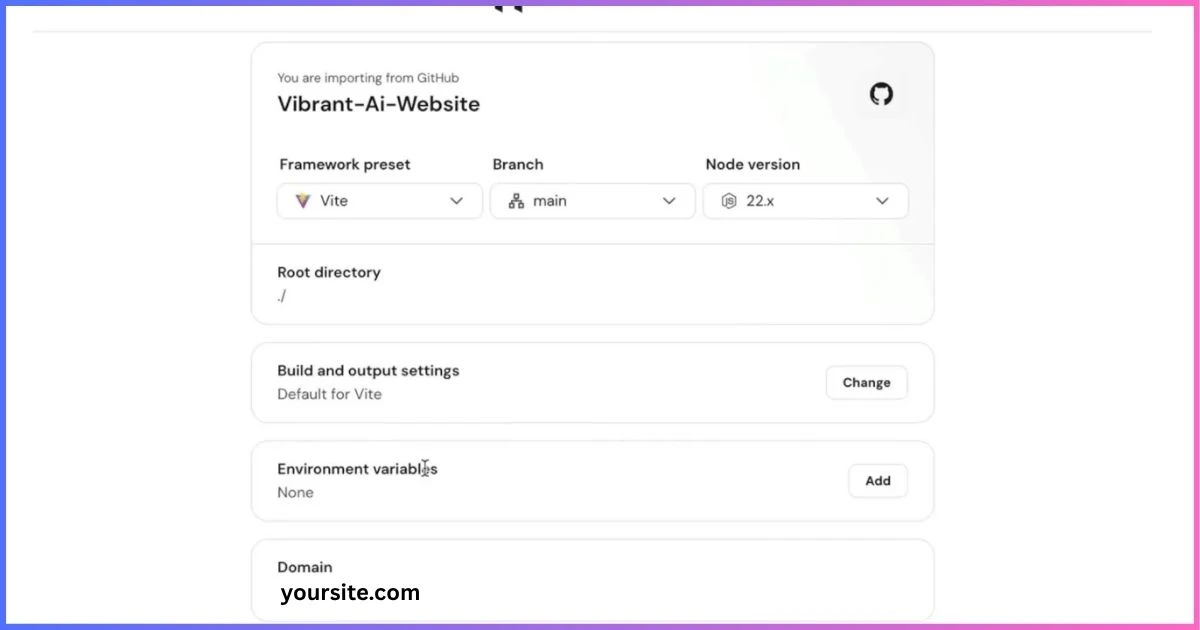
Typical settings vary by framework, but here are common patterns:
| Framework | Install Command | Build Command | Output Directory |
|---|---|---|---|
| Vite React | npm install | npm run build | dist |
| Next.js | npm install | npm run build | Provider-specific, often handled by preset |
| Node app | npm install | Depends on app scripts | Usually deployed as a server app |
Always inspect package.json. The scripts section tells you what commands exist. If your hosting provider asks for an output folder that does not exist after build, the deployment will break or show a blank page.
Need Hosting for Your AI Studio Website?
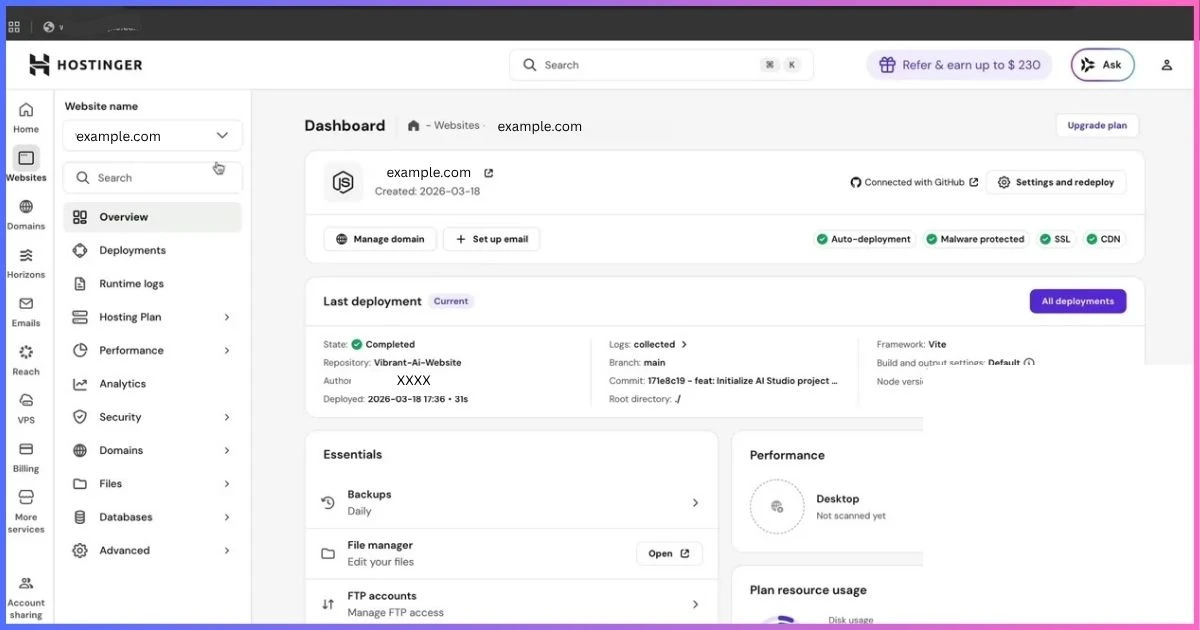
Hostinger is a practical option if you want a familiar hosting dashboard, domain setup, GitHub-based deployment, and environment variable controls for your Google AI Studio project. You can also read the full Hostinger web hosting review before deciding.
SEO Setup for a Google AI Studio Website
A generated website can look good but still miss basic SEO. Before launch, check metadata, headings, content depth, image alt text, schema, performance, indexability, and internal links.
SEO launch checklist:
- Use one clear H1 that includes or supports the primary keyword.
- Add unique SEO title and meta description for every important page.
- Use logical H2 and H3 headings.
- Replace generic AI copy with specific service, product, or brand details.
- Add descriptive alt text for meaningful images.
- Compress screenshots and hero images.
- Create a sitemap and
robots.txtif the deployment stack does not generate them. - Add canonical URLs after the final domain is connected.
- Add Organization, LocalBusiness, FAQ, Product, SoftwareApplication, or Article schema where relevant.
- Submit the final domain to Google Search Console.
- Test mobile layout and Core Web Vitals.
Common Google AI Studio Deployment Mistakes
1. Assuming preview means production
The AI Studio preview is a development environment. A production site needs hosting, domain configuration, environment variables, security checks, and live testing.
2. Missing environment variables
If the live site loads but AI features fail, check the hosting provider’s environment variables first. Confirm the variable names match the code exactly.
3. Exposing API keys in frontend code
If Gemini calls are made in browser code with a visible key, your key can be copied. Keep Gemini API calls server-side whenever possible.
4. Wrong output directory
Vite commonly builds to dist, but other frameworks differ. Check package.json and the generated project structure.
5. Choosing the wrong deployment platform
A static host is fine for static files. A server-side Gemini app needs server/runtime support. Cloud Run is often the safer route for AI-powered apps.
6. Forgetting domain and SEO updates
After connecting a custom domain, update canonical URLs, sitemap links, metadata, and Search Console settings.
Frequently Asked Questions
Can Google AI Studio build a full website?
Yes. Google AI Studio Build mode can generate a web app from a natural language prompt. It can create the frontend, server-side runtime, project files, and a live preview that you can continue editing.
Can I deploy a Google AI Studio website on my own domain?
Yes. You can deploy through Cloud Run or export/push the project to a hosting provider and connect your own domain. The exact steps depend on your host and whether the app needs server-side functionality.
Should I use Cloud Run or external hosting?
Use Cloud Run when the app needs server-side Gemini calls, scalable backend behavior, or a Google-native deployment path. External hosting can work well if it supports your framework, environment variables, and server-side runtime requirements.
What environment variable should I use for Gemini?
Google documents GEMINI_API_KEY and GOOGLE_API_KEY. Check the generated code to see which variable your app expects. If both are set, Google says GOOGLE_API_KEY takes precedence.
Can I use GitHub with Google AI Studio?
Yes. Google AI Studio can push your generated app to GitHub. Google’s documentation says the integration can create a repository and commit your latest changes, but pulling remote changes back into AI Studio is not currently supported.
Is Google AI Studio good for SEO websites?
It can be, but you need to add SEO discipline. AI-generated pages should be reviewed for metadata, headings, content quality, schema, internal links, image optimization, accessibility, and performance before launch.
Final Thoughts
Google AI Studio is a powerful way to build a website quickly with Gemini, but the deployment step deserves careful attention. The right workflow is to generate the site, refine it, inspect the code, decide whether Gemini is needed at runtime, choose the correct deployment path, configure environment variables, connect the domain, and test the live site.
If you only remember one thing, remember this: AI Studio can build the project, but production hosting is still real web development. API keys, build commands, domains, logs, and SEO still matter.
Start Building with Google AI Studio
Use the prompt template above, generate your first version, then follow the deployment checklist before sending real visitors to the site.