How to Setup Hermes Agent on Hostinger VPS
Deploy an always-on Hermes Agent with Hostinger’s one-click VPS template, connect an AI model API, configure Telegram access, test the gateway, and secure the agent before using it for real work.
Quick Answer
To setup Hermes Agent on a Hostinger VPS, choose Hostinger’s one-click Hermes Agent template, select a VPS plan and server location, create strong administrator credentials, and wait for the Docker application to deploy. Open the VPS terminal, enter the Hermes container, run the setup wizard, select an AI model provider such as OpenRouter, and add the required API key. To use Hermes through Telegram, create a bot with BotFather, run hermes gateway setup, add the bot token, and restrict access to your numeric Telegram user ID.
Hermes Agent is designed to do more than answer questions. It can use tools, work in a terminal, create and improve skills, remember information across sessions, schedule automations, and communicate through platforms such as Telegram. Running it on a VPS gives the agent an always-on environment instead of tying every task to a laptop that may be asleep or disconnected.
The challenge is that an AI agent with terminal access is not an ordinary chatbot. It needs an LLM provider, protected credentials, a stable runtime, controlled messaging access, and sensible security boundaries. Hostinger’s one-click template removes much of the initial Docker installation work, but you still need to configure the agent correctly.
What Is Hermes Agent?
Hermes Agent is an open-source, model-agnostic AI agent built by Nous Research. It provides a terminal interface, tool use, persistent memory, reusable skills, scheduled jobs, subagents, and a messaging gateway. Rather than forcing you to use one model company, Hermes can connect to supported providers such as Nous Portal, OpenRouter, OpenAI, Anthropic, Google, NVIDIA NIM, Hugging Face, and compatible custom endpoints.
Its learning loop is one of the features that separates it from a basic chat wrapper. Hermes can create procedural skills from experience, improve those skills during use, search earlier conversations, and retain context about the user. It can be controlled from the command line or through messaging platforms, including Telegram, Discord, Slack, WhatsApp, Signal, and others supported by the gateway.
On a Hostinger VPS, Hermes can remain available around the clock. You can send it a Telegram message from a phone while the agent performs work on the remote server. This is useful for research, monitoring, reports, development tasks, content workflows, file processing, and scheduled automations.
Important: Hermes can run commands and use credentials you provide. Treat it as an operator with delegated access, not as a harmless chat widget. Begin with limited tools, private messaging access, and Docker isolation.
Why Run Hermes Agent on a Hostinger VPS?
A VPS gives you dedicated virtual server resources and administrative control. Unlike running Hermes on your personal computer, the server can stay online while your laptop is closed. Hostinger’s one-click Hermes Agent template also avoids a longer manual process involving the operating system, Docker installation, repository setup, and initial container deployment.
| Deployment Option | Advantages | Tradeoffs |
|---|---|---|
| Hostinger one-click VPS | Fast Docker deployment, web terminal, Docker Manager, persistent server | Monthly VPS and model API costs; you manage security and updates |
| Personal computer | No separate server bill and direct access to local files | Agent stops when the device sleeps or disconnects |
| Manual cloud VM | Full infrastructure flexibility | More Linux, firewall, Docker, and service-management work |
| Serverless sandbox | Can reduce idle cost and improve workload isolation | More advanced configuration and persistence considerations |
The one-click label means the application stack is deployed for you. It does not mean the AI service is completely configured. You still need a model provider, credentials, allowed users, optional tool APIs, and a clear security policy.
Start with the One-Click Hermes Agent Template
Use Hostinger’s prepared VPS application to skip most of the manual Docker installation and move directly to the Hermes setup wizard.
What You Need Before Installing Hermes Agent
Prepare the following:
- Hostinger account: used to order and manage the VPS.
- VPS plan: select enough memory, storage, and CPU for your expected workload.
- Strong administrator password: use a unique password and store it in a password manager.
- Model provider: OpenRouter is demonstrated in the video, but Hermes supports many providers.
- Provider API key or OAuth account: required for the model that powers the agent.
- Telegram account: needed only if you want to control Hermes from Telegram.
- Telegram numeric user ID: use it to limit who can interact with the bot.
- Budget controls: set API spending limits and alerts where your provider supports them.
How Much VPS Power Does Hermes Need?
Hermes can call cloud models, so the VPS usually does not need a GPU. The server mainly runs the gateway, agent process, tools, Docker containers, files, and supporting services. A modest VPS may be sufficient for a private assistant, while browser automation, local speech transcription, many simultaneous users, or several containers can require more memory and CPU.
Choose based on the workload rather than buying the smallest plan automatically. Leave headroom for Docker, operating-system updates, logs, temporary files, and agent-created workspaces. Monitor real resource usage after deployment and resize if needed.
Ready to Follow the Tutorial?
Open Hostinger through the button below, select the Hermes Agent VPS application, and keep this guide available while you complete the model and Telegram configuration.
How to Setup Hermes Agent on Hostinger VPS: Step by Step
Step 1: Open the Hostinger Hermes Agent VPS Template
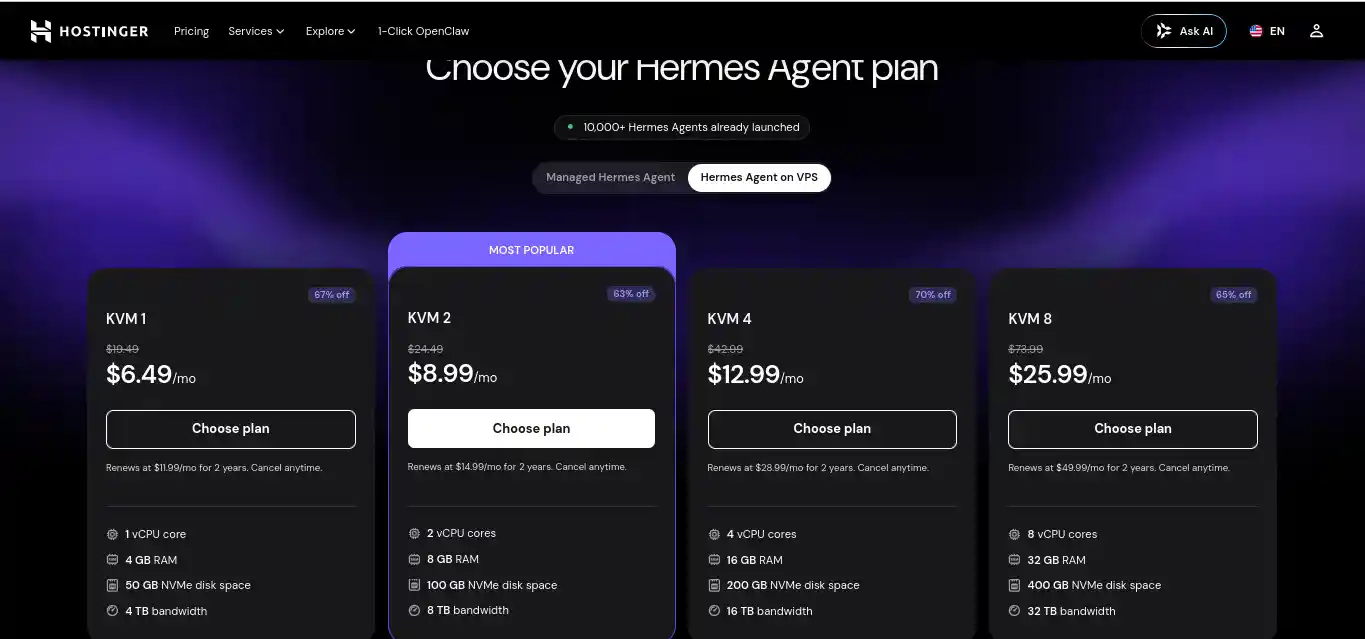
Open Hostinger and select the Hermes Agent application from the VPS templates. The application page explains the template and lets you choose a VPS plan. Pricing and available resources can change, so compare the current CPU, memory, storage, bandwidth, renewal terms, and server locations before continuing.
The template is the fastest path for this tutorial because Hostinger prepares the Docker-based application. If you choose a generic Ubuntu VPS instead, you will need to install and configure Hermes manually using the official installer or repository documentation.
Step 2: Choose the VPS Plan and Billing Term
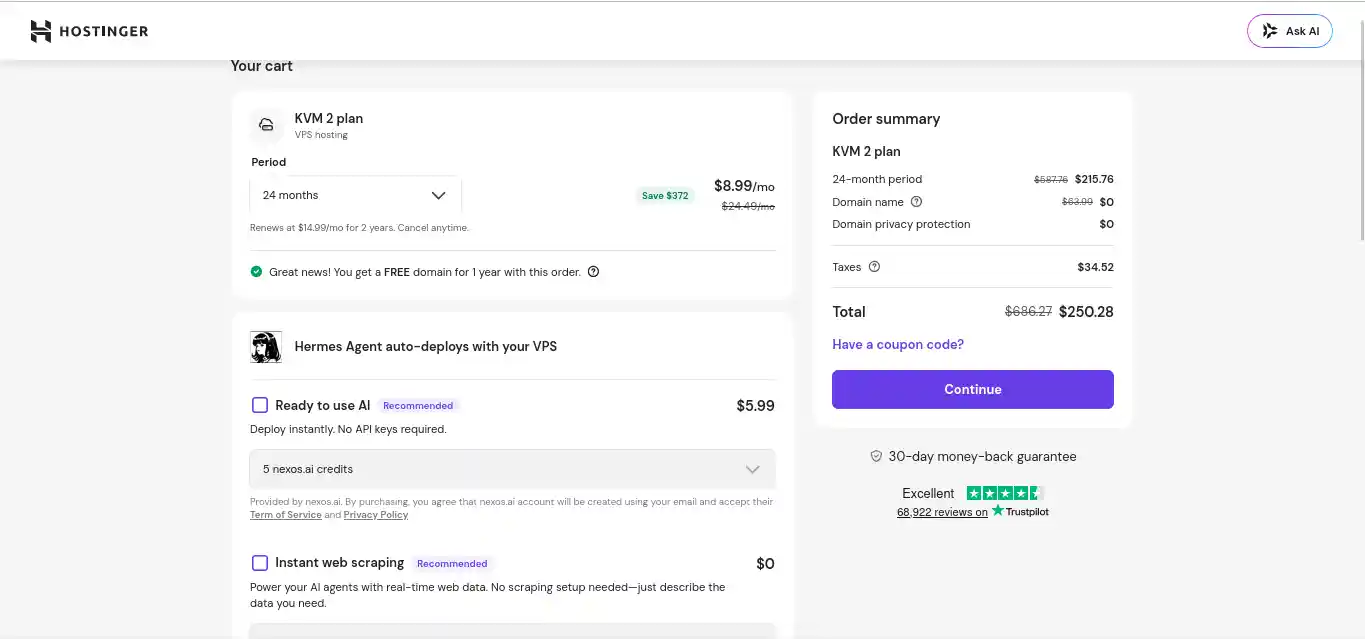
Select the plan that matches the number of users and tools you expect to run. A personal Telegram agent using a cloud LLM is lighter than a multi-user agent doing browser automation, local transcription, code execution, and concurrent scheduled tasks.
Review the order summary carefully. Introductory and renewal pricing can differ, and some billing terms require a larger upfront payment. Confirm the plan name, duration, region options, taxes, and total before checkout.
Step 3: Select a Server Location and Create Credentials
Choose a data-center location reasonably close to you or your main users. This can reduce terminal and Telegram response latency, although the LLM provider’s own network and model speed may have a larger effect on long agent tasks.
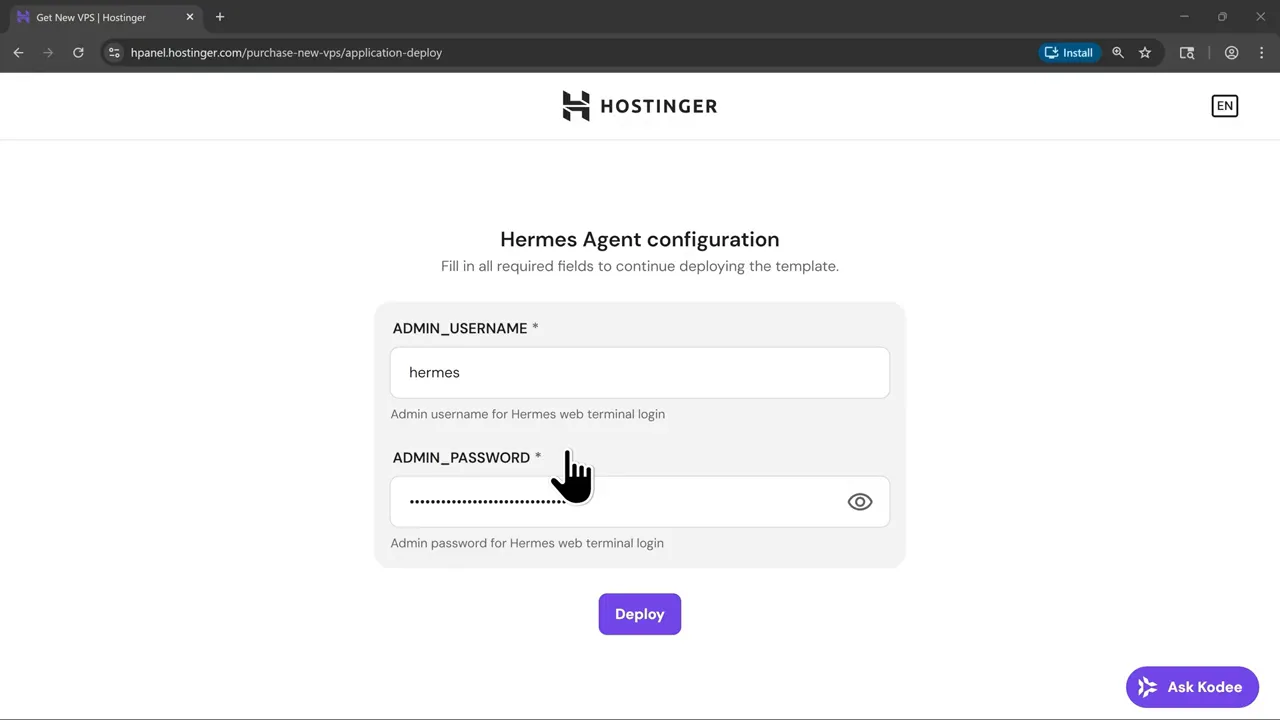
Hostinger then asks for the administrator username and password used by the deployment. Create a strong, unique password. Do not reuse your Hostinger account password, Telegram password, or model-provider password. Store the credential in a password manager and do not expose it in screenshots.
Step 4: Wait for the Docker Project to Deploy
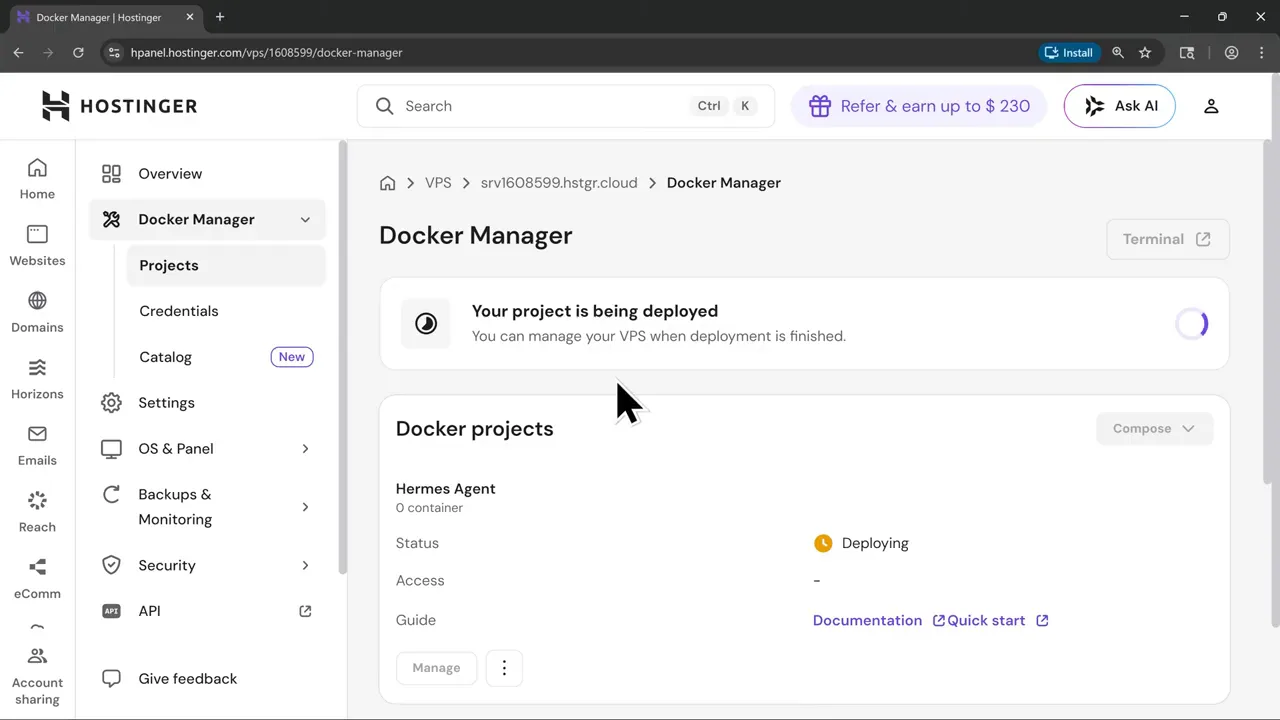
After provisioning, open the VPS dashboard and Docker Manager. Hostinger may show the project as deploying for several minutes while it downloads images, creates volumes, starts services, and performs health checks.
Wait until the project and its containers report a running or healthy state before entering the terminal. Starting the setup while deployment is incomplete can produce missing-container or connection errors.
Step 5: Open the VPS Terminal and Enter the Hermes Container
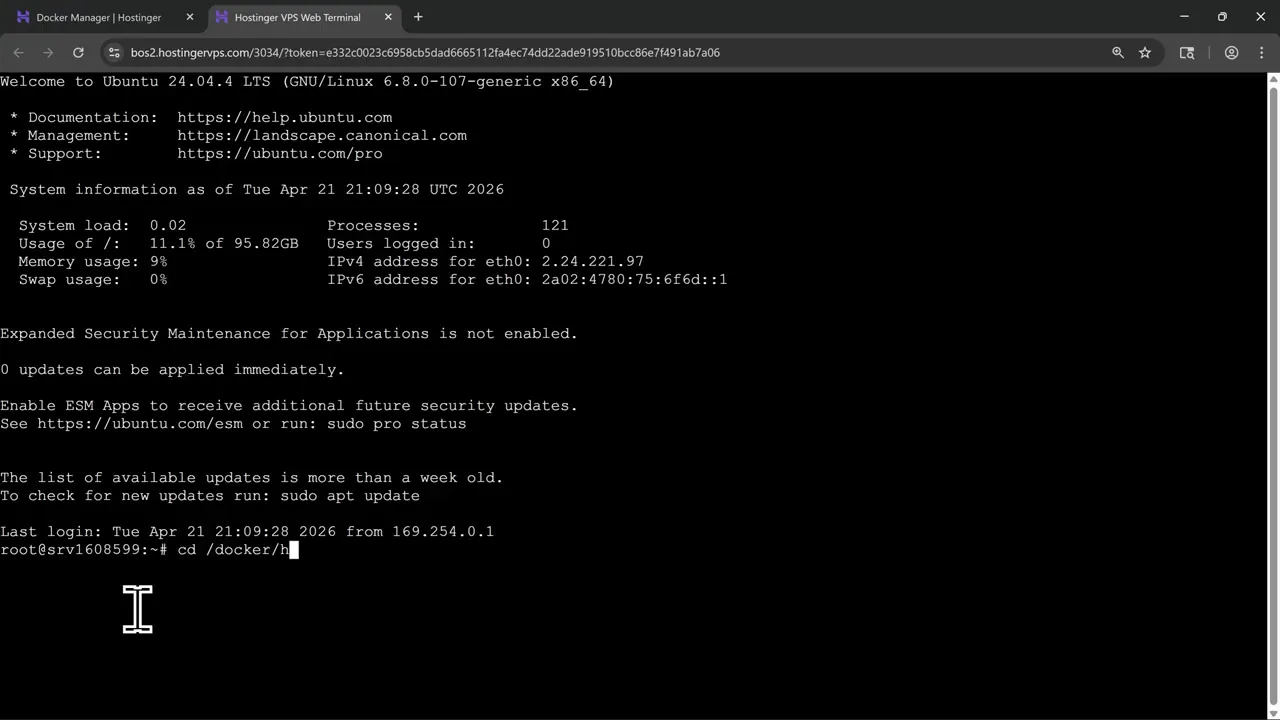
Open Hostinger’s browser-based VPS terminal. The template keeps its Docker project under a directory similar to /docker/hermes-agent-XXXX, where the final characters identify your project. Use the directory shown in your own Docker Manager or setup guide.
The first command opens the project directory. The second confirms that the services are running. The third starts an interactive shell inside the Hermes container. Names can differ between template revisions, so copy the current command shown by Hostinger if your project does not use hermes-agent as the service name.
Step 6: Run the Hermes Setup Wizard
Inside the container, launch the setup wizard:
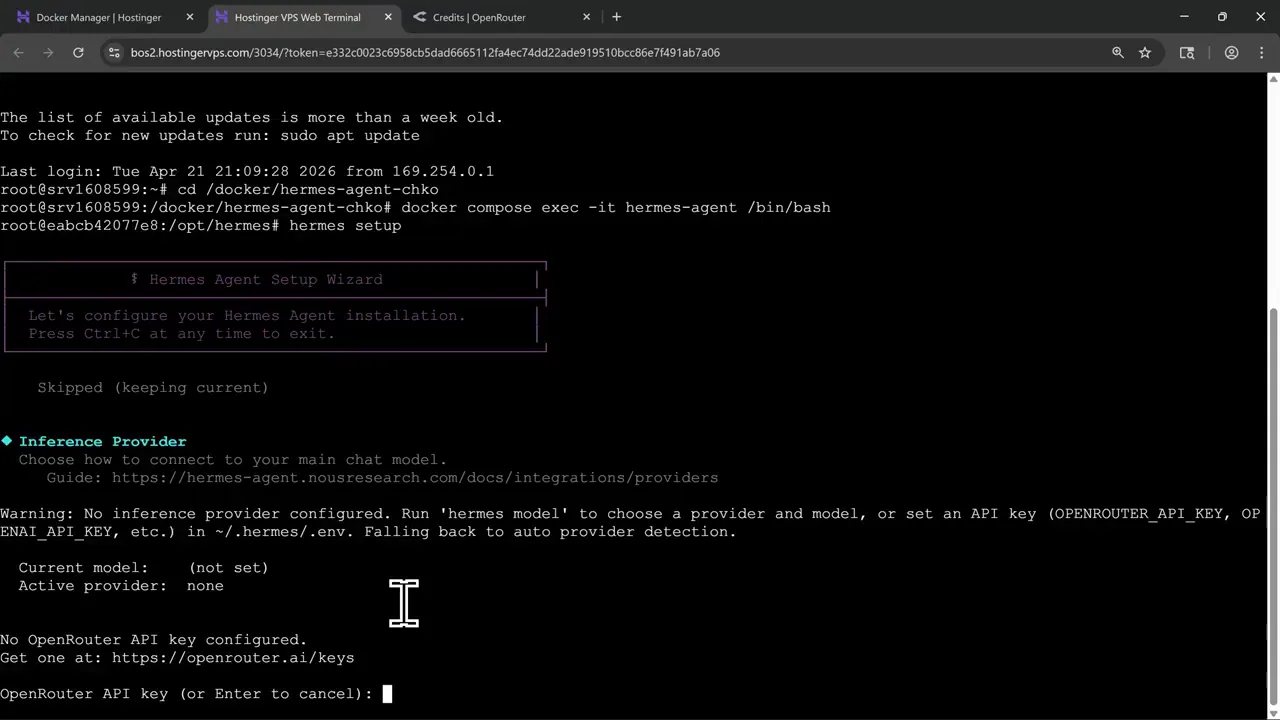
The wizard guides you through the model provider, model choice, optional tool APIs, messaging platform, and other settings. Read each prompt instead of accepting every option automatically. Start with one working model and a conservative toolset. Extra integrations are easier to add after the basic chat and gateway are stable.
Hermes stores secret values in ~/.hermes/.env and normal settings in ~/.hermes/config.yaml. Prefer the setup and configuration commands over manually pasting secrets into shell history.
Configure the Hermes Agent API and Model Provider
Hermes is model-agnostic, but it cannot answer or plan tasks until a model provider is configured. The reference video demonstrates OpenRouter, which provides one API compatible with a broad catalog of models. You can instead choose another provider supported by your current Hermes version.
| Provider Type | Authentication | Best For |
|---|---|---|
| OpenRouter | API key | Trying models from many providers through one account |
| Nous Portal | OAuth or subscription flow | Nous model access and bundled tool-gateway services |
| Direct model provider | Provider API key or supported OAuth | Direct billing and access to one provider’s model catalog |
| Custom compatible endpoint | Endpoint URL and optional key | Self-hosted or specialized OpenAI-compatible inference |
Create an OpenRouter API Key
- Create or sign in to your OpenRouter account.
- Add credit or configure billing if the chosen model is not free.
- Open the API keys section and create a new key.
- Give the key a recognizable name such as “Hermes Agent VPS.”
- Set a credit limit if the provider offers one.
- Copy the key once and store it securely.
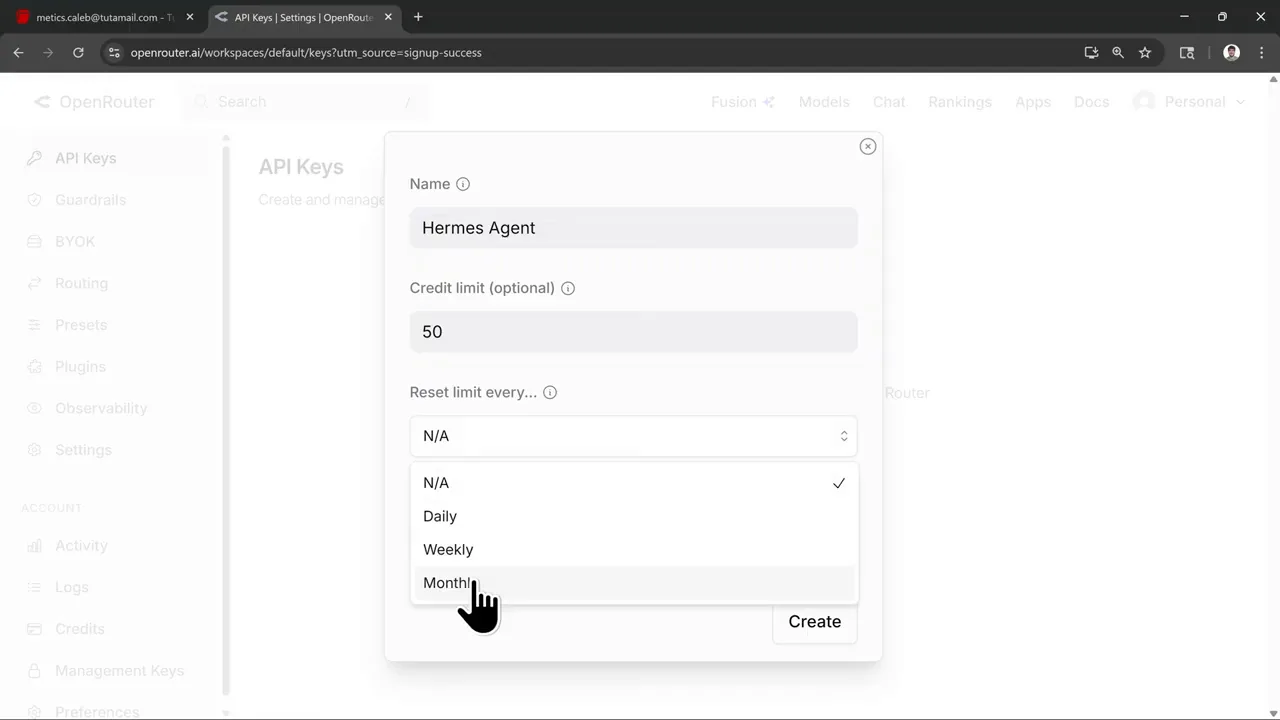
Return to the Hermes wizard, select OpenRouter, and enter the key when prompted. Then select a model with enough context for multi-step agent work. Current Hermes documentation states that a model should have at least a 64,000-token context window. Very small context windows can fail during long tool-calling sessions.
Test the Model Before Adding Telegram
Run a simple terminal conversation first. This separates model problems from gateway problems:
If Hermes cannot complete a normal terminal conversation, fix the provider key, model name, account credit, or endpoint before configuring Telegram. Adding a messaging platform to a broken model setup only creates another place to debug.
Cost control: Agentic tasks may make several model calls and use large contexts. Configure provider spending limits, monitor usage, choose an appropriate model, and avoid giving untrusted users access to your bot.
How to Connect Hermes Agent to Telegram
Telegram turns the VPS deployment into an assistant you can reach from a phone or desktop. Hermes uses a gateway process to receive messages, send them through the agent, and return responses or generated files.
Step 1: Create a Bot with BotFather
- Open Telegram and search for the verified @BotFather account.
- Send
/newbot. - Enter a display name, such as “My Hermes Agent.”
- Create a unique username that ends in
bot. - Copy the bot token returned by BotFather.
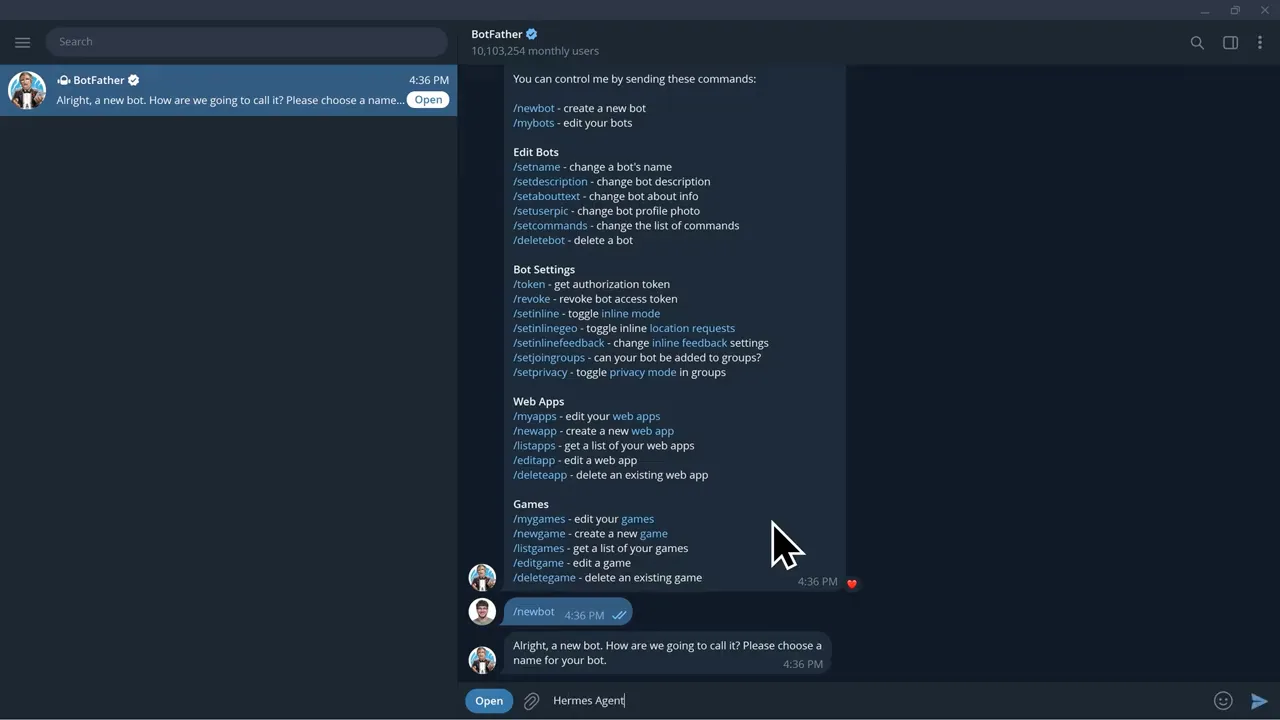
/newbot command. The username must be unique and end in “bot.”The token controls the bot. Do not include it in screenshots, public repositories, articles, chat messages, or support tickets. If it is exposed, use BotFather’s /revoke command and update Hermes with the replacement token.
Step 2: Find Your Numeric Telegram User ID
Your Telegram username is not the value used by the Hermes allowlist. You need your numeric user ID. The official Hermes documentation suggests messaging a user-information bot such as @userinfobot and saving the number it returns.
Step 3: Run the Gateway Setup
Inside the Hermes container, run:
Select Telegram, paste the bot token, and add your numeric user ID to the allowed-users list. Restricting access is essential because a Hermes bot can call models and use enabled tools at your expense.
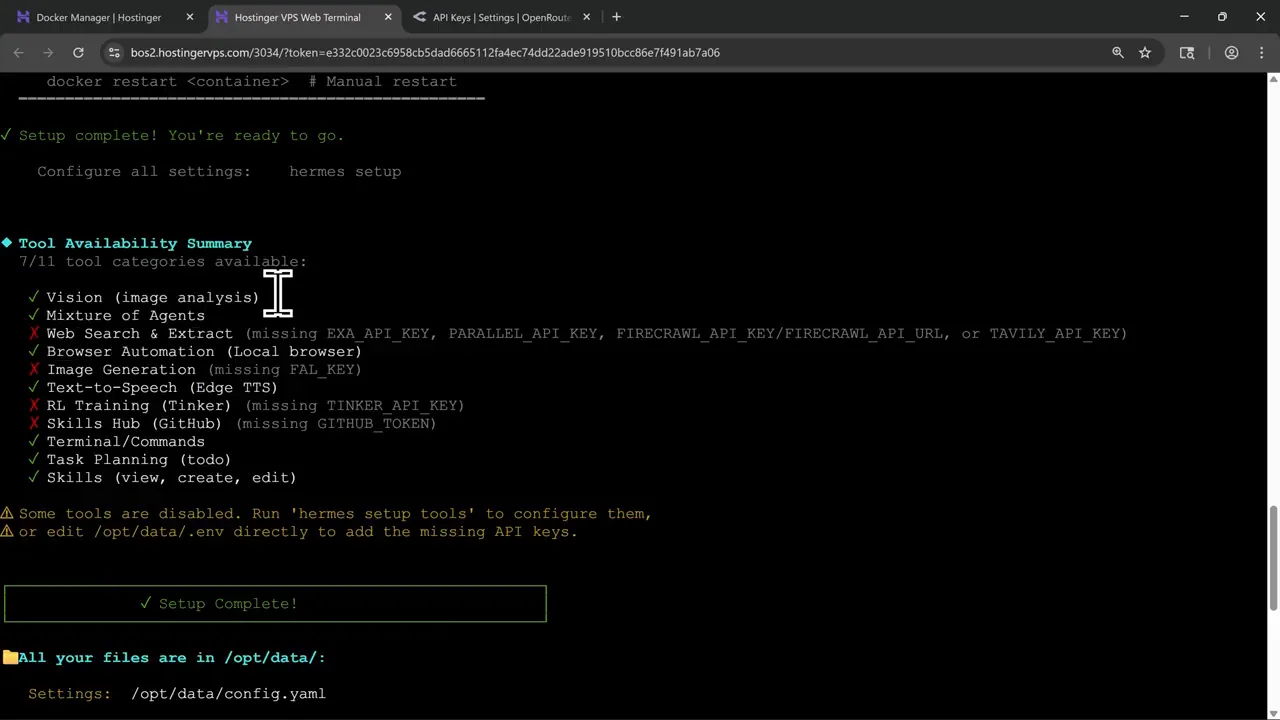
The equivalent secret configuration uses values similar to these in ~/.hermes/.env:
The interactive wizard is safer for most users because it reduces formatting mistakes and stores values in the intended location.
Step 4: Start or Restart the Gateway
Depending on the one-click template version, the gateway may be managed by the container automatically after setup. Use the current Hermes commands to inspect and restart it:
If your installed release uses the foreground command, run hermes gateway while testing. For a production VPS, use the service arrangement included with the Hostinger template so the gateway restarts after a container or server reboot.
Step 5: Test the Telegram Bot
Open the bot, press Start, and send a simple message such as:
A successful reply confirms that Telegram can reach the gateway, the allowed-user rule accepts your account, the provider key works, and the selected model can respond.
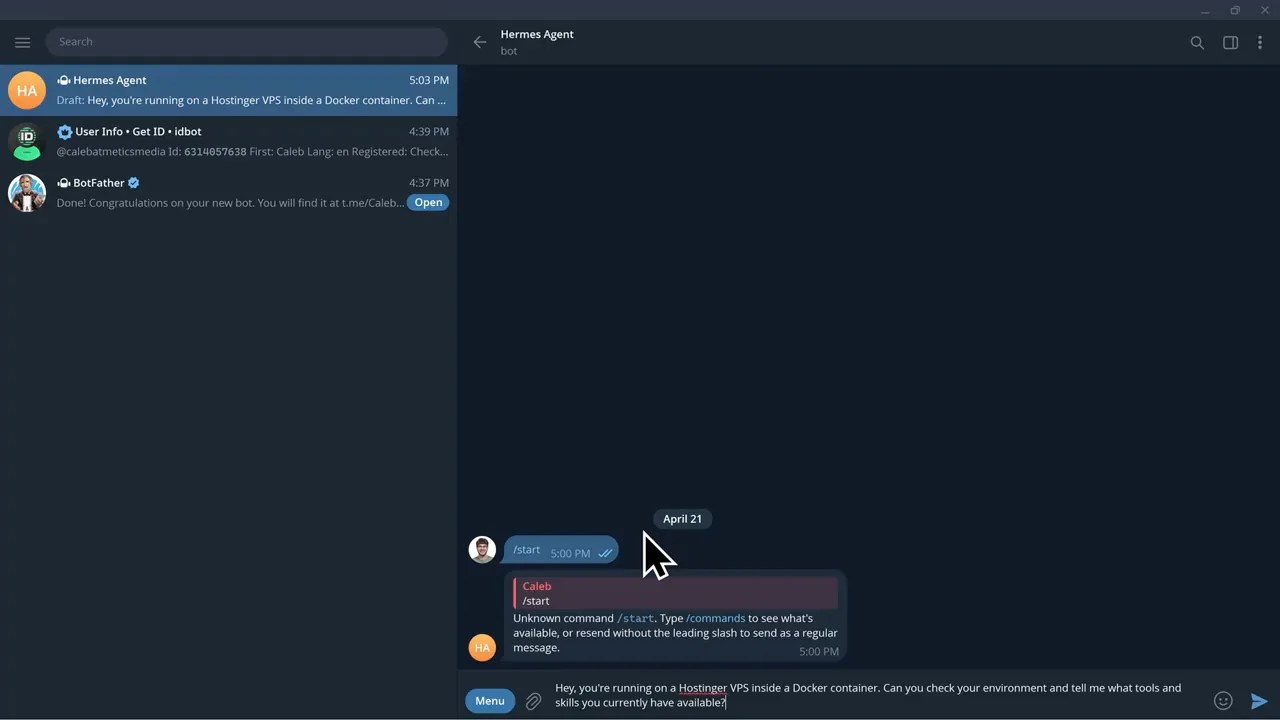
Build an Always-On Telegram AI Agent
Hostinger’s VPS keeps the Docker deployment online while you access Hermes from Telegram, the terminal, or other supported messaging platforms.
Secure Hermes Agent Before Real-World Use
A remote AI agent combines model output, tools, secrets, messaging inputs, persistent memory, and shell access. A VPS separates the agent from your personal computer, but it does not make every command or integration safe automatically.
Production security checklist:
- Use explicit Telegram user allowlists or the Hermes pairing system.
- Never enable global allow-all access for a private agent.
- Keep the terminal backend isolated with Docker for production workflows.
- Use separate, limited API keys for Hermes rather than sharing keys with other apps.
- Set provider spending limits and usage alerts.
- Keep secrets in
~/.hermes/.envand restrict file permissions. - Leave dangerous-command approval enabled.
- Do not use YOLO mode for an internet-connected general-purpose bot.
- Run the gateway as a non-root user where the template supports it.
- Limit CPU, memory, storage, and enabled tools.
- Review logs for unauthorized requests and recurring failures.
- Update Hermes, the Docker image, and the VPS operating system regularly.
Protect the Telegram Bot
Always set TELEGRAM_ALLOWED_USERS for a private deployment. Hermes denies users by default when no allowlist is configured, but explicitly confirming your own user ID makes the intended access clear. If you later add a group, review Telegram privacy mode, group allowlists, mention requirements, and admin permissions before inviting the bot.
Protect Model and Tool Credentials
Create a different API key for each environment. A key named for the Hermes VPS is easier to monitor and revoke than one shared across many applications. Never add provider keys, Telegram tokens, SSH keys, or passwords to prompts, screenshots, public GitHub repositories, or agent memory.
Keep Command Approvals Enabled
Hermes includes dangerous-command checks and a human approval flow. The default manual mode asks before commands matching destructive patterns. Do not disable this simply to make demonstrations faster. A model can misunderstand an instruction, a web page can contain prompt injection, and a legitimate tool can still receive a damaging argument.
Start with Fewer Tools
Only enable tools that support a real use case. A research assistant may need web search and file writing but not infrastructure credentials. A development agent may need repository access but not unrestricted access to every server directory. Least privilege makes both mistakes and attacks less expensive.
Update, Monitor, and Back Up Hermes Agent
An always-on agent is a small production service. Plan for updates, logs, backups, resource monitoring, and recovery before important workflows depend on it.
Useful Hermes Commands
| Command | Purpose |
|---|---|
hermes doctor | Diagnose missing, stale, or invalid configuration. |
hermes model | Change provider, authentication, or selected model. |
hermes tools | Review and configure enabled tools. |
hermes gateway status | Check the messaging gateway. |
hermes gateway restart | Restart messaging after a configuration change. |
hermes update | Update Hermes to the latest supported release. |
hermes sessions list | Inspect saved conversations and sessions. |
Use Docker Manager and Logs
Hostinger Docker Manager is useful for checking container state, viewing logs, and confirming whether a deployment or restart completed. If Telegram suddenly stops responding, determine whether the container is down before rotating keys or changing the agent configuration.
Back Up Persistent Data
Back up the Hermes configuration, memory, skills, session data, and any important workspace files stored in persistent volumes. Protect backups because they may contain private conversation history and operational context. Do not place unencrypted secrets in a public backup location.
Test Reboots
Restart the VPS during a maintenance window and confirm that Docker, Hermes, and the messaging gateway recover automatically. An agent that only works until the first reboot is not truly an always-on service.
What Can You Do with Hermes Agent on a VPS?
- Research assistant: gather sources, summarize documents, and prepare recurring briefings.
- Development helper: inspect repositories, write code, run tests, and report results through Telegram.
- Content workflow: draft outlines, process transcripts, organize assets, and prepare publishing checklists.
- Scheduled reports: deliver daily or weekly updates through the configured home channel.
- Server monitoring: inspect logs and service health within deliberately limited permissions.
- File processing: receive documents or media, run workflows, and return generated files.
- Reusable skills: teach the agent repeatable procedures for tools and business processes.
- Multi-platform assistant: connect the same gateway to additional supported messaging services.
Start with one narrow workflow and observe how the agent behaves. Broad autonomy sounds attractive, but a focused assistant is easier to evaluate, secure, and improve.
Common Hermes Agent Hostinger VPS Problems
Docker project remains in “Deploying” state
Give the initial image download time to finish, then inspect project and container logs in Docker Manager. Check available disk space, memory, and network errors. Avoid repeatedly redeploying before identifying the failure.
The Docker project directory does not exist
Copy the current path from Hostinger’s application setup guide or Docker Manager. The XXXX portion in example commands is a placeholder, not text you should type literally.
The Hermes service name is not found
Run docker compose ps in the project directory and use the service name shown by your own Compose file. Template names can change between releases.
Hermes opens but does not answer
Run hermes doctor, then recheck the model provider, selected model, API key, account credit, endpoint, and context-window requirement. Test the CLI before troubleshooting Telegram.
OpenRouter returns an authentication or credit error
Create a valid API key, ensure the account can use the selected model, and verify that the key was pasted without extra spaces. Review provider usage limits and billing status.
Telegram bot does not respond
Check the bot token, numeric allowed-user ID, model configuration, container status, and gateway logs. Run:
Telegram says the user is unauthorized
Your numeric ID is missing or incorrect. Do not use the public username beginning with @. Confirm the number and rerun hermes gateway setup or update the allowed-user setting.
The bot works in direct messages but ignores a group
Telegram privacy mode is enabled by default. Depending on your goal, mention the bot, reply to it, make it a group admin, or adjust privacy mode and Hermes group allowlists. If you change BotFather privacy settings, official Hermes guidance notes that you may need to remove and re-add the bot to the group.
Settings disappear after the container restarts
Confirm that the template mounts the Hermes home and configuration directories to persistent storage. Changes made only inside an ephemeral container filesystem can disappear when the container is recreated.
API usage is unexpectedly expensive
Review the selected model, context size, scheduled tasks, allowed users, and tool behavior. Disable unused automations, set provider limits, and choose a more economical model for routine work.
Frequently Asked Questions
Can I install Hermes Agent on a Hostinger VPS?
Yes. Hostinger provides a one-click Hermes Agent application that deploys the Docker project on a VPS. You still configure the model provider, credentials, tools, and messaging platforms.
Does Hermes Agent need an API key?
Hermes needs access to a supported model. Many providers use API keys, while some support OAuth or subscription-based authentication. Optional tools such as web search, transcription, or image generation may require additional credentials.
Can I use OpenRouter with Hermes Agent?
Yes. OpenRouter is a supported option and is demonstrated in the reference video. Create a dedicated key, add credit if required, select OpenRouter in the Hermes model setup, and choose a compatible model with sufficient context.
How do I connect Hermes Agent to Telegram?
Create a bot with the official BotFather, save its token, find your numeric Telegram user ID, and run hermes gateway setup. Select Telegram, enter the token, and restrict access to your user ID.
Can Hermes Agent run continuously?
Yes. An always-on VPS and properly managed Docker service let the agent and messaging gateway continue running when your personal computer is offline. Test that the service recovers after container and VPS restarts.
Is Hermes Agent free?
Hermes Agent is open-source, but the VPS, model API, and optional tools can cost money. Total cost depends on the Hostinger plan, selected model, token usage, enabled services, storage, and workload frequency.
Is Hermes Agent safe to expose publicly?
Do not make a tool-enabled agent publicly accessible without careful authorization, rate limits, isolation, monitoring, and threat modeling. For a personal setup, keep Telegram access restricted to your numeric user ID and begin with minimal tools.
How do I update Hermes Agent?
Use hermes update when supported by the installed release and follow Hostinger’s current template update instructions. Back up persistent data first, then run hermes doctor and test the gateway after updating.
Final Thoughts
Hostinger’s one-click template makes the infrastructure side of Hermes Agent much more approachable. The reliable workflow is to deploy the VPS application, wait for Docker to become healthy, enter the container, configure one model provider, test the terminal chat, connect Telegram, restrict access, and only then add more tools or automation.
The model API and Telegram token are only part of the setup. A useful long-running agent also needs spending limits, command approvals, isolation, logs, updates, backups, and a narrow initial purpose. Set those foundations early and the VPS becomes a practical home for an assistant you can reach from anywhere.
Deploy Your Hermes Agent
Use Hostinger’s prepared VPS template to launch the Docker application, then follow the API, Telegram, and security steps in this guide.
Related Guides
Expand your Hermes deployment with portable workflows, alternative agents, frontend architecture, analytics, and business planning:
- Use a USB drive as a portable AI agent for a Hermes workspace you can carry between trusted computers.
- Follow the OpenClaw Hostinger tutorial to compare a different always-on agent stack.
- Build microfrontends on Cloudflare for multi-framework interfaces served from one domain.
- Add Google Analytics to an Astro site when you need reliable GA4 tracking for your web frontend.
- Read the guide to becoming your own bank for a risk-aware look at capital, liquidity, and business structure.
Video credit: This article is inspired by the Hermes Agent VPS tutorial from Metics Media X on YouTube. The written guide is original, substantially expanded for SEO and security, and cross-checked against the current official Hermes Agent documentation. Screenshots were extracted from the local video supplied for this article.