How to Make a WordPress Theme with Google Antigravity
Google Antigravity can design an animated frontend, split it into WordPress PHP templates, repair asset paths, create an installable ZIP, and help diagnose theme errors. This guide follows that workflow from a BerryBurst product concept to a live WordPress theme, then adds the technical checks that separate a compelling demo from a theme you can safely maintain.
Quick Answer
To make a WordPress theme with Google Antigravity, first generate and test a clean HTML, CSS, and JavaScript version of the website. Then ask Antigravity to convert, not redesign, that frontend into a classic WordPress theme with style.css, functions.php, header.php, footer.php, front-page.php, index.php, and supporting templates. Require WordPress hooks, enqueued assets, dynamic template URLs, menu support, secure escaping, and an installable ZIP. Place style.css directly in the theme folder, ZIP that single folder, upload it through Appearance > Themes, and test it on staging before activation.
The phrase “no-code WordPress theme” needs a little precision. In the video, the creator does not manually write the PHP, CSS, or JavaScript. Google Antigravity writes and modifies those files. Code still exists, and WordPress still executes it. You are delegating coding, not eliminating it.
That distinction matters because a theme can upload and look correct while still containing hardcoded content, insecure output, broken archive templates, duplicated libraries, inaccessible navigation, or functionality that belongs in a plugin. Antigravity dramatically shortens the build process, but the person publishing the theme remains responsible for reviewing and testing the result.
Related tutorials:
- How to Build a Futuristic 3D Website with AI for a more advanced visual and animation workflow.
- How to Build a WordPress Website Using Claude Design and Elementor if you prefer a page-builder-centered workflow.
- How to Build a Website with Google AI Studio for Gemini-based prompt-to-code development.
- How to Create a Website with AI for planning, content, design, SEO, and launch fundamentals.
- How to Create a Website Using Google Antigravity for the broader Antigravity website workflow.
What Is Google Antigravity?
Google Antigravity is an agentic development environment that can plan work, create and edit files, run terminal commands, open a browser, inspect results, and iterate. For theme creation, that means the agent can handle both the visual frontend and the mechanical conversion into WordPress PHP templates.
The useful part is not merely that it writes code. Antigravity can see the project as a system: HTML structure, stylesheets, scripts, image assets, PHP templates, file paths, and the final ZIP. You can ask it to preserve the design while changing the runtime from a static page to WordPress.
Use a staging environment: Antigravity can move quickly and make broad changes. Build locally or on staging, keep backups, and never give an experimental agent unrestricted access to a live store or membership site.
Is This a Classic Theme or a Block Theme?
The workflow in the video creates a classic WordPress theme. You can identify it from files such as header.php, footer.php, front-page.php, single.php, and archive.php. Classic themes primarily use PHP templates, WordPress hooks, CSS, and JavaScript.
A block theme is structured differently. Its templates are block markup files inside /templates, template parts live inside /parts, and theme.json controls global settings and styles. Both approaches are valid. Do not ask Antigravity to mix the two accidentally.
| Question | Classic Theme | Block Theme |
|---|---|---|
| Main templates | PHP files such as index.php and single.php | Block markup in /templates/*.html |
| Header and footer | header.php and footer.php | /parts/header.html and /parts/footer.html |
| Visual editing | Customizer, widgets, menus, plugins, or custom controls | Site Editor, templates, patterns, and Global Styles |
| Best fit for this video | Yes | No; it would require a different conversion brief |
What You Need Before Starting
- Google Antigravity: installed and able to create files, run a local preview, and package the project.
- Detailed prompt: use the shared BerryBurst prompt as a framework, then replace the brand, content, sections, and assets.
- Reference direction: describe what you like without copying another brand’s logo, wording, product art, or protected assets.
- Product assets: logo, hero image, product images, icons, fonts, and licensed media.
- WordPress staging site: never make the first activation on an important live website.
- Backup: include both files and database before switching themes.
- Theme name and slug: use a unique, lowercase folder slug such as
berryburst-theme. - Browser testing: test Chrome, Firefox, Safari, Edge, mobile widths, and reduced motion.
Video inspiration credit: This article is inspired by the tutorial from Posimyth Innovations on YouTube. The written guide is original and expands the video workflow with current WordPress theme structure, packaging, security, testing, performance, SEO, staging, and maintenance guidance.
Need a Safe WordPress Staging Site?
Use Hostinger WordPress hosting, create or restore a staging copy, and install the AI-generated theme there before touching production.
How to Make a WordPress Theme with Google Antigravity: Step by Step
Step 1: Define the Website Before You Define the Theme
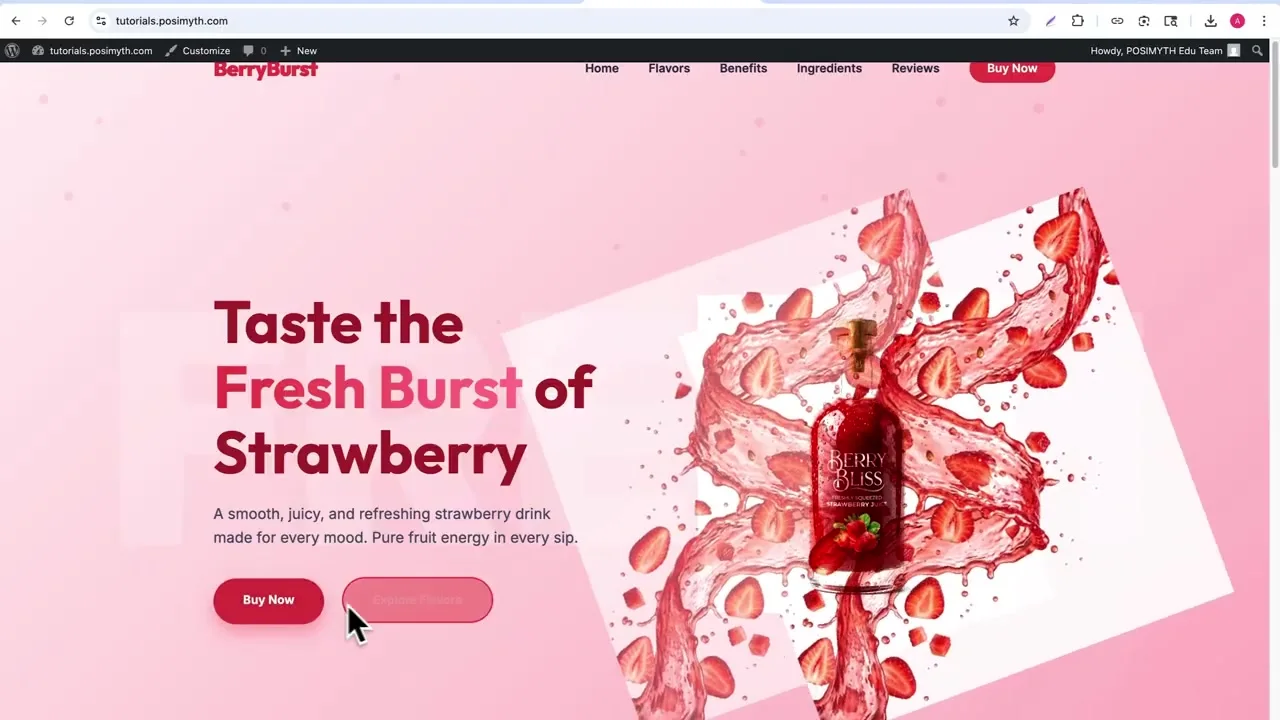
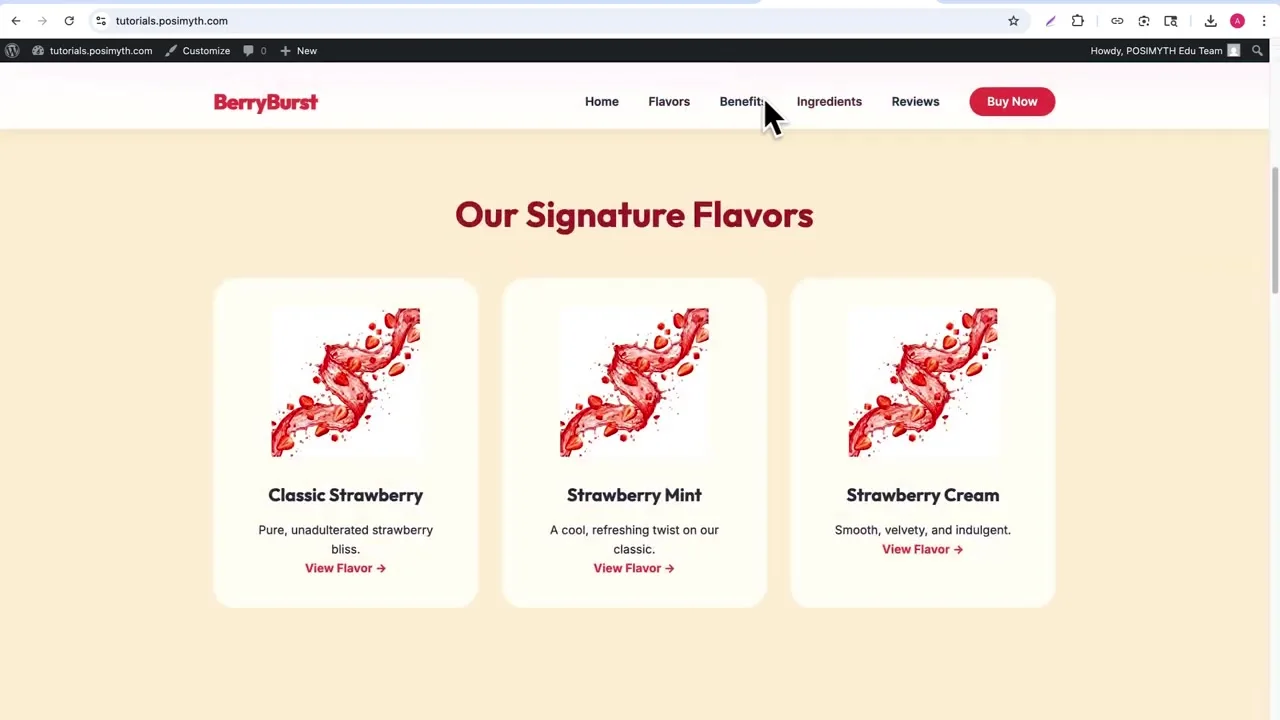
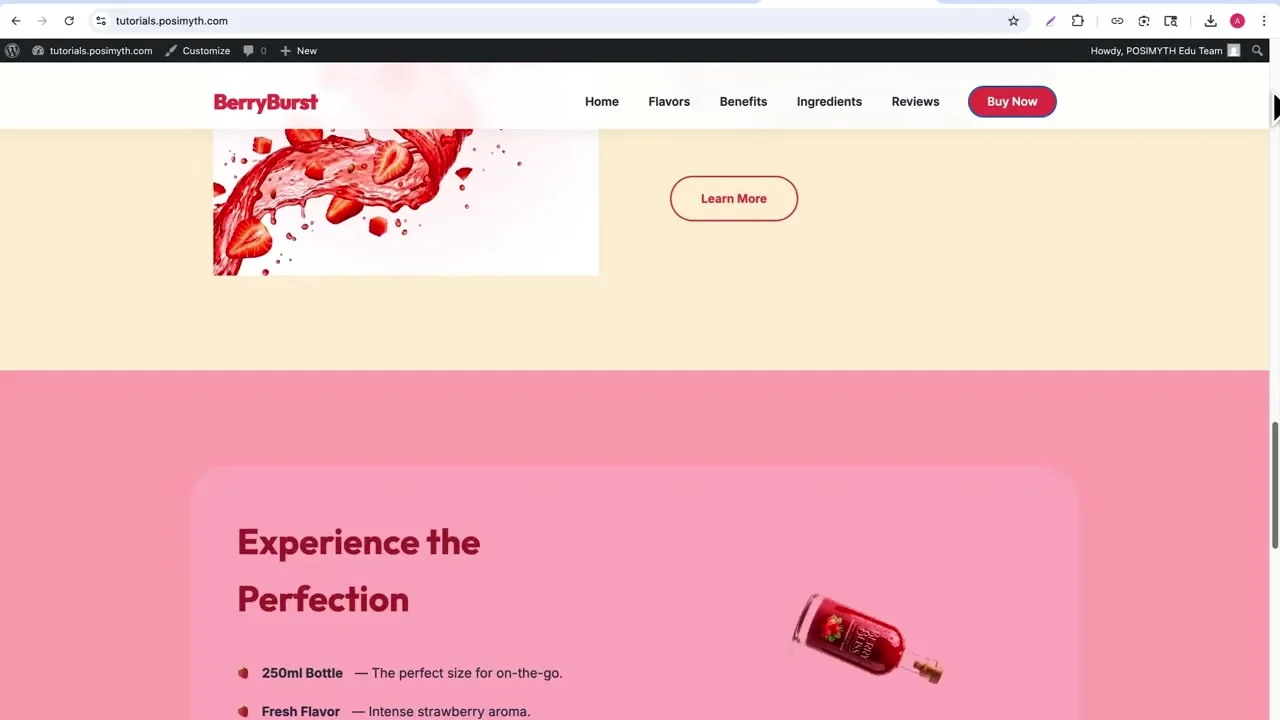
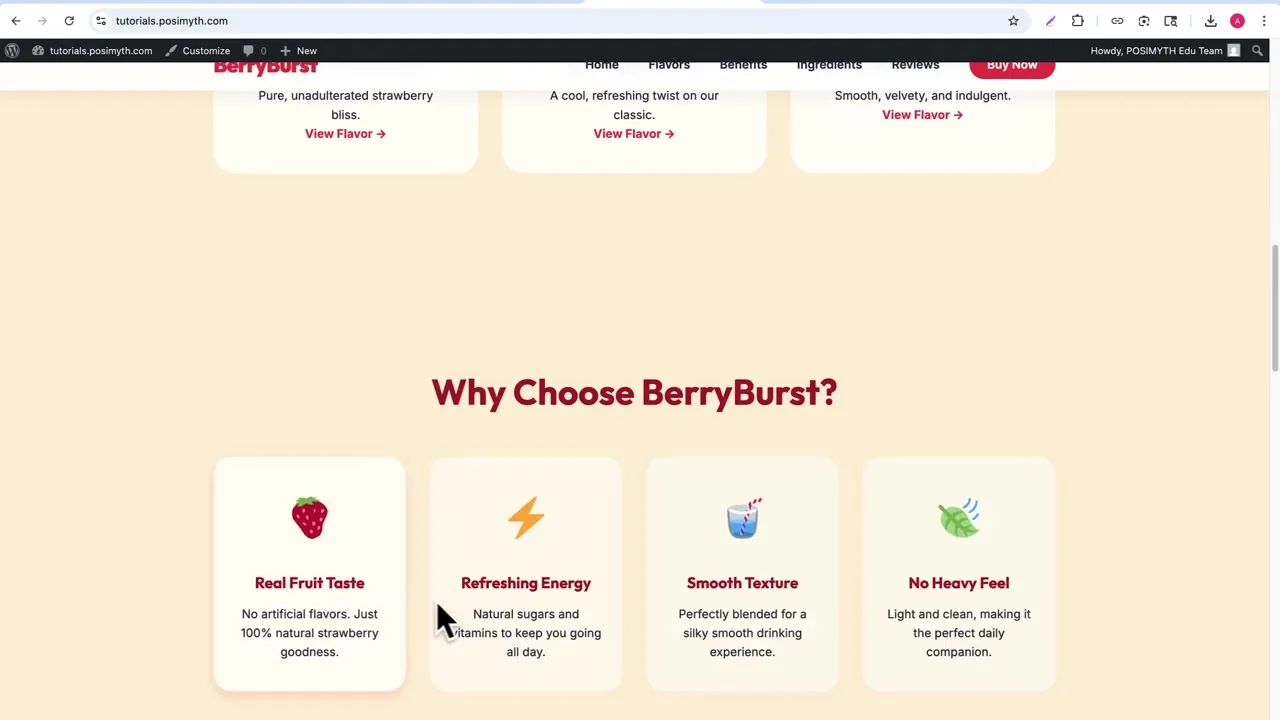
The shared prompt begins with a premium animated strawberry drink website called BerryBurst. It describes the reference boundaries, product theme, visual mood, color palette, site goal, navigation, nine sections, animation behavior, responsive requirements, and a simple HTML/CSS/JavaScript stack.
This order is smart. Antigravity first solves the design and interaction problem in a simple frontend. Only after the frontend works does it solve the WordPress integration problem.
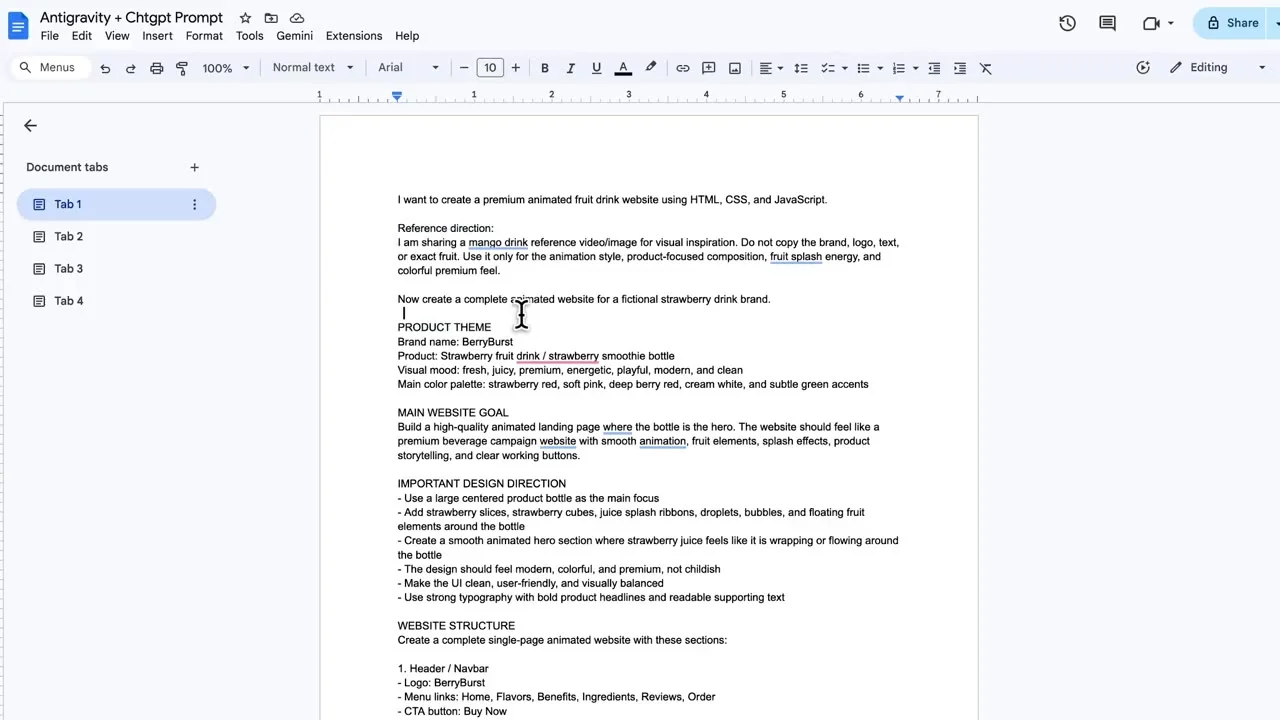
Use the full shared prompt as a planning reference. Rewrite it for your project rather than changing only the brand name.
Step 2: Create a Clean Project Folder
Create a new folder for the static prototype. Ask Antigravity to start with:
berryburst-static/
├── index.html
├── style.css
├── script.js
└── assets/
    ├── images/
    ├── fonts/
    └── icons/
Keep filenames lowercase, avoid spaces, and use relative paths. A predictable static structure makes the later conversion easier because Antigravity can move assets into the theme without rewriting a framework build pipeline.
Step 3: Give Antigravity the Frontend Prompt
Paste the project brief, attach or copy the relevant reference assets, and tell Antigravity to create a complete responsive frontend. Be explicit that the reference is inspiration only and should not be copied. Require working navigation, hover states, smooth scrolling, optimized animations, semantic HTML, and mobile behavior.
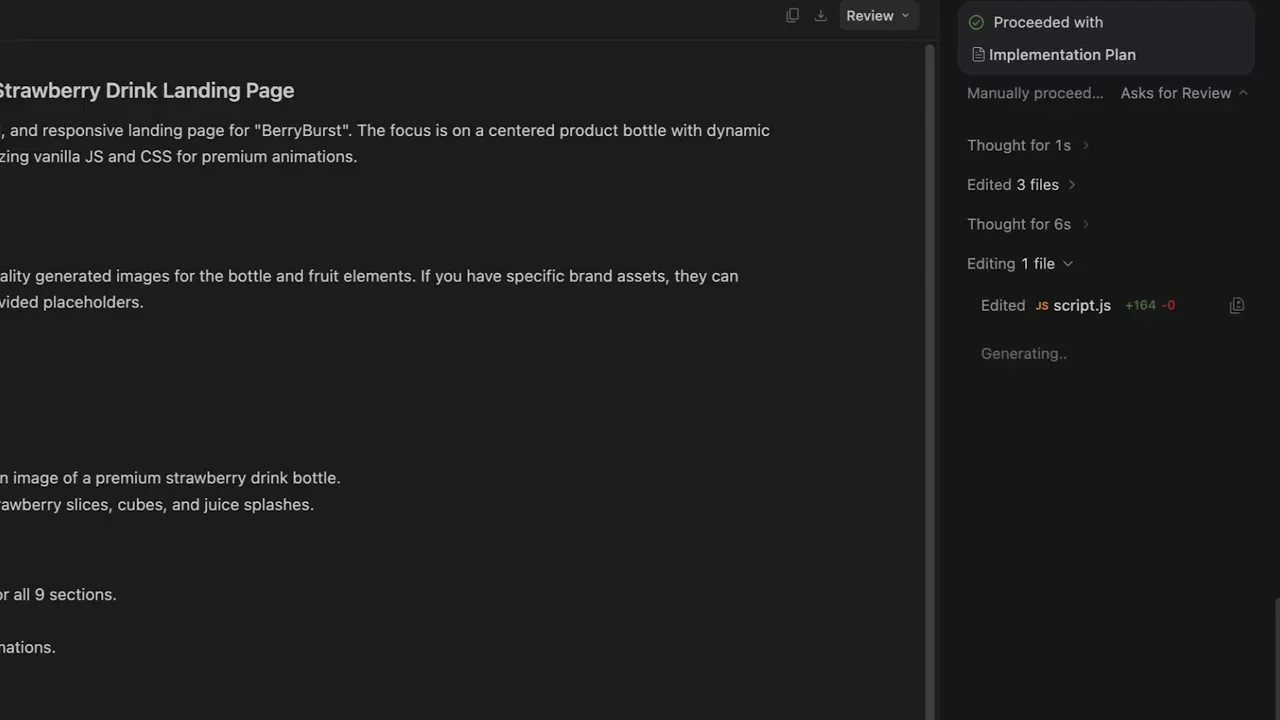
Ask the agent to produce an implementation plan before broad edits. Review the proposed structure, dependencies, animation approach, generated placeholders, and acceptance criteria. If the plan introduces React or a complex build tool when you requested vanilla JavaScript, correct it before implementation.
Step 4: Test the Static Website Thoroughly
Open the static site in a browser and test it before WordPress conversion. Check every navigation link, button, hover state, animation, section anchor, image path, and breakpoint. Confirm that the page still communicates the product when JavaScript is delayed or reduced motion is enabled.
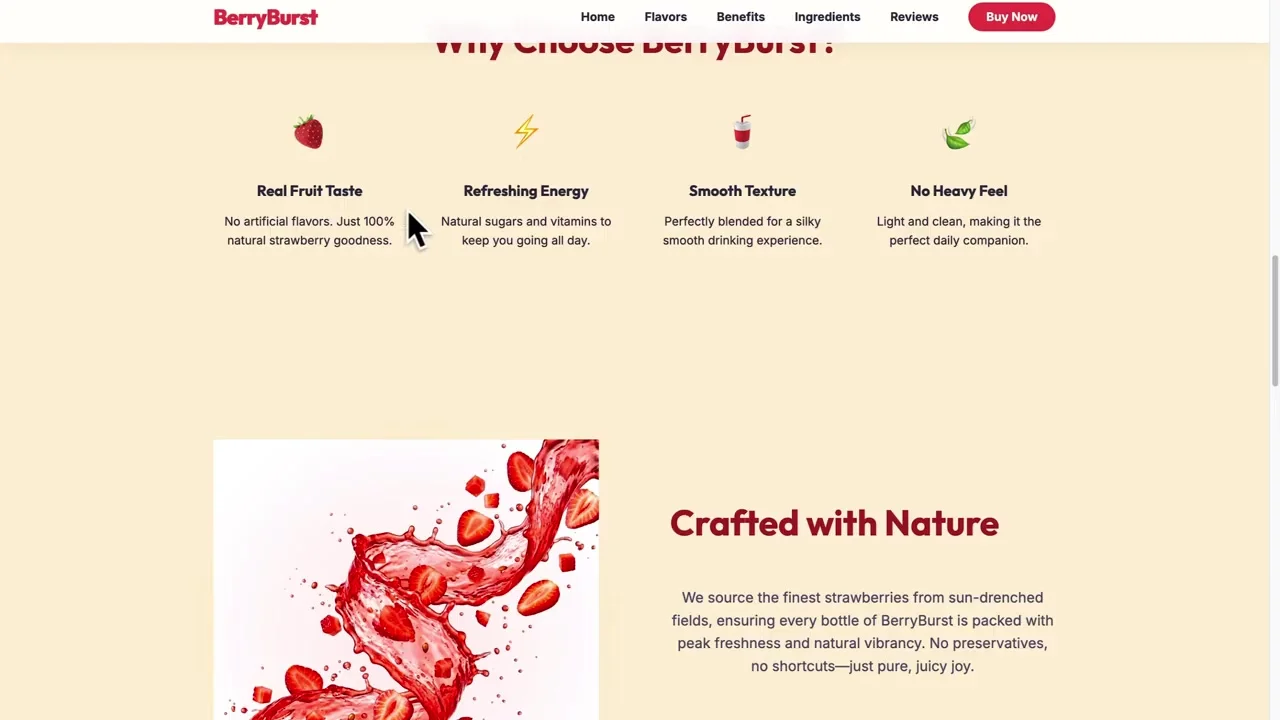
Do not continue just because the homepage looks attractive. Resize the browser, use keyboard navigation, inspect the console, throttle the connection, and confirm images have useful dimensions and alt text.
Step 5: Ask Antigravity to Convert, Not Redesign
Create a copy of the working static project before conversion. Then give Antigravity a narrow WordPress brief. The key phrase from the video is: your task is conversion, not redesign.
Convert the existing working frontend into an installable classic WordPress theme.

This task is conversion, not redesign.
Preserve the current layout, content, responsive behavior, and animations.

Create:
- style.css with a valid WordPress theme header
- functions.php
- header.php and footer.php
- front-page.php
- index.php, page.php, single.php, archive.php, 404.php
- comments.php
- screenshot.png
- organized assets/css, assets/js, and assets/images folders

WordPress requirements:
- Call wp_head(), wp_body_open(), and wp_footer() in the correct locations
- Use body_class(), language_attributes(), bloginfo(), home_url(), and wp_nav_menu()
- Register a primary menu and custom logo support
- Enqueue CSS and JavaScript through wp_enqueue_scripts
- Use get_template_directory_uri() for theme assets
- Use the Loop and the_content() in standard content templates
- Escape dynamic output and translate user-facing theme strings
- Keep forms, ecommerce, custom post types, and other portable functionality out of the theme
- Preserve any animation dependency without loading it twice

Packaging:
- Put style.css directly in the theme root
- Create one ZIP containing one theme folder
- Do not include an extra parent folder
- The theme must upload and activate without PHP errors
- The front page must visually match the approved static site
Step 6: Review the Generated Theme Structure
Do not jump directly to the ZIP. Ask Antigravity to print the final directory tree and summarize what every file does. Open the PHP files and confirm they are real WordPress templates rather than renamed HTML files.
The agent should move shared document markup into header.php and footer.php, place the product landing page in front-page.php, and use the template hierarchy for posts, pages, archives, and errors. Styles and scripts should load through functions.php.
Step 7: Create the Installable Theme ZIP
Ask Antigravity to create the ZIP only after the theme tree passes review. The video shows the agent producing berryburst-theme.zip and listing the created files. Preserve the uncompressed source folder as well; the ZIP is a deployment artifact, not your only copy.
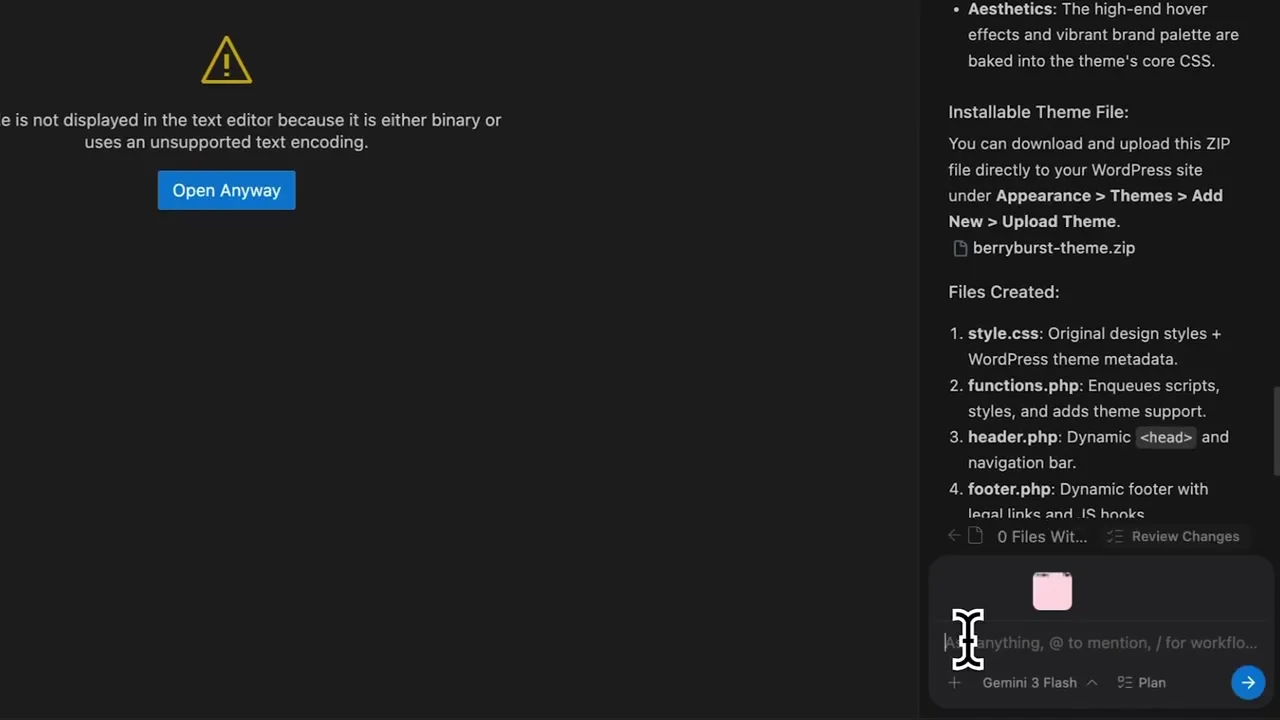
WordPress Theme Files Antigravity Should Create
| File | Purpose | What to Verify |
|---|---|---|
style.css | Theme metadata and base styles | Located in root; valid Theme Name header; correct text domain |
functions.php | Theme setup, supports, menus, and asset enqueueing | Unique prefixes; no plugin-type business logic; no duplicate libraries |
header.php | Document head, opening body, header, navigation | wp_head(), wp_body_open(), language and body attributes |
footer.php | Footer markup and closing document | wp_footer() immediately before closing body |
front-page.php | Product landing page shown on the site front | Preserved design, dynamic URLs, editable fields where required |
index.php | Final fallback in the classic template hierarchy | Uses the Loop and handles no-content state |
page.php | Standard WordPress pages | Outputs titles and the_content() |
single.php | Individual blog posts | Post title, content, metadata, navigation, comments as intended |
archive.php | Category, tag, date, author, and other archives | Correct archive title, Loop, pagination, and empty state |
404.php | Missing-page template | Useful message, home/search path, real 404 response from WordPress |
comments.php | Comments and threaded discussion | Required if comments are supported; secure and accessible output |
screenshot.png | Theme preview in Appearance > Themes | Accurate preview, suitable dimensions, no unrelated branding |
Minimum style.css Header
/*
Theme Name: BerryBurst
Theme URI: https://example.com/berryburst/
Author: Your Name
Author URI: https://example.com/
Description: An animated product theme for a strawberry drink brand.
Version: 1.0.0
License: GNU General Public License v2 or later
License URI: https://www.gnu.org/licenses/gpl-2.0.html
Text Domain: berryburst
*/
Add Requires at least, Tested up to, and Requires PHP values only after testing those versions. Do not claim compatibility based only on the AI’s output.
Enqueue Assets Instead of Hardcoding Them
function berryburst_enqueue_assets() {
    $version = wp_get_theme()->get( 'Version' );

    wp_enqueue_style(
        'berryburst-style',
        get_stylesheet_uri(),
        array(),
        $version
    );

    wp_enqueue_script(
        'berryburst-script',
        get_template_directory_uri() . '/assets/js/script.js',
        array(),
        $version,
        true
    );
}
add_action( 'wp_enqueue_scripts', 'berryburst_enqueue_assets' );
If the design uses GSAP or another library, enqueue it as a dependency and verify its license. Do not load one copy from the theme and another from a plugin or page builder.
How to Package the Theme ZIP Correctly
The most instructive moment in the video is the failure. The Themes screen lists several broken themes with “Stylesheet is missing.” The final design is not the problem; the package structure is.
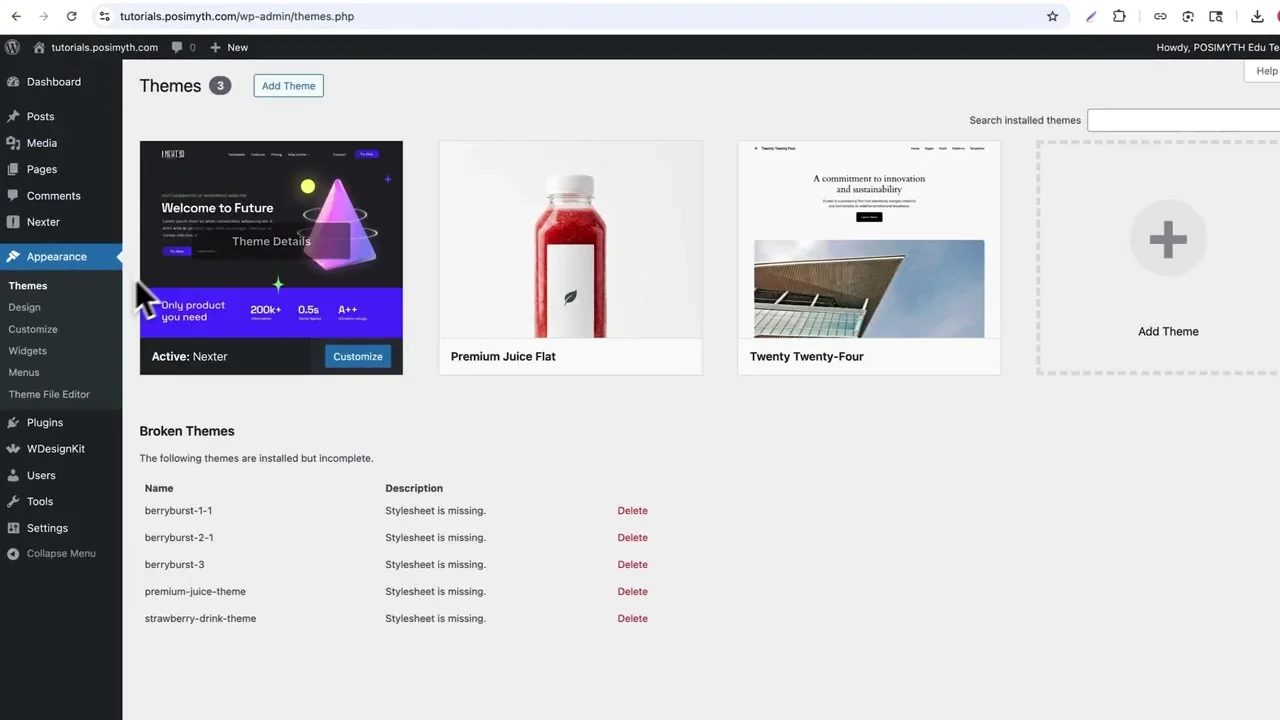
style.css is missing from the expected theme root or lacks a valid theme header.Correct ZIP Structure
berryburst-theme.zip
└── berryburst-theme/
    ├── style.css
    ├── functions.php
    ├── header.php
    ├── footer.php
    ├── front-page.php
    ├── index.php
    ├── page.php
    ├── single.php
    ├── archive.php
    ├── 404.php
    ├── comments.php
    ├── screenshot.png
    └── assets/
Common Broken Structure
berryburst-theme.zip
└── berryburst-export/
    └── berryburst-theme/
        └── style.css
The extra parent folder can make WordPress inspect the wrong level. Other causes include naming the file styles.css, putting it inside /assets/css, zipping only the contents incorrectly, or omitting the required theme header comment.
Fix the package, not WordPress: When you see “The theme is missing the style.css stylesheet,” inspect the ZIP structure first. Reinstalling WordPress or changing permissions will not fix an incorrectly nested archive.
Install the Antigravity Theme in WordPress
- Create a backup and staging copy.
- Open WordPress admin.
- Go to Appearance > Themes.
- Choose Add New Theme, then Upload Theme.
- Select the corrected theme ZIP.
- Click Install Now.
- Use Live Preview before activation.
- Activate only after critical templates and admin access work.
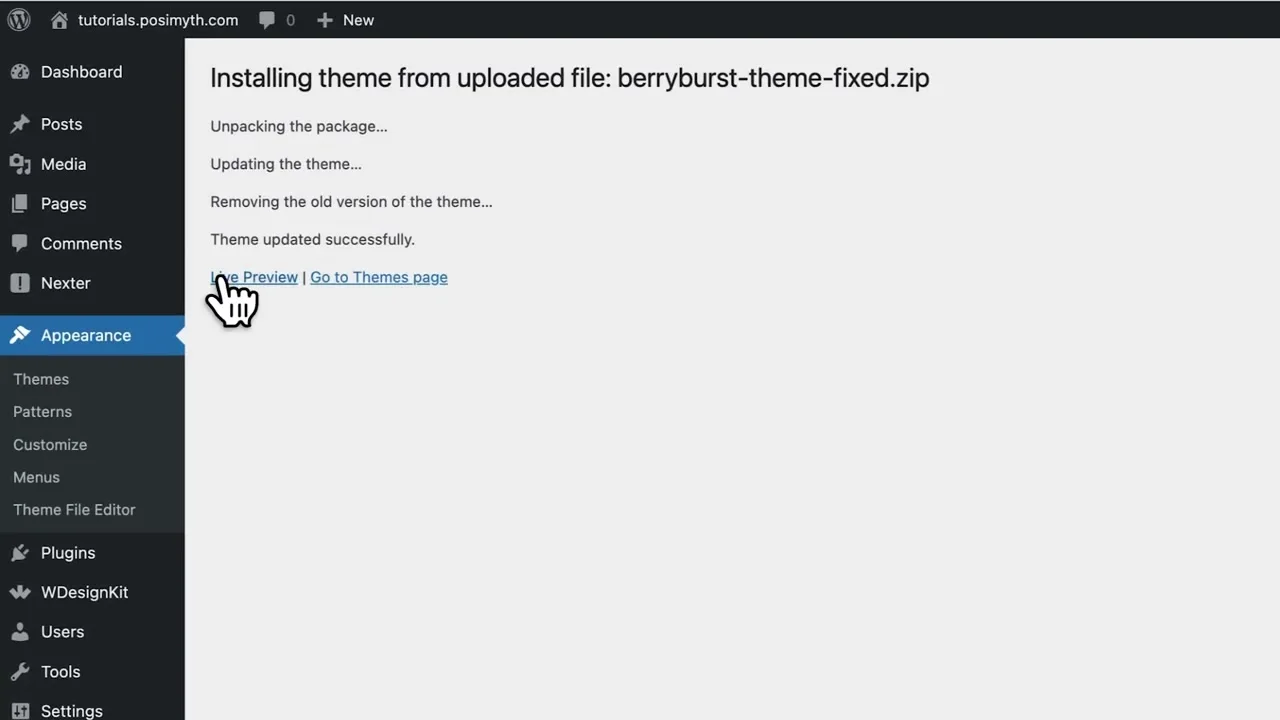
After activation, visit the homepage while logged in and logged out. Test a normal page, post, archive, search, 404 URL, navigation menu, and the Customizer or Site settings provided by the theme.
Install WordPress and Test on Staging
Host the theme on a managed WordPress setup, keep a recovery point, and validate the generated code before making it public.
Make the AI-Generated Theme Editable
A static HTML page converted to front-page.php can still be mostly hardcoded. It is technically a WordPress theme, but a non-technical editor may not be able to change the hero, flavors, benefits, images, or CTA without editing PHP.
Decide what should be editable:
- Site identity: use Custom Logo and Site Title support.
- Navigation: register a menu location and output it with
wp_nav_menu(). - Page copy: use normal WordPress page content, block patterns, or carefully registered Customizer settings.
- Product cards: use a suitable ecommerce or content plugin rather than embedding product data in the theme.
- Contact and order forms: use a maintained form or commerce plugin with spam protection and secure processing.
- Reusable sections: consider block patterns, custom blocks, or Elementor templates when editors need layout control.
Theme vs Plugin Boundary
A theme controls presentation. Functionality that should survive a theme switch belongs in a plugin. Custom post types, order processing, payment logic, reviews data, analytics integrations, lead storage, and complex forms should not disappear when you activate another theme.
If your preferred workflow is visual editing, read how to build a WordPress website using Claude Design and Elementor. Elementor compatibility requires the theme to output normal WordPress content and avoid fighting the page builder with rigid wrappers and global CSS.
Security Checks for an AI-Generated WordPress Theme
WordPress themes output database content, URLs, attributes, HTML, and sometimes forms. Treat every dynamic value according to its context.
- Escape text with
esc_html()or translated escaping helpers. - Escape HTML attributes with
esc_attr(). - Escape links and image sources with
esc_url(). - Use
wp_kses_post()only when trusted post-style HTML is expected. - Sanitize and validate input before saving it.
- Use nonces for form actions, but do not treat a nonce as authorization.
- Check capabilities with
current_user_can()for privileged actions. - Prefer WordPress APIs over direct database queries.
- Remove debugging output, hardcoded credentials, and agent notes.
- Review every third-party script, font, image, and license.
Static marketing sections are lower risk than admin settings, file uploads, AJAX endpoints, or custom database writes. If Antigravity adds those features, the review scope increases substantially.
WordPress Theme Testing Checklist
WordPress recommends testing with a development environment, debugging enabled, Theme Unit Test data, Theme Check, HTML/CSS validation, JavaScript console review, and target browsers.
| Area | What to Test | Typical AI-Generated Failure |
|---|---|---|
| Installation | Fresh upload, activation, update, rollback | Nested ZIP, missing stylesheet, PHP fatal error |
| Templates | Front page, page, post, archive, search, 404, comments | Everything falls back to one hardcoded landing page |
| Content | Long titles, galleries, quotes, tables, embeds, empty content | Overflow or unreadable default blocks |
| Responsive design | 320px to wide desktop, zoom, orientation, admin bar | Header hidden behind admin bar or hero overflow |
| Accessibility | Keyboard, focus, landmarks, contrast, reduced motion, labels | Animated page works only with mouse movement |
| JavaScript | Console errors, missing assets, duplicate libraries, no-JS fallback | Static paths work locally but fail in the theme directory |
| Performance | Image weight, animation cost, fonts, requests, Core Web Vitals | Large splash assets and animation loops overload mobile devices |
| Security | Escaping, sanitization, nonces, capabilities, dependencies | Raw dynamic output or unprotected custom forms |
Enable Debugging on Staging
define( 'WP_DEBUG', true );
define( 'WP_DEBUG_LOG', true );
define( 'WP_DEBUG_DISPLAY', false );
Inspect wp-content/debug.log, then disable or adjust debugging for production. Also test while the WordPress admin bar is present; the video includes a header-spacing correction because fixed headers can sit underneath the admin toolbar.
SEO and Performance for the Finished Theme
SEO Foundations
- Add
add_theme_support( 'title-tag' )and let WordPress or the SEO plugin manage titles. - Use one descriptive H1 per page and logical headings below it.
- Output semantic landmarks: header, nav, main, article, aside, and footer.
- Do not hardcode canonical tags or schema that becomes wrong on posts and archives.
- Ensure pages and posts use
the_content()so SEO plugins and blocks work normally. - Add internal links, accurate alt text, policy pages, author information, and useful 404/search experiences.
Animation Performance
- Compress product and splash images to WebP or AVIF.
- Set explicit width and height to reduce layout shift.
- Animate transforms and opacity rather than layout-heavy properties.
- Pause animations when off-screen and respect
prefers-reduced-motion. - Load critical hero assets intentionally and lazy-load below-the-fold media.
- Avoid shipping multiple animation libraries for effects CSS can handle.
For more ambitious motion design, see how to build a futuristic 3D website with AI. For the general content and launch process, use the companion guide on how to create a website with AI.
Launch the Antigravity WordPress Theme on Hostinger
After the theme passes staging tests, create a fresh backup and deploy it during a low-traffic window. On Hostinger, you can install WordPress through hPanel, use a staging environment on supported plans, upload the ZIP through WordPress admin, or manage theme files through File Manager, SFTP, SSH, or WP-CLI.
Keep the previous theme installed until the new one is proven. If activation causes a fatal error, rename the new theme folder through File Manager or SFTP so WordPress can fall back, then restore the last working version.
Give the Custom Theme a Managed WordPress Home
Use Hostinger for WordPress installation, SSL, backups, staging, domain management, and the final theme deployment.
Frequently Asked Questions
Can Google Antigravity create a WordPress theme?
Yes. It can generate the PHP templates, stylesheet metadata, JavaScript, asset directories, WordPress hooks, and ZIP package. You still need to audit the output against WordPress standards and test it before production.
Can I really make the theme without coding?
You can prompt Antigravity to write and repair the code without typing it manually. That is a no-manual-coding workflow, not a code-free product. Someone still needs to understand the theme structure, inspect errors, review security, and maintain the generated files.
Why does WordPress say “Stylesheet is missing”?
Make sure style.css is directly inside the theme folder, uses that exact filename, contains a valid WordPress theme header, and is not hidden beneath an extra parent directory inside the ZIP.
Is the generated theme compatible with Elementor?
It can be, but the theme should output normal WordPress page content, register expected supports, provide sensible full-width layouts, and avoid rigid global styles. Hardcoded front-page.php sections do not automatically become editable Elementor widgets.
Should I create a classic or block theme?
Use a classic theme when you want the PHP template workflow shown in the video. Choose a block theme when Site Editor control, block templates, patterns, and theme.json are central requirements. State the architecture clearly in your prompt.
Can I sell or submit the AI-generated theme?
Potentially, but first verify code and asset licensing, GPL compatibility, originality, translation readiness, accessibility, security, documentation, updates, and the destination marketplace’s review rules. Passing installation is not equivalent to passing a theme review.
Can I host the theme on Hostinger?
Yes. Install WordPress, create a backup or staging copy, upload the theme ZIP through Appearance > Themes, preview it, and activate after testing. Hostinger also provides file and command-line options for troubleshooting.
How do I update the theme later?
Keep the source in version control, increment the theme version, test the update on staging, take a backup, and upload the corrected package. Do not edit the production copy without recording the change or it will be lost during future replacements.
Final Thoughts
The reliable Antigravity workflow is two-stage: build a clean static site, then convert the approved frontend into WordPress. Separating those stages makes failures easier to understand and helps the agent preserve the design instead of improvising during theme integration.
The video also offers the right practical lesson: expect iteration. A missing stylesheet, incorrect ZIP level, admin-bar overlap, or broken asset path is not unusual. Fix the root cause, rebuild the package, and retest. With a disciplined prompt, correct theme structure, staging environment, and real WordPress QA, Antigravity can turn a visual concept into a maintainable custom theme much faster than a blank-file workflow.
Build on Staging, Then Launch with Confidence
Use the shared prompt to plan the theme, let Antigravity handle the first implementation, and use Hostinger for a managed WordPress staging and production workflow.
Related Guides
Video inspiration credit: This article is inspired by Posimyth Innovations and the video I Made a WordPress Theme with Google Antigravity – No Code.