OpenClaw Hostinger Tutorial: How to Set Up OpenClaw on a Hostinger VPS
Learn how to set up OpenClaw on a Hostinger VPS, create a secure gateway token, connect an AI model, use the browser Control UI, pair Telegram, test the agent, and harden the deployment before giving it real work.
Quick Answer
To set up OpenClaw on a Hostinger VPS, choose Hostinger’s one-click OpenClaw deployment, select a VPS plan and server location, generate a long random OPENCLAW_GATEWAY_TOKEN, and add one supported AI provider key. Deploy the Docker project, open the OpenClaw Control UI using the URL and token supplied by Hostinger, complete the assistant’s initial identity setup, and test the browser chat. For Telegram, create a bot with @BotFather, add its token to OpenClaw, message the bot, and approve the pairing code.

OpenClaw is a self-hosted gateway for an AI assistant that can operate across chat applications, browser tools, files, sessions, skills, cron jobs, and connected services. Instead of keeping the assistant inside one website, OpenClaw lets you reach it through surfaces such as Telegram, WhatsApp, Slack, Discord, Signal, WebChat, and other supported channels.
A Hostinger VPS gives OpenClaw an always-on home. The agent can remain available when your personal computer is asleep, and the one-click template removes most of the manual Node.js, Docker, gateway, and service deployment work. The convenience is real, but it does not remove your responsibility for API costs, gateway security, channel access, backups, software updates, or the permissions given to the agent.
Comparing self-hosted AI agents?
- Read How to Set Up Hermes Agent on Hostinger VPS for another model-agnostic, Telegram-capable agent deployment and a practical comparison of the setup experience.
What Is OpenClaw?
OpenClaw is an open-source, self-hosted AI assistant gateway. The gateway is the control plane for sessions, channels, routing, tools, and agent activity. You connect an AI model provider, configure one or more messaging channels, and interact with the assistant through the browser Control UI or the communication apps you already use.
Official OpenClaw documentation describes support for channels including Telegram, WhatsApp, Slack, Discord, Signal, Google Chat, Microsoft Teams, Matrix, iMessage, WebChat, and others. It also includes multi-agent routing, persistent sessions, memory, media support, browser and node capabilities, cron jobs, and a skill system.
The project is model-flexible. You can configure authentication for supported commercial providers or compatible endpoints. The Hostinger video demonstrates Anthropic, while the deployment form also provides fields for providers such as OpenAI, Google Gemini, and xAI. You only need one working provider to begin.
OpenClaw is not an ordinary chatbot: Tools can read and write files, operate browsers, run commands, and use connected accounts. Treat every inbound message, webpage, email, skill, and uploaded document as potentially untrusted.
Why Set Up OpenClaw on Hostinger VPS?
OpenClaw is designed around an always-running gateway. A VPS is useful because it supplies persistent compute, storage, networking, and remote administration without requiring a computer in your home or office to stay powered on.
Hostinger’s one-click deployment is especially helpful for beginners because it prepares the Docker application and exposes management through hPanel and Docker Manager. The template collects the gateway token and common provider keys before deployment, then starts the stack for you.
| Option | Advantages | Tradeoffs |
|---|---|---|
| Hostinger one-click OpenClaw VPS | Prepared Docker template, browser management, persistent server, fast onboarding | VPS and API costs; server security still needs attention |
| Manual VPS installation | Maximum control over networking, service files, versions, and proxy setup | Requires Linux, Node.js, Docker, firewall, and update experience |
| Personal computer | Direct access to local files and no separate VPS bill | Assistant stops when the computer sleeps or loses connectivity |
| Dedicated local device | Physical control and local-network integration | Hardware cost, power, connectivity, and maintenance responsibility |
The one-click option simplifies installation, not governance. You still decide which model receives your prompts, who can message the agent, what tools are enabled, which accounts are connected, and how recovery works if the deployment is compromised or damaged.
Launch the Prepared OpenClaw VPS Template
Use Hostinger’s one-click deployment to prepare the Docker project, then follow the gateway, model, Control UI, and Telegram steps below.
What You Need Before Starting
Prepare these items:
- Hostinger account: required for VPS checkout and hPanel.
- VPS plan: choose enough memory and CPU for the gateway, Docker, tools, and expected users.
- Random gateway token: a long secret used to authenticate the web interface and gateway clients.
- One AI provider: the video uses Anthropic, but you can choose another supported provider.
- Provider API key: use a dedicated key with budget controls when possible.
- Telegram account: required if you want to follow the messaging section.
- Password manager: store the gateway token, provider key, bot token, and server credentials.
- Clear first use case: start with one limited workflow instead of broad autonomy.
Choosing VPS Resources
OpenClaw normally sends inference to a cloud model provider, so the VPS does not need a GPU for a standard setup. It does need enough RAM for the Node.js gateway, Docker, browser automation, logs, connected services, and concurrent sessions.
A private assistant with one channel and cloud inference is lighter than a team deployment with several agents, browser sessions, cron jobs, local speech processing, and many skills. Leave resource headroom and watch actual memory, CPU, disk, and network use after launch. If you plan to run a local model on the same VPS, the hardware requirement increases dramatically.
Open Hostinger Before Following Along
Select the automatic OpenClaw VPS deployment and keep this guide available while you create the gateway token and provider credentials.
How to Set Up OpenClaw on a Hostinger VPS: Step by Step
Step 1: Choose Hostinger’s OpenClaw Deployment
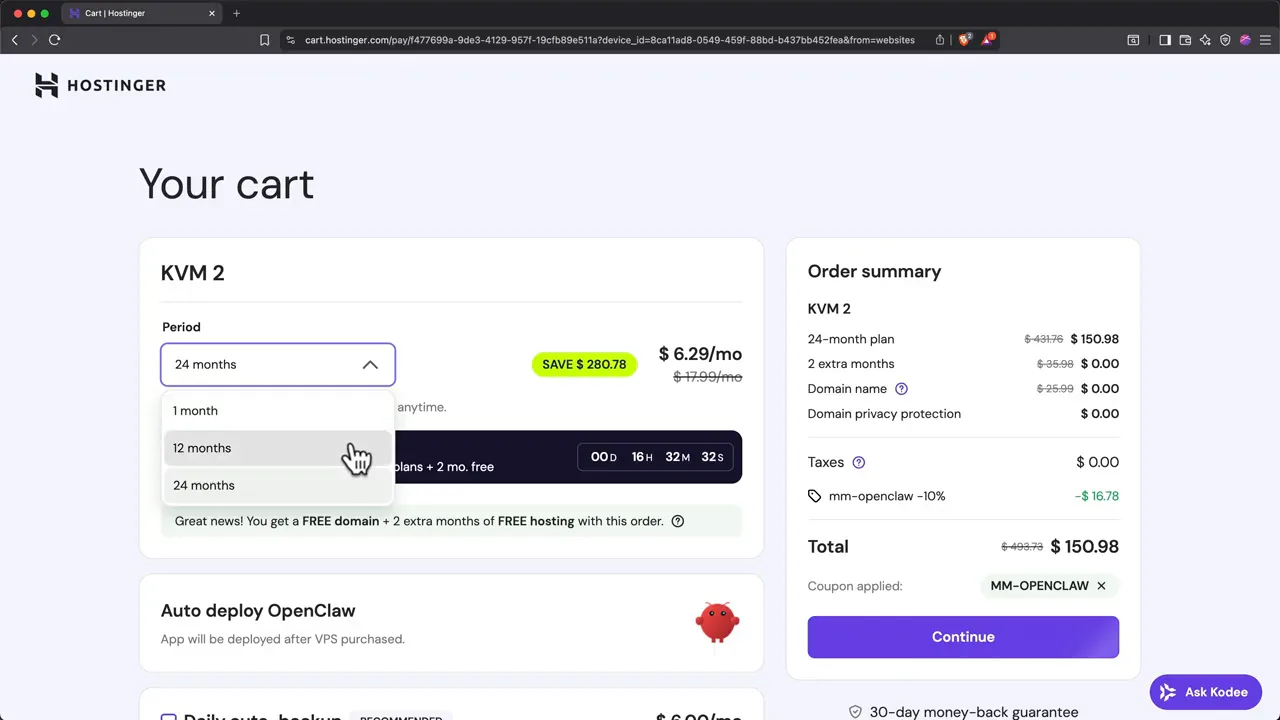
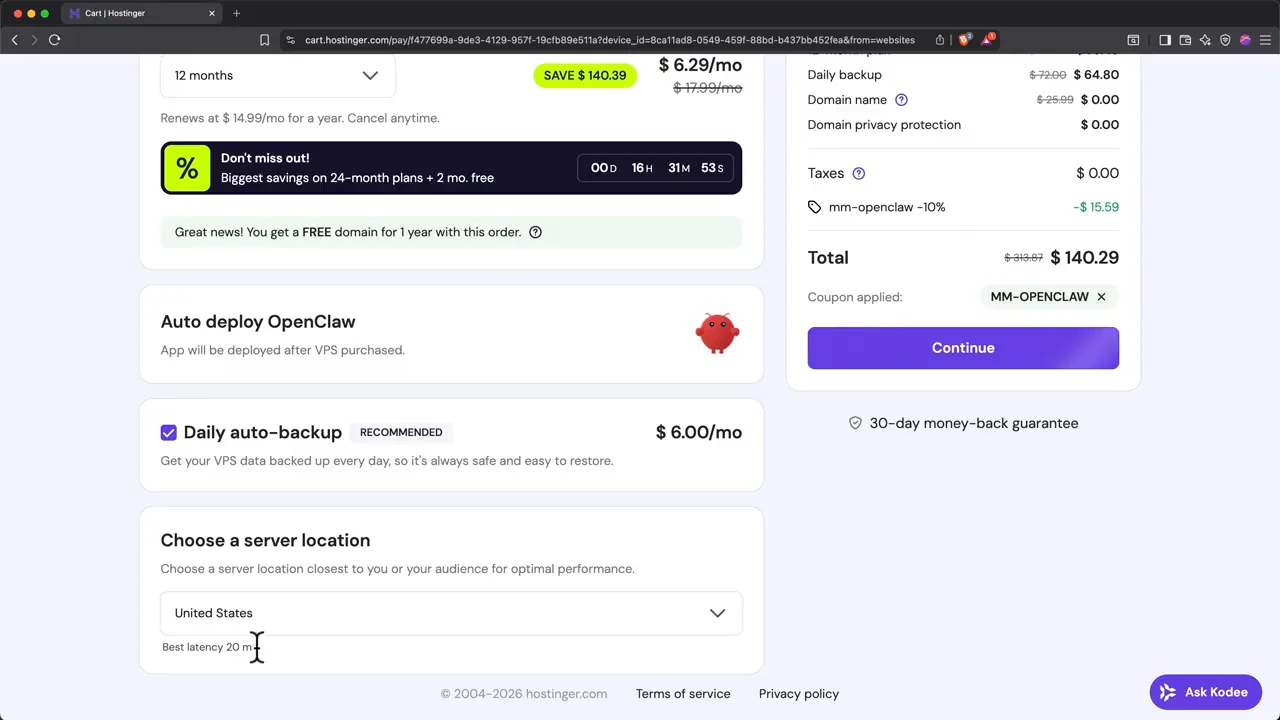
Open Hostinger through the link in this guide and select the OpenClaw VPS deployment. Confirm that the order includes automatic OpenClaw installation rather than only a blank operating-system image.
Select the billing duration and review the effective monthly cost, total upfront charge, renewal pricing, included resources, server location choices, backup add-ons, and refund terms. Prices and plan specifications change, so use the current checkout rather than relying on figures shown in an older video or screenshot.
Step 2: Create a Strong OpenClaw Gateway Token
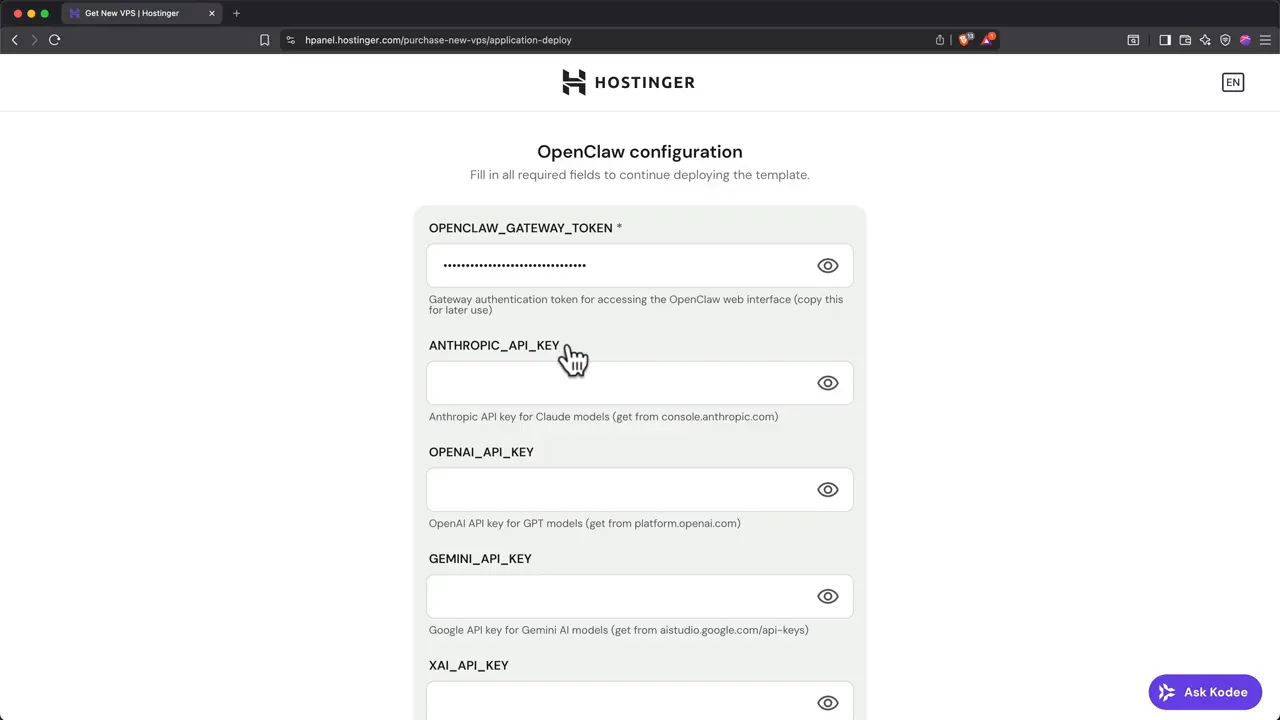
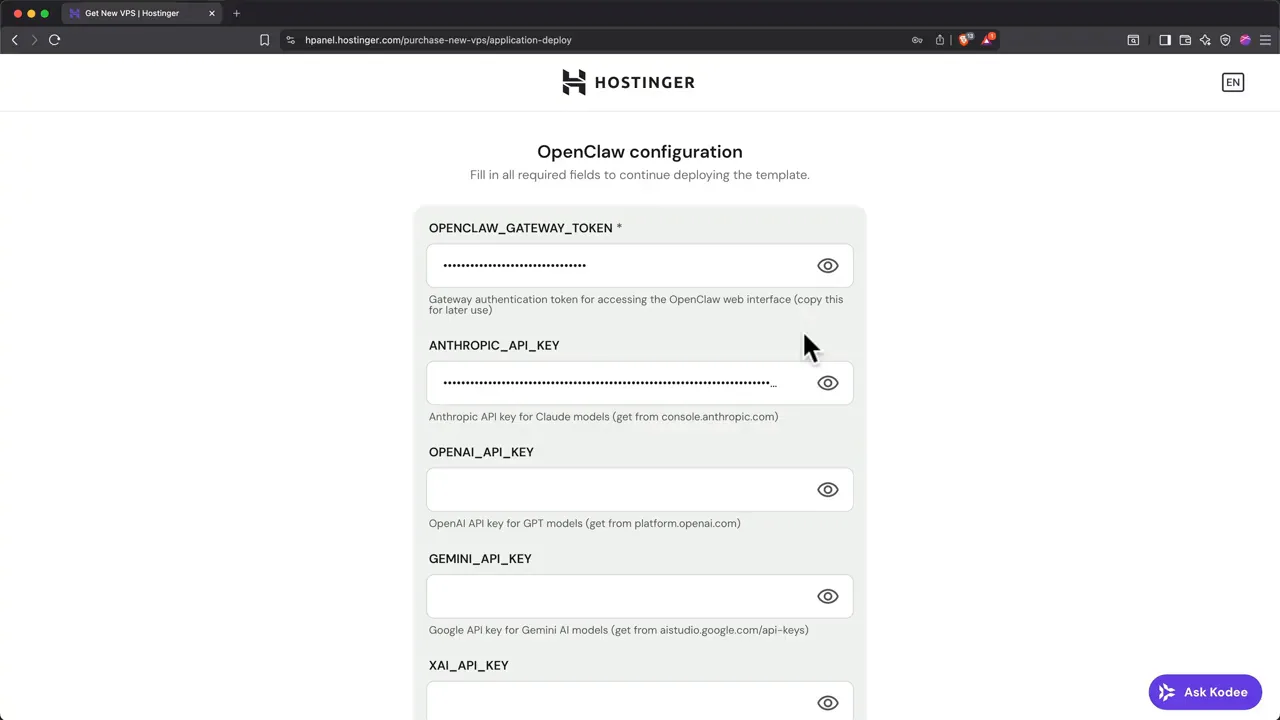
The deployment form requires OPENCLAW_GATEWAY_TOKEN. This is not an AI-provider key. It authenticates access to the OpenClaw gateway and browser interface, so anyone who obtains it may be able to reach the assistant’s control plane.
Generate a long random value with a password manager or a trusted local command. For example:
Store the result in your password manager before submitting the form. Do not use a memorable word, a reused password, the API key itself, or the token visible in a tutorial screenshot.
Step 3: Add One AI Provider API Key
The Hostinger form shown in the video includes optional fields such as ANTHROPIC_API_KEY, OPENAI_API_KEY, GEMINI_API_KEY, and XAI_API_KEY. You do not need to populate every field. Choose one provider and start with one model that works reliably.
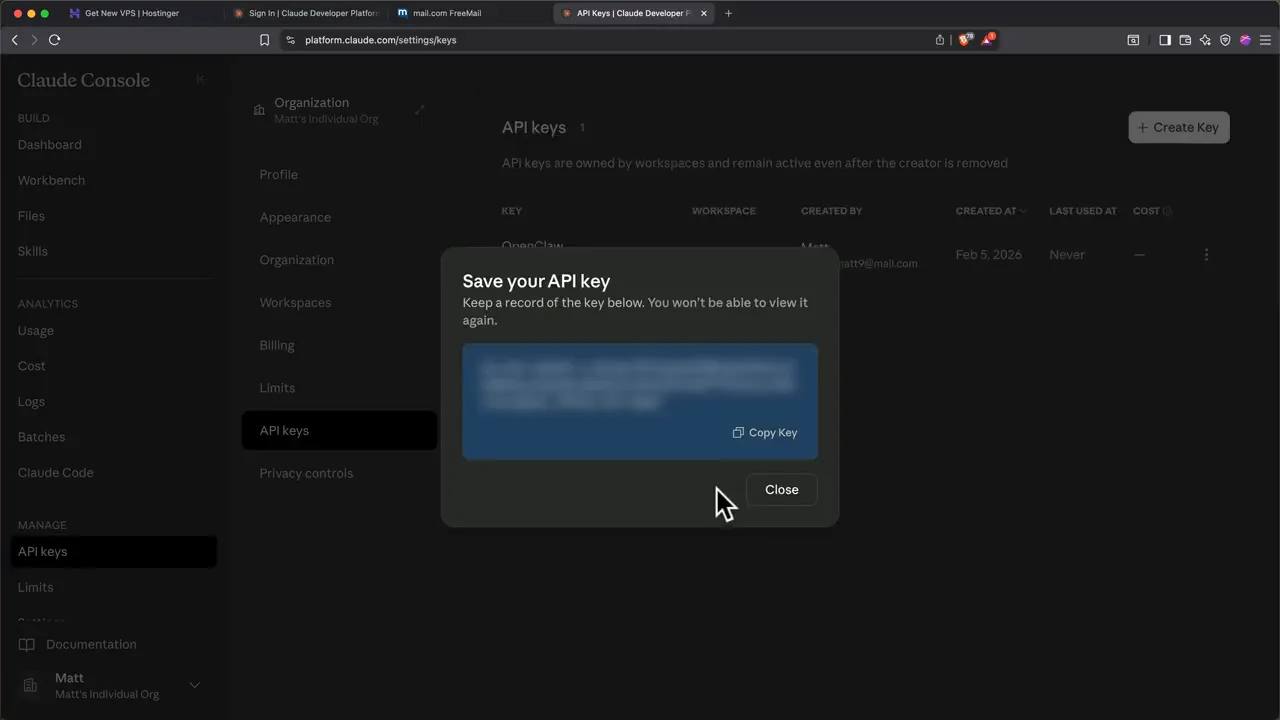
The reference video creates an Anthropic key. In the provider console, create a dedicated key, give it a recognizable name such as “OpenClaw Hostinger VPS,” configure billing and limits, then copy the key into the matching Hostinger field.
Step 4: Deploy the OpenClaw Docker Project
Submit the configuration and wait while Hostinger provisions the VPS, prepares Docker, creates the project, starts the gateway, and exposes the management controls. Do not refresh or redeploy repeatedly while the project is still initializing.
Open Docker Manager and check that the OpenClaw containers show a running or healthy state. If the project fails, inspect its logs before changing tokens or provider settings. A failed image pull, missing variable, port conflict, or resource shortage requires a different fix from an invalid AI key.
Step 5: Open the OpenClaw Control UI
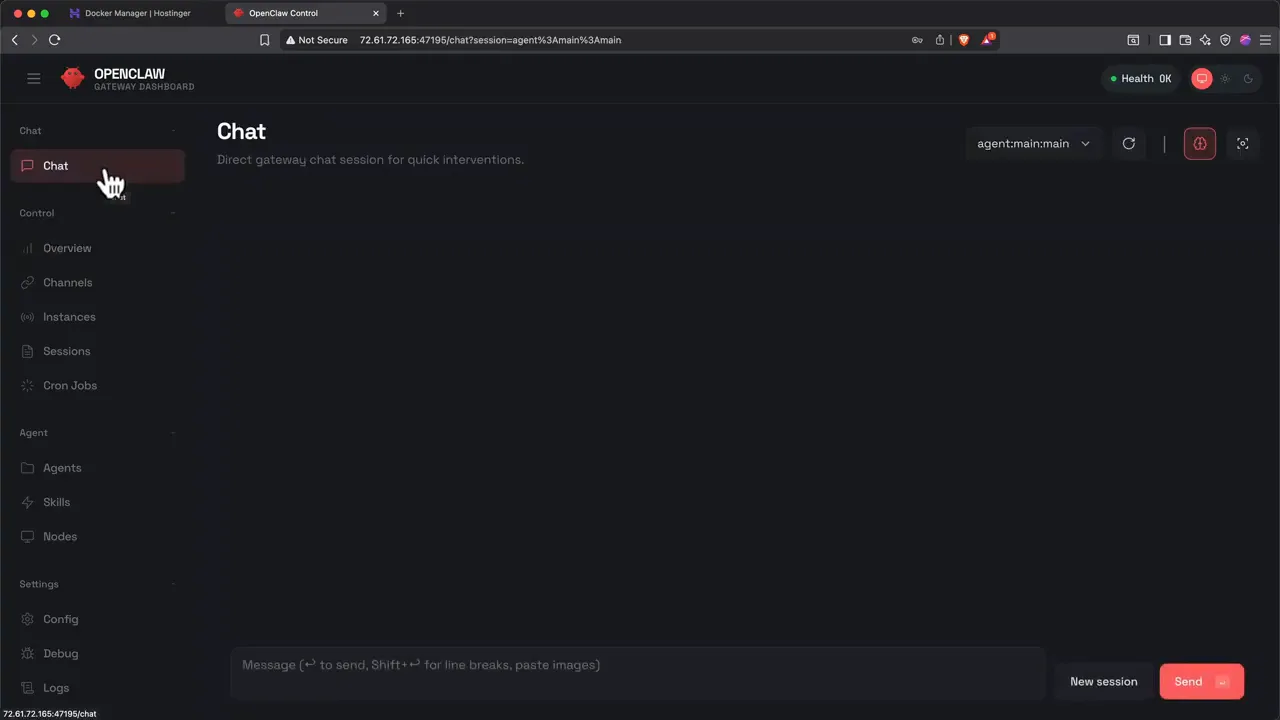
Use Hostinger’s OpenClaw access link and enter the gateway token when requested. The Control UI is the browser dashboard for chat, configuration, channels, instances, sessions, cron jobs, agents, skills, nodes, logs, and debugging.
The official local default is port 18789. Hostinger’s template may expose the service through a generated port or protected route. Follow the URL supplied by the current deployment instead of assuming the exact address in the video will apply to your VPS.
Step 6: Complete the Initial Assistant Setup
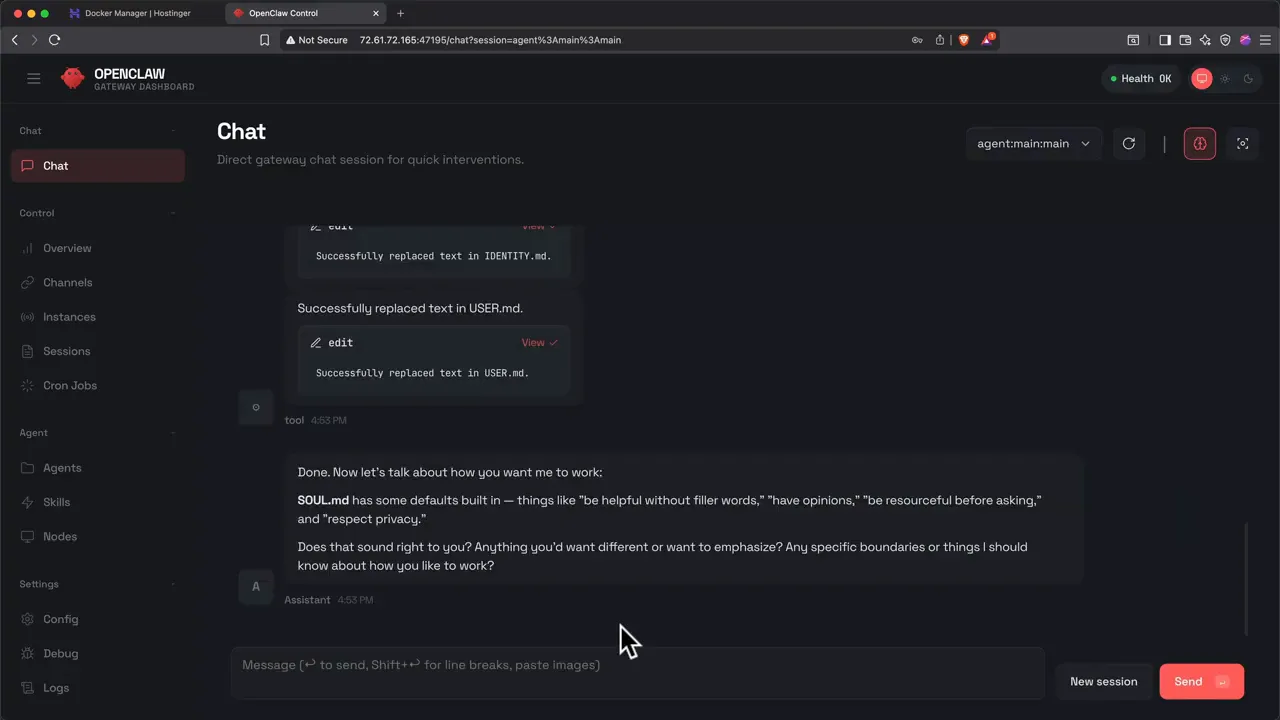
Start a browser conversation and complete the initial identity and behavior setup. OpenClaw can store assistant identity and user preferences in workspace files such as IDENTITY.md, USER.md, or related context documents depending on the current version and agent configuration.
Define a narrow role, communication style, boundaries, and escalation rules. Good initial instructions include:
- What the assistant is responsible for.
- Which tasks require confirmation before action.
- Which accounts, directories, or systems are off-limits.
- Whether it may send messages, edit files, or run commands automatically.
- How it should handle uncertain or conflicting instructions.
Understanding the OpenClaw Gateway Token
The gateway is OpenClaw’s central control plane. It coordinates sessions, channel connections, tools, events, and the Control UI. The token protects that surface from unauthorized clients.
Use these rules:
- Generate at least 32 random bytes rather than inventing a human-readable token.
- Store it in a password manager and Hostinger’s protected configuration.
- Do not paste it into OpenClaw conversations or agent memory.
- Do not place it in public source control or screenshots.
- Rotate it immediately if it appears in logs, browser recordings, or shared documents.
- Update every legitimate remote client after a rotation.
OpenClaw’s official security documentation recommends keeping gateway.bind on loopback by default. Binding to LAN, a tailnet, or a custom public interface expands the attack surface and should only be done with strong gateway authentication, a real firewall, and a clear remote-access design.
Do not publish the Control UI directly without understanding the exposure: Prefer Hostinger’s protected route, an SSH tunnel, or a private network such as Tailscale. A random port is not a security control by itself.
Configure and Test the OpenClaw Model Provider
OpenClaw separates the agent gateway from the model provider. The provider turns prompts and tool context into model responses, while OpenClaw manages channels, sessions, tools, and actions.
| Provider Field in Video | Typical Model Family | What to Review |
|---|---|---|
ANTHROPIC_API_KEY | Claude | API billing, selected model, rate limits, key restrictions |
OPENAI_API_KEY | GPT and reasoning models | API account billing is separate from many consumer subscriptions |
GEMINI_API_KEY | Google Gemini | Project, quota, model availability, and key restrictions |
XAI_API_KEY | Grok | API access, model identifier, regional availability, and spending |
After deployment, send a simple, verifiable prompt through the Control UI:
This confirms that the model responds without immediately giving it a destructive or expensive task. If the response fails, inspect logs and check the key, account credit, model identifier, provider limits, and configuration before adding channels.
Choose a model based on reliability, tool-calling quality, context capacity, latency, privacy terms, and price. The strongest model is not necessary for every scheduled report or simple classification task. Use provider spending limits and monitor token usage from the beginning.
What You Can Manage in the OpenClaw Control UI
The browser interface is useful for configuration and diagnostics, not only chat. Depending on the current release, the navigation includes:
- Chat: direct gateway conversations and quick tests.
- Overview: gateway health and operational information.
- Channels: Telegram, WhatsApp, Slack, Discord, and other connections.
- Instances: active runtime or connected service instances.
- Sessions: conversation history and routing context.
- Cron Jobs: recurring automations and scheduled prompts.
- Agents: agent profiles, workspaces, and routing.
- Skills: installed capabilities and procedural instructions.
- Nodes: paired mobile or desktop nodes where supported.
- Config, Debug, and Logs: settings and troubleshooting information.
Do not treat a green Health indicator as a complete test. A gateway may be healthy while the provider key is invalid, a channel token is missing, pairing is pending, or a tool is misconfigured.
How to Connect OpenClaw to Telegram
Telegram is one of the fastest ways to reach OpenClaw from a phone because the gateway can poll Telegram’s API without requiring you to publish a new inbound webhook. OpenClaw’s default direct-message policy uses pairing, so an unknown sender receives a short code instead of immediate agent access.
Step 1: Create the Telegram Bot
- Open Telegram and find the verified account with the exact handle
@BotFather. - Send
/newbot. - Choose a display name.
- Create a unique username ending in
bot. - Copy the token returned by BotFather.
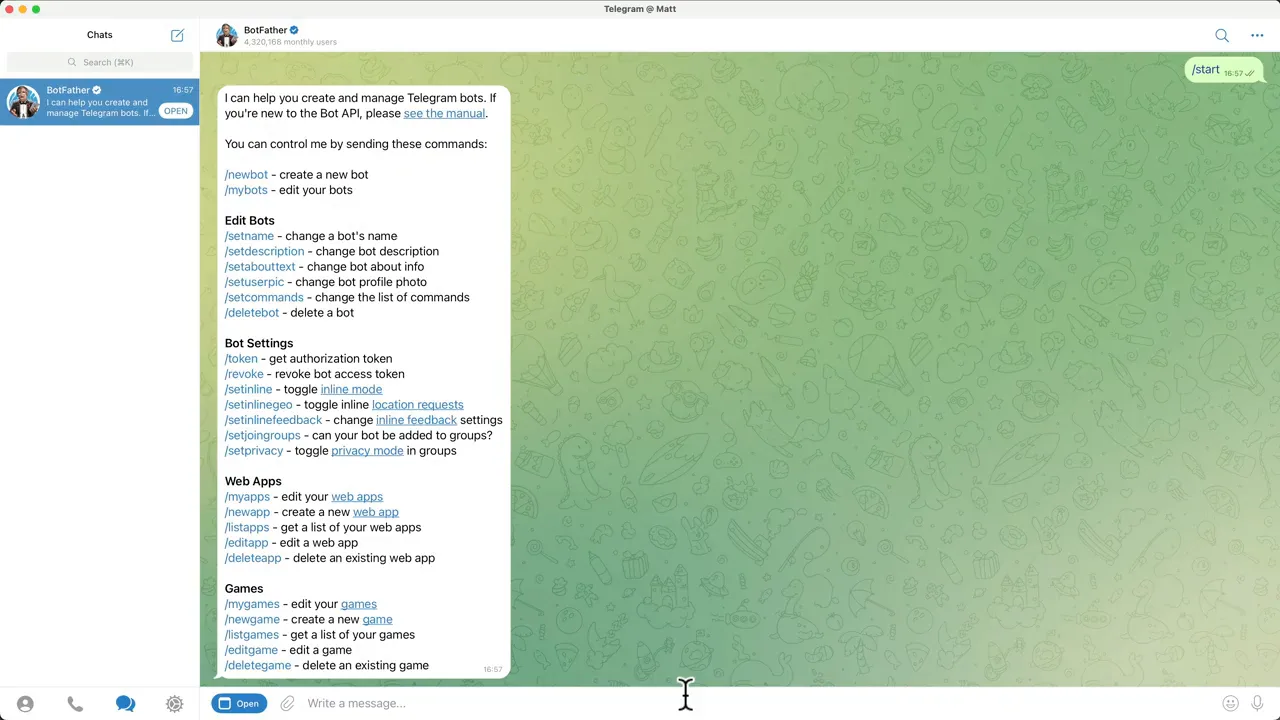
@BotFather. The bot token is a secret and should be revoked immediately if exposed.Step 2: Add the Bot Token to OpenClaw
Use the Channels or Config area in the Control UI, the onboarding flow, or the current configuration method for your Hostinger template. The underlying configuration follows the same concepts documented by OpenClaw:
Keep dmPolicy set to pairing for a private agent unless you have a deliberate reason to use a stricter allowlist or a public policy. Public DMs significantly increase abuse and cost risk.
Step 3: Send the Bot a Message and Approve Pairing
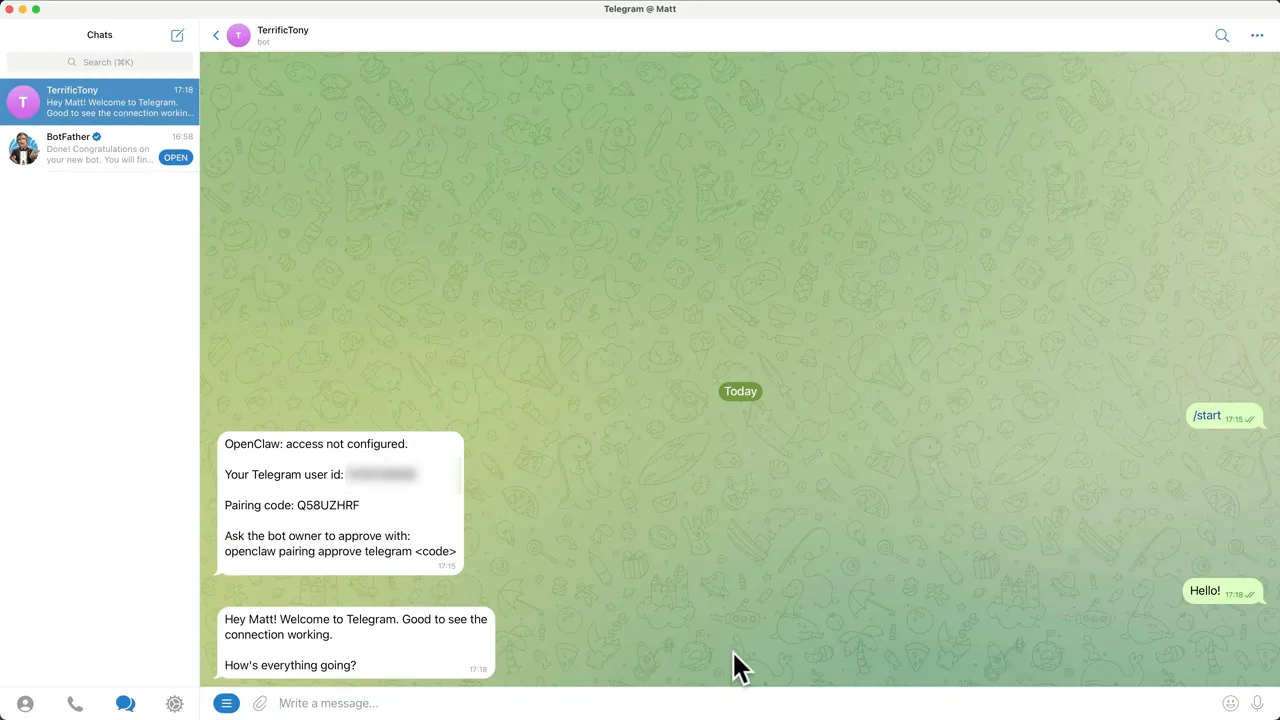
Open the bot and send /start or a short message. An unapproved user should receive a pairing code. Approve it from the OpenClaw environment with:
The first unapproved message is not processed as a normal agent instruction. After approval, send a new message to confirm access.
Step 4: Test a Safe Telegram Request
Use a harmless prompt that proves the channel shares the expected agent:
Then verify the sender appears in the expected session and review logs for authentication or polling errors. If you plan to use groups, require mentions and configure group allowlists before inviting the bot.
Run OpenClaw Around the Clock
A Hostinger VPS keeps the gateway and Telegram channel available without leaving your personal computer powered on.
OpenClaw VPS Security Checklist
OpenClaw connects untrusted messages and content to a model that may have tools, credentials, memory, and shell access. Self-hosting provides control, but a misconfigured gateway or unsafe skill can turn that control into a larger blast radius.
Complete these steps before expanding access:
- Keep
gateway.bindon loopback unless remote exposure is explicitly required. - Use a long random gateway token and rotate it after any suspected leak.
- Use Hostinger firewall controls, a private network, SSH tunnel, or protected reverse proxy.
- Keep Telegram DMs on pairing or a strict allowlist.
- Require mentions in groups and restrict which groups may use the bot.
- Use dedicated model and service API keys with spending limits.
- Enable sandboxing for non-main or untrusted sessions.
- Review every third-party skill or plugin before installation.
- Do not mount more host directories into Docker than the agent needs.
- Keep OpenClaw and the container image current.
- Run the built-in security audit after configuration changes.
- Monitor logs, sessions, cron jobs, and connected channels.
Run OpenClaw’s Security Audit
The audit checks gateway authentication and bind settings, file permissions, channel policies, plugins, skills, sandbox posture, tools, and other exposure risks. Treat warnings as prompts for investigation rather than blindly applying changes you do not understand.
Use Sandboxing for Untrusted Sessions
Official OpenClaw guidance notes that the trusted main session can run tools on the host, while non-main sessions can be routed through a sandbox. For channel, group, or multi-user access, configure an isolation policy appropriate to the threat model and avoid exposing host-level tools by default.
Review Skills Like Software
A skill is not merely a prompt decoration. It may contain instructions, scripts, dependencies, tool calls, or setup steps. Review its source, publisher, permissions, network behavior, and credential requirements. Test new skills in a disposable environment before adding them to a VPS holding important data.
Plan for Prompt Injection
Any webpage, email, document, chat message, or tool result can contain instructions intended to manipulate the agent. Limit tool permissions, separate high-risk workflows, require confirmation for consequential actions, and do not allow the agent to move secrets from protected contexts into untrusted destinations.
Backups, Updates, and Routine Maintenance
An always-on agent is an operational service. Back up the configuration, agent workspaces, memory, sessions, skill definitions, and any project files that matter. Backups may contain sensitive conversation data and credentials, so protect access to them.
Create and Test Backups
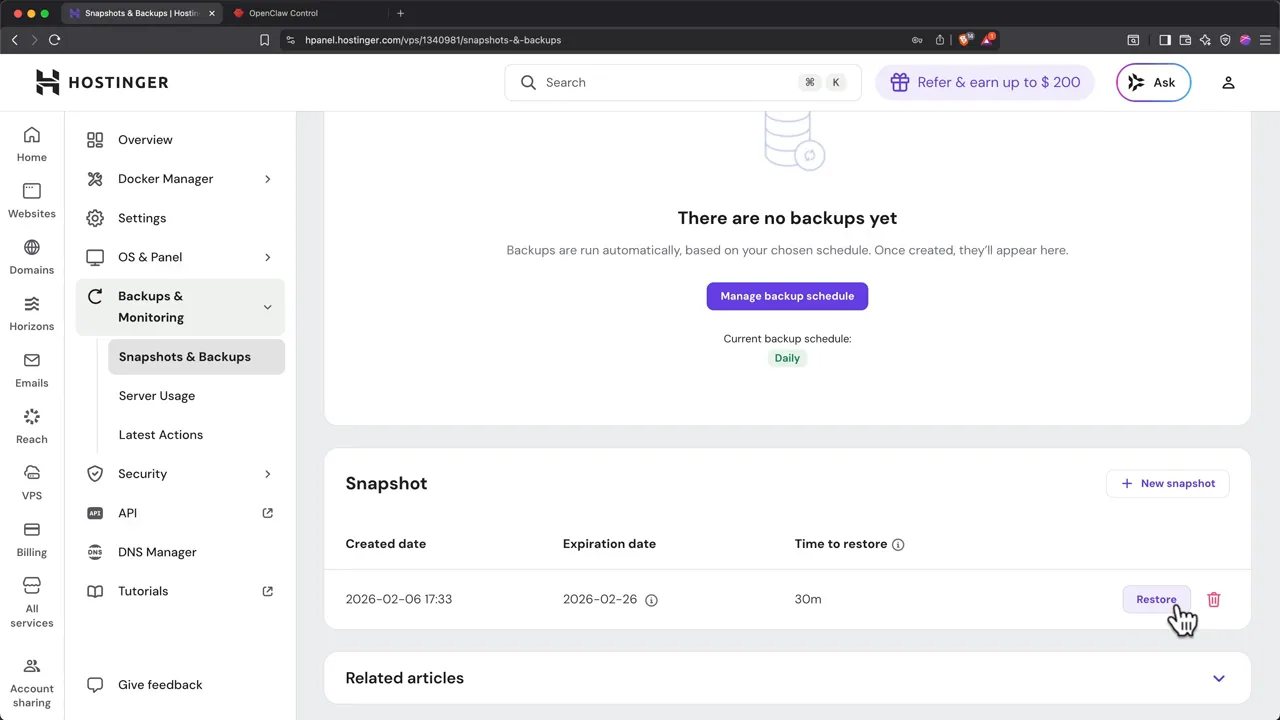
Hostinger provides VPS snapshot and backup controls depending on the selected plan and add-ons. Confirm the schedule, retention period, protected data, and restoration process. A backup you have never restored is only an assumption.
Update OpenClaw Safely
OpenClaw moves quickly. Read release notes, take a snapshot, update during a maintenance window, and rerun:
Then test browser chat, every important channel, model authentication, tool execution, and scheduled jobs. Configuration formats and supported provider names can change between versions.
Monitor Cost and Resource Usage
- Review model-provider usage and spending alerts.
- Watch VPS memory, CPU, storage, and Docker restarts.
- Inspect logs for unauthorized pairing attempts and repeated errors.
- Remove abandoned sessions, temporary files, and unused skills.
- Audit cron jobs so forgotten automations do not consume tokens indefinitely.
Restart the VPS during a planned test and confirm that Docker and OpenClaw return to a healthy state. This verifies that the service is truly persistent rather than dependent on a manually started process.
Useful OpenClaw VPS Workflows
- Personal research assistant: collect sources, summarize documents, and prepare daily briefings.
- Development agent: inspect code, run tests, draft changes, and report progress through Telegram.
- Content operations: organize briefs, transcripts, assets, and publishing checklists.
- Scheduled monitoring: inspect approved sources and deliver recurring reports.
- Customer-support helper: draft responses using a restricted knowledge base and human approval.
- Multi-channel assistant: maintain conversations through browser chat and approved messaging apps.
- File workflows: receive permitted documents, process them, and return generated outputs.
- Specialized agents: use separate workspaces and permissions for research, development, and operations.
Begin with one low-risk, easy-to-measure workflow. Expand permissions only after you understand normal model behavior, API costs, failure modes, and the controls required for recovery.
Common OpenClaw Hostinger Problems
The OpenClaw Docker project does not become healthy
Inspect Docker Manager logs. Check whether the image downloaded, required variables exist, the VPS has enough memory and disk space, and the gateway port is available. Avoid deleting the project before preserving useful logs.
The Control UI rejects the gateway token
Confirm that you copied the complete token without spaces. If the token has been lost or exposed, replace it in the deployment environment, restart the gateway, and update legitimate clients rather than weakening authentication.
The browser says the Control UI is not secure
The video shows direct access by IP and port. For ongoing use, configure a protected HTTPS route, private network, or SSH tunnel. Do not transmit gateway credentials over an untrusted network through plain HTTP.
OpenClaw is healthy but chat fails
A healthy gateway does not prove the model works. Check the provider key, billing status, model name, rate limits, and logs. Test a simple browser chat before diagnosing Telegram.
The provider returns an authentication error
Regenerate or recopy the provider key, verify that it belongs to an API-enabled account, and confirm that the matching environment-variable field was used. Consumer chat subscriptions and API billing are often separate products.
Telegram returns a pairing code but never responds
Approve the exact code with openclaw pairing approve telegram CODE, then send a new message. Do not paste an expired code or one generated by another user.
Telegram reports a 401 error
Telegram rejected the bot token. Copy the current token from BotFather or revoke and replace it. Official OpenClaw documentation notes that getMe returned 401 and startup deleteWebhook 401 errors both point to authentication failure.
The bot works in DMs but ignores group messages
Check BotFather privacy mode, OpenClaw group policy, allowed groups, allowed senders, and mention requirements. Keeping requireMention enabled is a sensible default for group chats.
Model spending is higher than expected
Review the active model, context growth, cron jobs, number of approved users, tool loops, retries, and long-running sessions. Set provider-level budget limits and use economical models for routine tasks.
Configuration disappears after a redeploy
Verify that OpenClaw state and workspaces are stored in persistent Docker volumes. Changes made only in an ephemeral container layer may disappear when the image is recreated.
Frequently Asked Questions
Can I install OpenClaw on a Hostinger VPS?
Yes. Hostinger’s one-click OpenClaw deployment prepares the Docker project and asks for a gateway token plus optional model-provider keys. After deployment, you manage the agent through the Control UI and connected channels.
What is the OpenClaw gateway token?
It is the secret that authenticates access to the gateway and Control UI. Generate a long random value, store it in a password manager, and rotate it if it appears in a recording, log, screenshot, or public file.
Which AI model should I use with OpenClaw?
Choose a supported current model with reliable tool use, adequate context, acceptable latency, and a price appropriate for your workload. Start with one provider, test it thoroughly, and configure spending limits.
Can I use OpenClaw without Telegram?
Yes. You can use the browser Control UI or another supported channel. Telegram is optional and mainly provides convenient access from a phone.
How do I approve an OpenClaw Telegram user?
Message the bot to receive a pairing code, then run openclaw pairing approve telegram CODE from the trusted OpenClaw environment. Only approve codes initiated by an intended user.
Is OpenClaw free?
OpenClaw is open-source, but running it can involve VPS fees, model API charges, tool subscriptions, backup costs, domains, and administrative time.
Is OpenClaw or Hermes Agent better?
Both are self-hosted, model-flexible agents with messaging and tool capabilities, but their interfaces, memory, skill systems, gateways, and operational workflows differ. Compare this guide with the Hermes Agent Hostinger VPS tutorial before choosing.
How do I keep OpenClaw secure?
Keep the gateway private, use strong authentication, restrict channel access, enable sandboxing for untrusted sessions, review skills, use limited credentials, install updates, monitor logs, and run openclaw security audit --deep.
Final Thoughts
Hostinger’s one-click OpenClaw deployment turns a fairly involved server installation into a manageable onboarding flow. The reliable order is to choose suitable VPS resources, generate a strong gateway token, add one model provider, wait for Docker health, test the Control UI, define the assistant’s boundaries, connect Telegram through pairing, and run a security audit.
Do not rush from a successful “Hello” message to broad account access and unattended automation. Start with a small job, minimal tools, separate credentials, spending limits, and good backups. An agent becomes more valuable as its permissions grow, but those same permissions make careful supervision more important.
Start Your OpenClaw VPS Deployment
Use Hostinger’s prepared template, then follow this guide to configure the gateway, model, Control UI, Telegram pairing, and security controls.
Related Guides
Compare agent platforms and connect your OpenClaw deployment with portable AI, frontend architecture, analytics, and business planning:
- Set up Hermes Agent on a Hostinger VPS for a direct alternative to OpenClaw.
- Turn a USB drive into a portable AI agent using a transportable Hermes workspace.
- Build microfrontends on Cloudflare when your AI service needs multiple web applications on one domain.
- Add Google Analytics to an Astro site to track usage of an Astro-based frontend.
- Learn how to become your own bank through a balanced guide to liquidity, leverage, and business foundations.
- OpenClaw vs Odysseus: Which Self-Hosted AI Should You Use?.
Video inspiration credit: This article is inspired by the OpenClaw Hostinger tutorial from Metics Media on YouTube. The written guide is original, expanded with current security, model, pairing, backup, and troubleshooting guidance, and cross-checked against official OpenClaw documentation.