How to Secure Your Web Browser: The Complete Hardening Guide
Your Browser Is the Front Door to Everything You Own Online
Most security incidents don’t start with a sophisticated zero-day — they start in the browser. Menlo Security’s 2024 Browser Security Report recorded a 140% increase in browser-based phishing attacks compared to 2023 [[11]], and industry measurements put the share of undetectable malware delivered through web browsing at 95% [[13]]. Meanwhile, the UK government’s 2025 cyber breaches survey found that 93% of businesses hit by a cyber crime were hit by phishing [[6]]. The browser is no longer a side concern for security teams — it is the primary attack surface.
This guide is a practical, step-by-step playbook for hardening any modern browser — Chrome, Edge, Firefox, Safari, Brave, or an anti-detect browser. We cover the updates, settings, permissions, extensions, and habits that actually move the needle, plus the data showing why each one matters.
Quick answer
How Do You Secure a Web Browser?
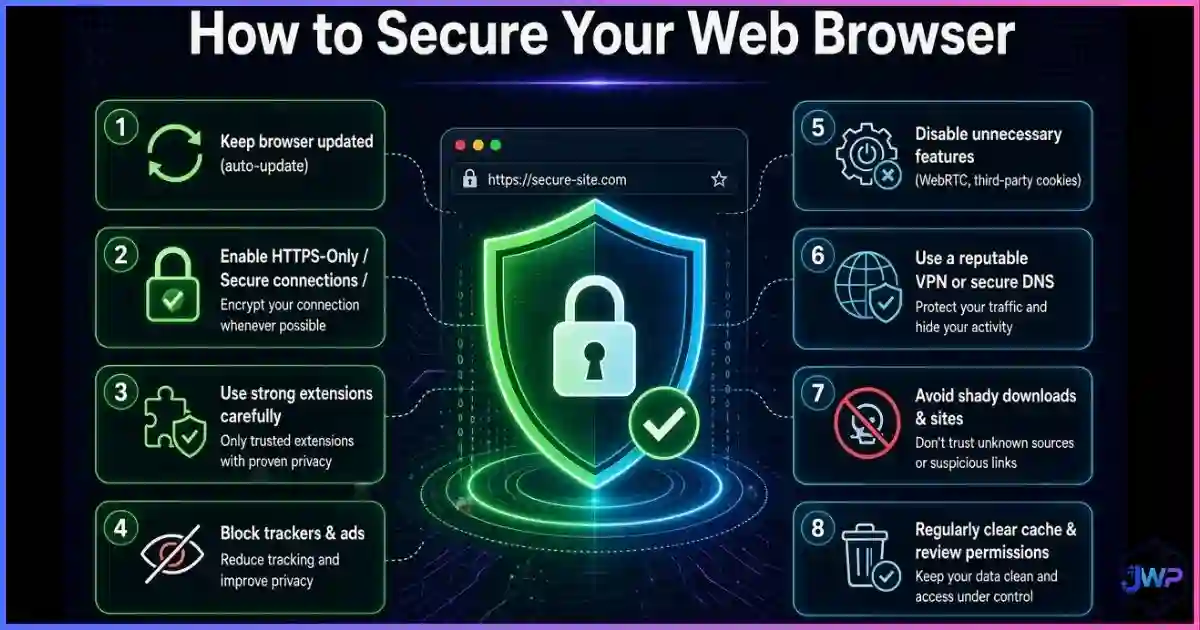
You secure a web browser by combining six controls, in roughly this order of impact:
- Keep it updated — auto-updates close the vulnerabilities attackers exploit most.
- Force HTTPS — enable HTTPS-Only Mode so unencrypted pages can’t be served to you silently.
- Turn on Safe Browsing / Enhanced Protection — real-time blocklists stop the majority of known phishing and malware URLs.
- Lock down permissions — deny camera, mic, location, notifications, and clipboard by default.
- Audit extensions ruthlessly — every extension is an attack surface; remove anything you don’t actively use.
- Isolate identities and high-risk work — use separate profiles or an anti-detect browser for sensitive accounts.
None of these steps is exotic. Together they eliminate the vast majority of browser-based attacks — which still account for the largest single category of incidents hitting everyday users and businesses alike [[4]].
Threat Landscape
The Browser Threat Landscape
Browser attacks have shifted away from old-school drive-by downloads toward a more sophisticated mix of phishing, malicious extensions, and AI-assisted lures. Keep Aware’s 2025 State of Browser Security report documented attackers exploiting over 150 major sites and platforms to distribute credential theft, deliver malware, and exfiltrate data [[4]]. The five threat categories below account for the overwhelming majority of real-world incidents:
| Threat | How it reaches you | Primary defense |
|---|---|---|
| Phishing & credential theft | Fake login pages, AI-generated lures, lookalike domains | Safe Browsing, MFA, password manager auto-fill (which won’t fill on wrong domains) |
| Malicious extensions | Chrome Web Store / Add-ons entries that quietly exfiltrate data | Extension audit, minimal permissions, vendor verification |
| Browser exploits (zero-days) | Malicious sites triggering memory bugs in the engine | Auto-updates, sandboxing, site isolation |
| Man-in-the-middle / eavesdropping | Unencrypted HTTP, hostile Wi-Fi, DNS hijacking | HTTPS-Only Mode, Secure DNS / DoH, VPN on public Wi-Fi |
| Malvertising & injected scripts | Compromised ad networks serving malware via legitimate sites | Tracker/ad blockers, isolation for high-risk browsing |
Two trends make 2026 different. First, AI-generated phishing surged 14x at end-of-year 2025, with polymorphic lures that evade traditional filters [[1]]. Second, encrypted attack channels are now the norm — one 2025 analysis estimated 85.9% of cyberattacks use encrypted traffic, which means the old “just inspect HTTP” defenses no longer work [[31]]. Your browser’s built-in protections are now your first and most important line of defense.
Data
Browser Security by the Numbers
The data paints a clear picture: phishing and browser-borne malware dominate, while HTTPS adoption has quietly become near-universal — which raises the bar for attackers and defenders alike.
How attacks reach users (share of incidents, 2025)
Sources: UK DCMS Cyber Security Breaches Survey 2025; IBM X-Force 2025; Menlo Security Browser Security Report; Hoxhunt Phishing Trends 2026.
The good news: HTTPS is now the default
Source: HTTP Archive Web Almanac 2025; Google Transparency Report.
Encryption has become near-universal — but that’s a double-edged sword:
- 97.3% of mobile sites also use HTTPS [[33]].
- Chrome users spend 93.2% of their browsing time on HTTPS pages [[32]].
- But 90%+ of phishing sites also use HTTPS, so the padlock no longer means “safe” — only “encrypted” [[32]].
Browser hardening levels: where most users sit
Illustrative model based on common default configurations vs. recommended hardening. Your mileage will vary by browser and OS.
Default browser (no changes)
After applying this guide
Hardened browser + isolated profiles
The takeaway: most users never move past the default bar, even though the steps to reach the green bar take under an hour. The rest of this guide is exactly that hour, broken into 12 concrete actions.
Built-In Defenses
The Security Features Every Modern Browser Ships With
You don’t need to buy a “secure browser.” Every major engine — Chromium (Chrome, Edge, Brave, Opera), Gecko (Firefox), and WebKit (Safari) — already includes the core defenses. The problem is that most of them are off or weakened by default. Here’s what to look for:
| Feature | What it does | Default state | Recommended state |
|---|---|---|---|
| Auto-updates | Patches engine vulnerabilities within days of disclosure | ✓ On (most browsers) | ✓ On, never disabled |
| Safe Browsing / SmartScreen | Real-time blocklists for phishing & malware URLs | ~ Standard | ✓ Enhanced / Strict |
| HTTPS-Only Mode | Forces encrypted connections, warns on HTTP | ✕ Off (most) | ✓ On for all windows |
| Site isolation / sandboxing | Confines each tab so one exploit can’t reach others | ✓ On | ✓ Keep on |
| Secure DNS (DoH) | Encrypts DNS lookups against eavesdropping | ~ Auto | ✓ Explicit trusted provider |
| Permission prompts | Asks before camera/mic/location/notifications | ~ Ask | ✓ Deny by default |
| Tracker / ad blocking | Reduces malvertising surface and tracking | ~ Varies | ✓ On (or add uBlock Origin) |
Why these defaults matter: browser updates are the single biggest security control available to consumers. Most engine vulnerabilities disclosed in any given year are exploitable in older versions but fully patched in the latest one. Attackers know this — that’s why exploit kits probe for outdated versions before doing anything else.
The Hardening Plan
The 12-Step Browser Hardening Plan
Work through these in order. Steps 1–5 take about 20 minutes total and remove the majority of risk. Steps 6–12 add depth for high-risk users, multi-account operators, and anyone handling sensitive work.
Enable auto-updates and verify your version
The single highest-leverage step. Outdated browsers are the #1 entry point for exploit kits and drive-by attacks.
How: Chrome → chrome://settings/help · Edge → edge://settings/help · Firefox → about:preferences → “Check for updates” · Safari → System Settings → Software Update.
Turn on HTTPS-Only Mode
Forces every site to load over an encrypted connection or warn you loudly. Eliminates passive eavesdropping on hostile Wi-Fi.
How: Chrome → Privacy & Security → Security → “Always use secure connections.” Firefox → Privacy & Security → “HTTPS-Only Mode in all windows.”
Switch Safe Browsing to Enhanced / Strict
Standard blocklists check URLs against a downloaded list every 30 minutes. Enhanced Protection checks them in real time, which matters when 140% of new phishing domains appear and disappear within hours [[11]].
How: Chrome → Security → “Enhanced protection.” Edge → Privacy → “Microsoft Defender SmartScreen” + “Block potentially unwanted apps.” Firefox → “Strict” tracking protection + “Block dangerous and deceptive content.”
Set Secure DNS to a trusted provider
Encrypts your DNS lookups so your ISP and hostile networks can’t see which domains you resolve. Read our full guide on HTTPS, Secure DNS, and DNS-over-HTTPS for provider recommendations.
How: Chrome/Edge → Security → “Use secure DNS” → choose Cloudflare (1.1.1.1), Quad9, or NextDNS. Firefox → Privacy → DNS over HTTPS → “Max Protection.”
Deny permissions by default
Camera, microphone, location, notifications, and clipboard access should be denied until a specific site earns them. Notification spam alone is one of the most common malware delivery channels on consumer machines.
How: Chrome → Site Settings → set every sensitive permission to “Don’t allow sites to…” by default. See our full walkthrough in browser permissions explained.
Audit and prune extensions
Every extension can read your traffic on the pages it’s allowed to see. Malicious and hijacked extensions spied on 2.3 million users in a single 2025 Chrome/Edge campaign [[24]]. Remove anything you haven’t used in 90 days.
How: Chrome → chrome://extensions · Firefox → about:addons. Disable broad “read and change all your data” permissions where possible; prefer site-specific access.
Install a reputable tracker / ad blocker
uBlock Origin (or equivalent) cuts the malvertising surface dramatically and stops most drive-by redirect chains. This is one of the rare cases where a privacy tool also delivers a real security win.
How: Install from the official Chrome Web Store / Firefox Add-ons page only. Avoid “free VPN + ad blocker” combo extensions — they’re a common malware vector.
Use a password manager with auto-fill
Password managers refuse to fill credentials on lookalike domains, which makes them one of the strongest anti-phishing tools available — stronger than your own eyes against today’s AI-generated lures [[1]].
How: Bitwarden, 1Password, Proton Pass, or your OS-level keychain. Turn off browser-built-in password saving if you use a dedicated manager.
Enable MFA on every account that supports it
Stolen credentials become useless without the second factor. Prefer hardware keys (FIDO2) or authenticator apps over SMS, which is vulnerable to SIM-swapping.
How: Start with email, banking, social, and any account that holds payment data.
Disable risky legacy features
Flash is gone, but other legacy surfaces remain: Java applets, FTP, outdated TLS, and unnecessary plugin handlers. Turn off “allow sites to run plugins” entirely unless you have a specific need.
How: Chrome → Site Settings → Additional permissions → review and restrict. Firefox → about:config for advanced users only.
Isolate high-risk and multi-account work
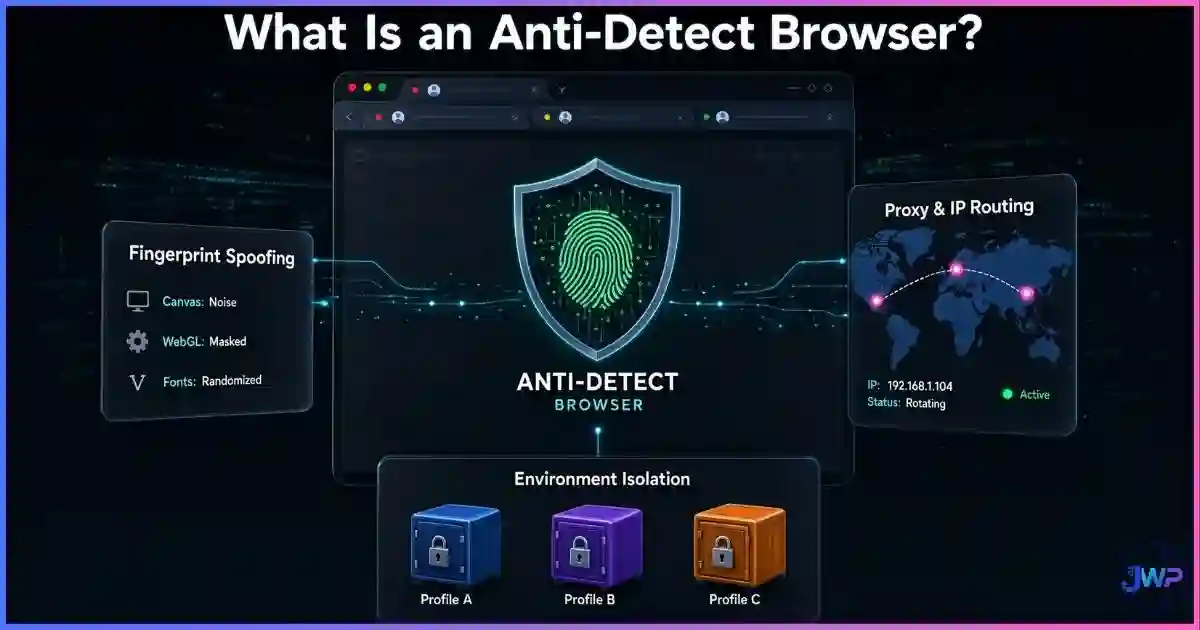
If you manage multiple ad accounts, marketplaces, or client logins, stop using one profile. A single compromised session or shared cookie can link or ban every account. Use a dedicated browser profile per identity, or move the whole workflow into an anti-detect browser like Incogniton for full isolation.
How: At minimum, create separate browser profiles for “personal,” “work,” and “high-risk.” For multi-account operators, see our guide to browser profile isolation.
Schedule a quarterly security review
Security is not a one-time setup. Every quarter: re-audit extensions, rotate any passwords exposed in breaches (HaveIBeenPwned), review MFA methods, and confirm auto-updates are still on.
How: Put a recurring calendar reminder. Ten minutes per quarter prevents most “how did this happen” incidents.
Managing more than one identity? Standard profiles aren’t enough.
Incogniton isolates cookies, cache, fingerprints, and proxies per profile, so a single compromised session can’t poison your other accounts. Built on a hardened Chromium base, it inherits all of the security defaults above — and adds the identity isolation mainstream browsers were never designed to provide.
Try Incogniton Free → Affiliate link — we may earn a commission at no extra cost to you.Deep Dive
Permissions & Extensions: The Most-Overlooked Attack Surface
If updates and HTTPS are the front door, permissions and extensions are the windows that homeowners leave open. A 2025 arXiv study demonstrated functional keyloggers built entirely as Chrome and Firefox extensions, exfiltrating every keystroke to attacker servers [[17]]. Another analysis flagged roughly 6% of GenAI-related extensions as outright malicious [[18]].
| Permission | Risk if abused | Recommendation |
|---|---|---|
| Read & change all data on all sites | Full session hijacking, credential theft | Grant only to trusted, essential extensions |
| Notifications | Malware delivery, scam spam, fake alerts | Deny by default; allow per-site only |
| Clipboard read | Stealing copied passwords, crypto addresses | Deny by default |
| Location | Profiling, stalking, ad targeting | Deny by default; allow per-site |
| Camera / microphone | Surveillance, recording | Deny by default; allow per-call |
| Downloads | Silent malware installation | Always prompt; never auto-allow |
| Pop-ups & redirects | Malvertising, scam funnels | Block globally |
A simple rule of thumb: if you can’t explain why an extension needs a permission, revoke it. A weather widget does not need to read your banking page. A screenshot tool does not need clipboard access on every site. For a full breakdown of what each permission actually exposes, see browser permissions explained, and for the anatomy of real-world extension attacks, our guide on malicious browser extensions.
Don’t Conflate
Browser Security vs Browser Privacy
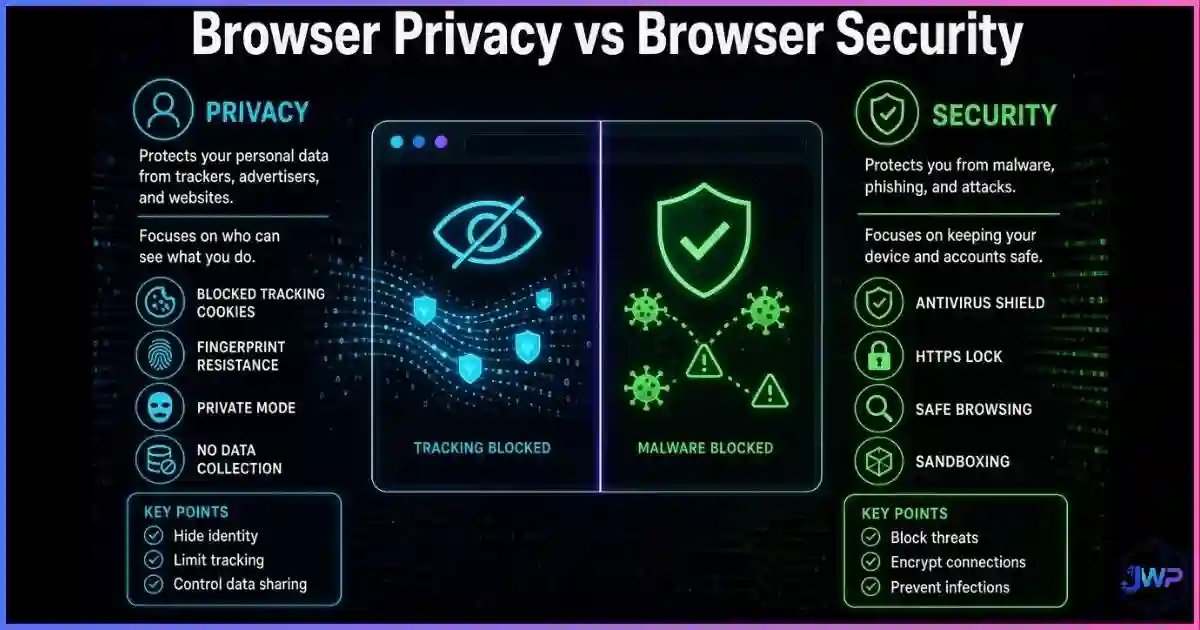
This guide is about security, but readers often ask whether the same steps protect their privacy. Sometimes — but not always. The two concepts overlap (HTTPS helps both) yet defend against different threat classes. A browser can be perfectly secure and perfectly trackable at the same time.
For the full breakdown, read our dedicated guide on browser privacy vs browser security. The short version:
- Security = stops hackers, malware, phishing, exploits. Defended by updates, sandboxing, Safe Browsing, HTTPS.
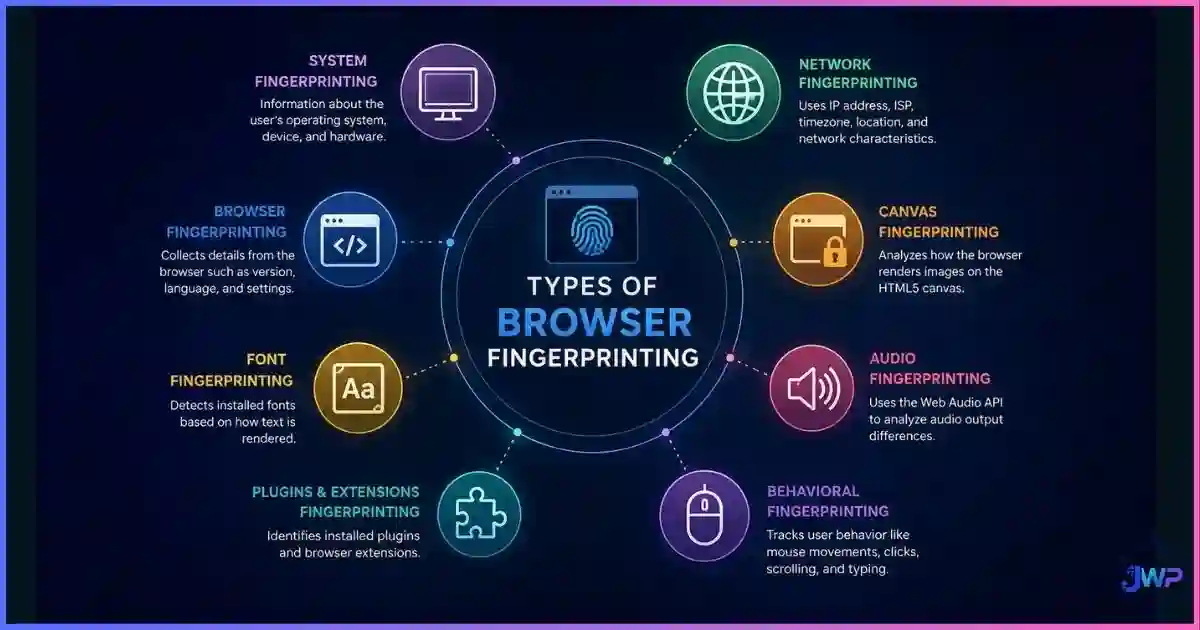
- Privacy = stops advertisers, data brokers, fingerprinting. Defended by tracker blockers, fingerprint spoofing, profile isolation.
- Tools like Incogniton sit at the intersection — they harden identity isolation (a security property for multi-account operators) while also providing the fingerprint and cookie controls that privacy requires.
Browser Comparison
How the Major Browsers Stack Up on Security Defaults
Every modern browser is reasonably secure if configured properly. The differences live in the defaults, the update cadence, and the privacy posture. Here’s a candid comparison:
| Browser | Engine | Update speed | Security defaults | Privacy defaults | Best for |
|---|---|---|---|---|---|
| Chrome | Chromium | ✓ Fast | ✓ Strong | ✕ Weak | Compatibility, enterprise |
| Edge | Chromium | ✓ Fast | ✓ Strong (SmartScreen) | ~ Medium | Windows integration |
| Firefox | Gecko | ✓ Fast | ✓ Strong | ✓ Strong (ETP) | Privacy-conscious users |
| Brave | Chromium | ✓ Fast | ✓ Strong | ✓ Very strong | Out-of-box privacy |
| Safari | WebKit | ~ OS-tied | ✓ Strong | ✓ Strong (ITP) | Apple ecosystem |
| Tor Browser | Gecko | ~ Slower | ✓ Strong | ✓ Anonymity-grade | Whistleblowing, censorship |
| Incogniton (anti-detect) | Chromium | ✓ Inherits Chromium | ✓ Strong + isolation | ✓ Per-profile fingerprints | Multi-account operators |
There is no single “most secure” browser. There is only the most secure configuration of whichever browser you actually use. A hardened Chrome with Safe Browsing Enhanced, HTTPS-Only, and a tight extension list is more secure than a stock Firefox left at defaults. For a wider lens on identity isolation as a security property, see our breakdown of browser profiles vs separate browsers vs virtual machines.
Myth Busting
7 Browser Security Myths, Busted
Myth 1
“The padlock means the site is safe.”
Reality
HTTPS only means the connection is encrypted. Over 90% of phishing sites now use HTTPS [[32]]. The padlock tells you nobody is eavesdropping — not that the site is legitimate.
Myth 2
“Incognito keeps me safe from malware.”
Reality
Incognito only deletes local cookies and history. It does nothing to block exploits, phishing, or malicious downloads. Read what incognito actually does.
Myth 3
“My antivirus makes my browser secure.”
Reality
AV catches many payloads after download, but it can’t stop credential phishing, in-browser exploits, or session hijacking. Browser-level defenses are a separate layer.
Myth 4
“Extensions from the official store are safe.”
Reality
A single 2025 campaign hit 2.3M users through Chrome Web Store and Edge Add-ons entries [[24]]. Legitimate extensions also get sold or hijacked after acquisition.
Myth 5
“A VPN makes my browsing secure.”
Reality
A VPN encrypts traffic to its server. It doesn’t block phishing, malware, or exploits — and a hostile VPN provider can see everything you do.
Myth 6
“Only sketchy sites get hacked.”
Reality
Attackers compromised 150+ major platforms to distribute malware in 2025 [[4]]. Legitimate sites serve malvertising through ad networks every day.
Myth 7
“Clearing cookies fixes a compromised browser.”
Reality
Cookies are storage, not security. If you suspect compromise, change passwords, revoke sessions, run a malware scan, and audit extensions — clearing cookies alone changes nothing.
Take Action
The 10-Minute Browser Security Checklist
Skip these habits
- Trusting the padlock as a safety signal
- Installing extensions “just to try”
- Reusing passwords across sites
- Clicking “update browser” pop-ups from random sites
- Allowing notifications from content sites
- Using SMS as your only MFA
Do these instead
- Verify updates weekly via the browser’s About page
- Use a password manager + MFA everywhere
- Audit extensions quarterly
- Deny permissions by default
- Use HTTPS-Only + Secure DNS
- Isolate high-risk and multi-account work
Final hardening checklist
- Browser is on the latest stable version with auto-updates enabled.
- HTTPS-Only Mode is on for all windows.
- Safe Browsing / SmartScreen is set to Enhanced or Strict.
- Secure DNS is configured with a trusted provider.
- Camera, mic, location, notifications, and clipboard default to deny.
- Every extension installed in the last 90 days has been justified; the rest removed.
- A reputable tracker blocker is active.
- Password manager + MFA are enabled on email, banking, and social accounts.
- High-risk work happens in a separate profile or isolated browser.
- A quarterly review reminder is on the calendar.
One compromise shouldn’t take down every account you run.
Incogniton’s profile isolation means a hijacked session, leaked cookie, or flagged fingerprint in one profile cannot touch the others. The free plan covers up to 10 profiles — enough to separate personal, work, and high-risk browsing today.
Try Incogniton Free → Affiliate link — we may earn a commission at no extra cost to you.FAQs
Frequently Asked Questions
Which browser is the most secure in 2026?
How often should I update my browser?
chrome://settings/help (or the equivalent) once a month as a sanity check. Most critical vulnerabilities are exploited in the wild within days of disclosure, so update latency directly translates into risk.Does HTTPS mean a website is safe?
Are browser extensions a security risk?
What is the safest way to handle public Wi-Fi?
Does incognito mode make my browser more secure?
How do I know if my browser has been compromised?
Should I use an anti-detect browser for everyday security?
📚 Sources & Research Notes (click to expand)
This guide draws on government cyber-crime surveys, industry browser-security reports, academic studies, and large-scale web measurements. Browser features and threat landscapes evolve quickly; verify current vendor documentation before making security decisions.
- Hoxhunt (2026). Phishing Trends Report — 14x end-of-year surge in AI-generated phishing; new malicious attachment vectors. hoxhunt.com
- IBM X-Force Threat Intelligence Index (2025). Phishing accounts for 33% of cloud-related security incidents. Referenced via Fortinet Cybersecurity Statistics.
- UK DCMS (2025). Cyber Security Breaches Survey 2025 — 93% of breached businesses and 95% of charities hit by phishing. gov.uk
- Menlo Security (2024). Browser Security Report: AI-Powered Attacks Surge — 140% increase in browser-based phishing vs 2023. menlosecurity.com
- Keep Aware (2025). State of Browser Security Report 2025 — 150+ major platforms exploited to distribute credential theft and malware. keepaware.com
- Indusface. Web Browser-Based Attacks: Types & Prevention — 95% of undetectable malware spread through web browsing. indusface.com
- Varonis (2025). Cybersecurity Statistics — 57% of organizations see weekly or daily phishing; phishing is the initial vector in 16% of breaches. varonis.com
- Malwarebytes (July 2025). Millions spied on by malicious browser extensions in Chrome and Edge — 1.7M installs, 2.3M users affected in a single campaign. malwarebytes.com
- arXiv (2025). A Study on Malicious Browser Extensions in 2025 — functional keyloggers implemented as Chrome/Firefox extensions. arxiv.org
- Market.us (2025). Browser Security Platform Market — ~6% of GenAI-related extensions flagged as malicious. market.us
- HTTP Archive (2025). Web Almanac: Security — 97.5% of desktop sites and 97.3% of mobile sites use HTTPS. almanac.httparchive.org
- The SSL Store (2024). SSL Statistics — 90%+ of phishing sites use HTTPS; 93.2% of Chrome time on HTTPS pages. vocal.media
- Sharma, A. et al. (2025). A survey on encrypted network traffic. ScienceDirect — ~95% of web traffic encrypted; 85.9% of cyberattacks use encrypted channels. sciencedirect.com
Browser features, vendor policies, and the threat landscape evolve quickly. Always verify current documentation from Chrome, Firefox, Safari, Edge, Brave, and your chosen security tool vendors before making security decisions.