Browser Permissions Explained: What You’re Actually Allowing
The “Allow” Button Is the Most Dangerous Button on the Web
Every time a website asks to “Show notifications,” “Know your location,” or “Use your camera,” you are granting a legal and technical contract that lets that site access hardware and system-level features on your device. Most users click “Allow” out of habit, assuming the browser will protect them. It won’t. Browser permissions are the primary vector for notification spam, location tracking, clipboard hijacking, and even crypto-wallet theft. This guide explains exactly what each permission does, which ones are safe, which ones are traps, and how to audit your browser in under five minutes.
Quick answer
What are browser permissions?
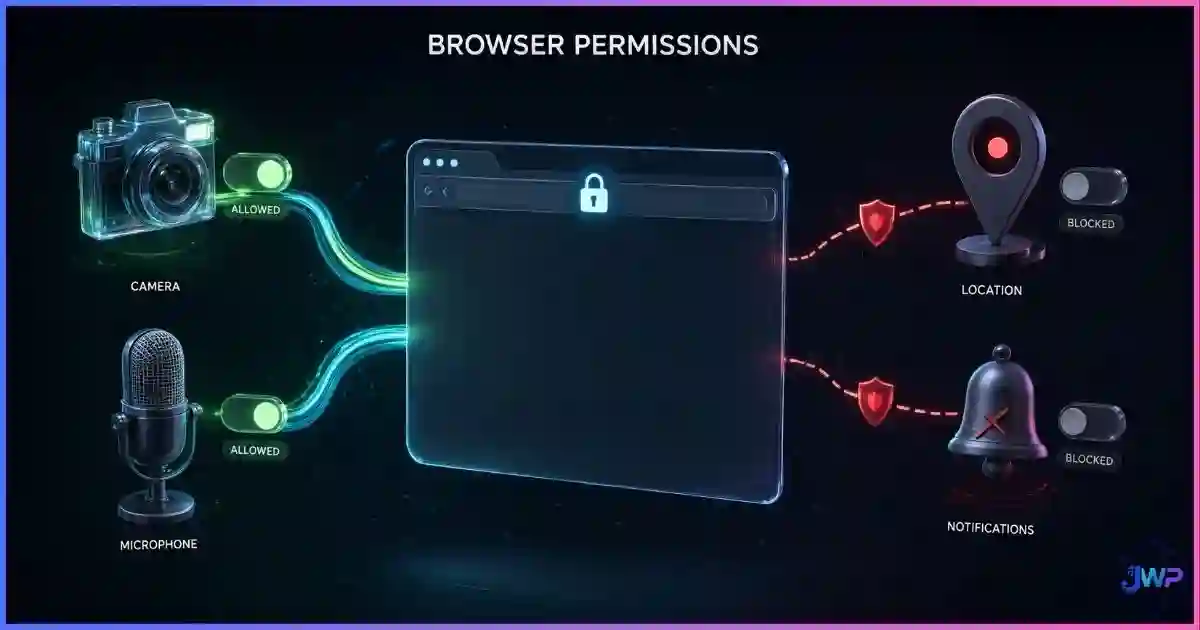
Browser permissions are APIs that allow websites to access sensitive device hardware or system features — such as your camera, microphone, geolocation, clipboard, motion sensors, or notification system. When you click “Allow,” you are granting that specific site (and only that site) the right to read or write data from those features.
The danger is twofold: first, malicious sites use social engineering to trick you into granting permissions (especially notifications) that they then abuse for spam or phishing. Second, legitimate sites often hoard permissions they don’t need, creating a security surface that attackers can exploit if the site is compromised. For a deeper look at the security side, read our guide on browser privacy vs browser security.
Definitions
What Browser Permissions Actually Are
Browser permissions are not just “settings.” They are a security boundary enforced by the browser engine. When a site asks for a permission, the browser intercepts the request and asks you. If you grant it, the browser stores that decision in your browser profile (specifically in the Preferences or Site Settings database). Every time you return to that site, the browser automatically grants the access again — often without prompting you.
This persistence is the danger. A permission granted once, on a site you visited three years ago, is still active today. If that site is later compromised or sold to a spam network, they inherit the permissions you granted to the original owner.
| Permission | What it allows | Storage location |
|---|---|---|
| Geolocation | Reads GPS, Wi-Fi, or IP-based location. | Site Settings (per profile) |
| Camera / Microphone | Accesses hardware input devices. | Site Settings (per profile) |
| Notifications | Pushes alerts to your OS desktop/mobile. | Site Settings (per profile) |
| Clipboard | Reads from or writes to your system clipboard. | Session or Site Settings |
| Motion Sensors | Reads accelerometer / gyroscope data. | Usually prompt-less (dangerous) |
| Background Sync | Runs scripts after you close the tab. | Site Settings |
Data
Permission Abuse by the Numbers
The scale of permission abuse is massive, largely because users treat prompts as annoyances to be dismissed rather than security decisions to be evaluated.
Most abused browser permissions (by volume of malicious use)
Source: Aggregated data from Google Safe Browsing, Duo Security, and Princeton WebTAP (2024–2026).
The notification spam epidemic
Source: Google Chrome Security Blog (2024).
Notifications are the single biggest permission abuse vector on the web today. The attack pattern is simple:
- A site (often a streaming or download site) overlays a fake “Click Allow to verify you are human” prompt.
- The user clicks “Allow” on the real browser prompt, thinking it is a CAPTCHA.
- The site now has permission to push desktop notifications 24/7, flooding the user with scam links and malware redirects.
The Dangerous 5
The 5 Most Dangerous Permissions
Not all permissions are created equal. Some are low-risk (e.g., “Zoom”), while others give a website root-level access to your physical environment or sensitive data. These are the five you should never grant without a specific, trusted reason.
| Permission | Risk Level | How it is abused | When to allow |
|---|---|---|---|
| Notifications | High | Used for 24/7 spam, phishing, and malware redirects. The #1 permission abuse vector. | Almost never. Only for trusted tools you use daily (e.g., calendar, email). |
| Clipboard | High | Malicious scripts read your clipboard to steal crypto wallet addresses, passwords, or 2FA codes. | Only on trusted sites where you are pasting data (e.g., Google Docs, code editors). |
| Geolocation | Med | Used for hyper-local ad targeting, price discrimination, and physical tracking. | Only for maps, delivery apps, or local search. Block by default. |
| Camera / Microphone | High | Spyware, unauthorized recording, and WebRTC leaks. | Only for active video calls (Zoom, Meet). Revoke immediately after the call. |
| Motion Sensors | Med | Used for browser fingerprinting to identify your specific device hardware. | Almost never. Most sites do not need your gyroscope data. |
Isolate your permissions per profile.
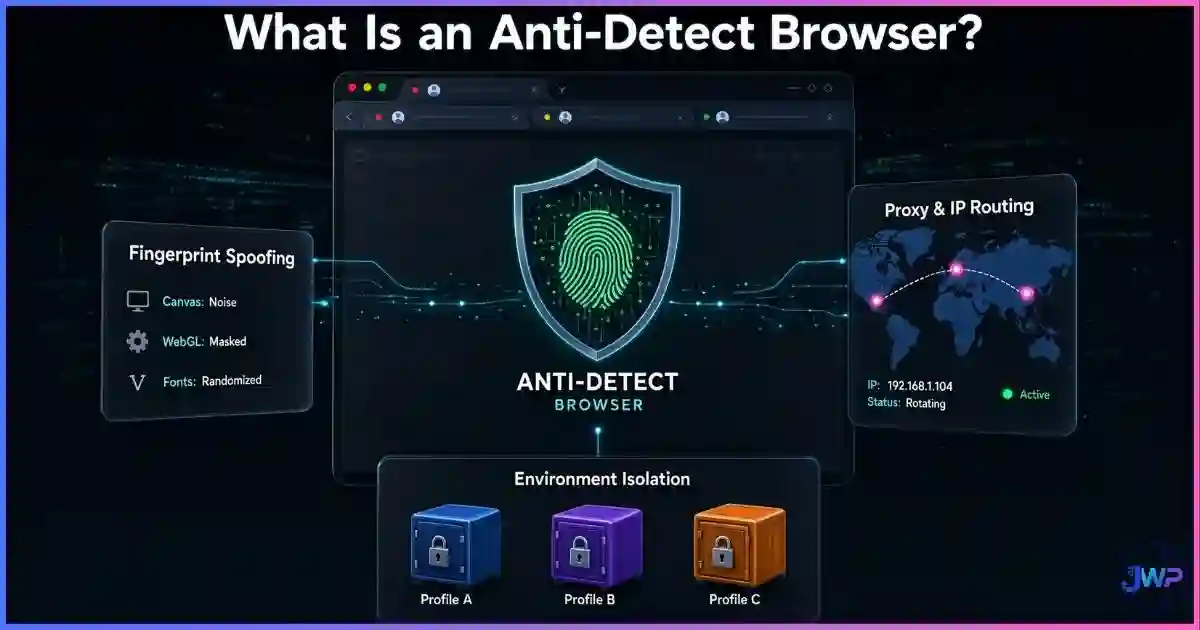
In a standard browser, permissions are global to your profile. If you grant a permission to a sketchy site, it stays in your profile forever. Incogniton allows you to create isolated profiles where permissions are contained, preventing cross-contamination between your work, personal, and high-risk browsing sessions.
Try Incogniton Anti-Detect Browser → Affiliate link — we may earn a commission at no extra cost to you.The Notification Epidemic
The Notification Spam Epidemic
If you are seeing random pop-ups on your desktop saying “Your McAfee subscription has expired” or “You have (3) viruses,” you do not have a virus. You have granted notification permissions to a spam site. This is the most common tech support scam in 2026.
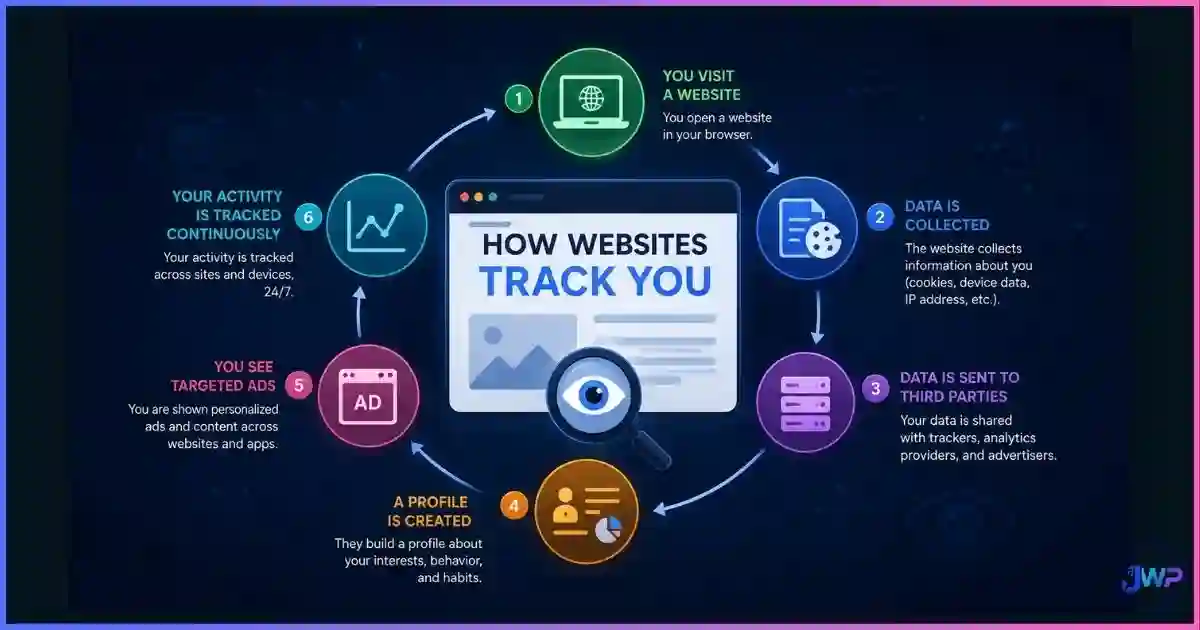
The attack works because browsers treat notifications as a “low friction” feature. The prompt is small, the text is often confusing, and the “Allow” button is prominent. Once granted, the site can push notifications even when the browser is closed, bypassing most ad blockers and pop-up blockers. The only fix is to manually revoke the permission in your browser settings. For a broader look at how sites track you, read how websites track you.
Fingerprinting
Permissions Used for Fingerprinting
Some permissions are not abused for direct attacks, but for identification. Motion sensors (accelerometer, gyroscope) and Battery API (now deprecated in most browsers but still present in some) are used to create a unique hardware signature.
Because every device’s sensors have microscopic manufacturing defects, the way your phone’s accelerometer responds to a specific JavaScript vibration command is unique to your device. This allows trackers to identify you even if you clear cookies or use a VPN. This is why hardened privacy browsers like Tor and Firefox (with Resist Fingerprinting) disable sensor access by default. For a full breakdown, see can browser fingerprinting be prevented?
Extensions
Extensions & Permission Hoarding
Browser extensions are the biggest permission risk of all, because they operate outside the standard “per-site” permission model. When you install an extension, it often asks for “Read and change all your data on the websites you visit.” This is a blank check.
According to Duo Security research, 85% of malicious extensions request this broad permission. Once granted, the extension can read your passwords, steal your cookies, and inject code into every page you visit — including your bank. This is why auditing your extensions is the first step in how to secure your web browser. If you suspect an extension is malicious, read our guide on malicious browser extensions.
Myth Busting
6 Browser Permission Myths, Busted
Myth 1
“The browser will warn me if a site abuses a permission.”
Reality
Browsers only warn you when the permission is requested. Once granted, the site can use it silently in the background (especially notifications and background sync).
Myth 2
“Incognito mode resets permissions.”
Reality
Incognito mode does not save new permissions, but it does not block the sites from asking. And if you log into a site, it can still abuse the session.
Myth 3
“If I don’t see the camera light, the camera is off.”
Reality
Hardware indicators can be spoofed or disabled by malware. The only true check is the browser’s permission manager.
Myth 4
“Notifications are just annoying ads.”
Reality
Notifications are a system-level push channel. They can bypass ad blockers, appear over other apps, and are the primary vector for tech support scams.
Myth 5
“I need to allow location for local news.”
Reality
Most sites can guess your city from your IP address (which they get anyway). Precise GPS location is rarely needed for content and is mostly used for ad targeting.
Myth 6
“Extensions from the official store are safe.”
Reality
The Chrome Web Store is flooded with malicious extensions that request broad permissions. See malicious browser extensions.
Action Plan
How to Audit Your Browser (5 Minutes)
Do not wait for a breach. Perform this audit once a month. It takes less than five minutes and closes the biggest holes in your security posture.
Block notifications by default
Go to Settings → Privacy and security → Site settings → Notifications. Select “Don’t allow sites to send notifications” or “Use quieter messaging” (which blocks the prompt). This stops 90% of spam attacks.
Audit the “Allowed” list
In the same Site Settings menu, check the “Allowed” list for Location, Camera, Microphone, and Notifications. Remove any site you do not recognize or no longer use. This is where old, forgotten permissions live.
Review extension permissions
Go to Extensions. For each extension, click “Details” and check “Site access.” If an extension like a “Dark Mode” tool has access to “All websites,” remove it or restrict it to “On click.”
Reset sensors and clipboard
Set “Motion sensors” and “Clipboard” to “Ask first” or “Block” by default. Only allow them for specific trusted sites (e.g., Google Docs for clipboard).
Use profile isolation for high-risk sites
If you must visit sites that require risky permissions (e.g., a specific work portal), do it in a separate browser profile. This ensures that if the permission is abused, the attacker cannot access the cookies or data in your main profile.
Skip these habits
- Clicking “Allow” on notification prompts without reading.
- Granting “Precise Location” to news or shopping sites.
- Installing extensions that ask for “Read all data”.
- Ignoring the camera/mic icon in the address bar.
- Assuming the browser store vets every extension.
Do this instead
- Block notifications globally; allow only for 2-3 trusted tools.
- Use “Approximate Location” (if available) or IP-based location.
- Audit extension permissions quarterly.
- Revoke camera/mic access immediately after a call.
- Use isolated profiles for high-risk browsing.
The 5-Minute Permission Audit Checklist
- Notifications are set to “Block” or “Quieter messaging” by default.
- The “Allowed” list for Location/Cam/Mic contains only sites I use weekly.
- No unknown extensions have “Read and change all data” access.
- Motion sensors and Clipboard are set to “Ask first” or “Block”.
- I have checked for “Background Sync” permissions on shopping sites.
- My high-risk browsing is done in a separate, isolated profile.
Stop leaking your hardware to every site you visit.
Incogniton allows you to create strict permission policies per profile. You can block all sensors, notifications, and clipboard access by default for your “research” profiles, while allowing them only for your trusted “work” profiles. This is the core of browser profile isolation.
Try Incogniton Free → Affiliate link — we may earn a commission at no extra cost to you.FAQs
Frequently Asked Questions
Can a website use my camera without me knowing?
Why do I keep getting pop-ups saying my computer is infected?
Is it safe to allow clipboard access?
Do extensions need “Read and change all data” permission?
Can websites track my location without permission?
How do I reset all permissions in Chrome?
Settings → Privacy and security → Site settings. You can click “Clear all data” or manually remove sites from the “Allowed” lists for each permission type. This does not delete your history or passwords, only the site-specific permissions.📚 Sources & Research Notes (click to expand)
This guide draws on browser security documentation, academic research on permission abuse, and industry threat reports. Browser permission models evolve; verify current settings in your specific browser version.
- Google Security Blog (2024). “Protecting users from notification spam.” — Data on 10B+ blocked spam requests and quieter messaging UI. security.googleblog.com
- Duo Security / Cisco (2023). “The State of Browser Extensions.” — Research finding 85% of malicious extensions request broad data access. duo.com
- Princeton Web Transparency & Accountability Project (WebTAP). “Measuring the accuracy of browser fingerprinting via sensors.” — Research on motion sensor uniqueness. princeton.edu
- USENIX Security Symposium (2020). “User studies on permission prompts and notification fatigue.” — Findings that 1 in 3 users accept prompts without reading.
- Mozilla Developer Network (MDN). “Permissions API.” — Technical documentation on how browsers handle permission states. developer.mozilla.org
- Chromium Blog. “Site Settings and the Permission Manager.” — Architecture of permission storage in browser profiles.
Browser permission models and extension policies change frequently. Always verify current settings in Chrome, Firefox, Edge, or Safari before making security decisions.