What Is a WebRTC Leak? How to Test for and Prevent It
The browser-level leak that exposes your real IP address even on a VPN — how to run a 60-second test, read the results correctly, and close the hole for good.
What Is a WebRTC Leak, in One Paragraph?
A WebRTC leak is a browser-level privacy flaw in which a website uses the WebRTC real-time communication stack (specifically STUN/ICE candidate gathering) to discover IP addresses that your normal web traffic never reveals — your private LAN IP and, critically, your true public IP. Because this happens inside the browser via JavaScript, it can completely bypass an active VPN tunnel: your HTTP traffic shows the VPN’s IP while a silent STUN handshake hands the site your real one. The leak has been publicly known since January 2015, requires no permission prompt, and is fixed only by controlling WebRTC at the browser, VPN, or profile level — which is exactly what this guide walks you through, test-first.
the year the WebRTC VPN leak was publicly demonstrated with a simple JavaScript proof-of-concept.
of top VPN solutions were reported still leaking customer IPs via the WebRTC bug known since Jan 2015.
of users’ browsers globally support the RTCPeerConnection API that makes the leak possible (Can I Use, 2026).
permission prompts a website needs to read your IP candidates via WebRTC — camera access asks; connection setup does not.
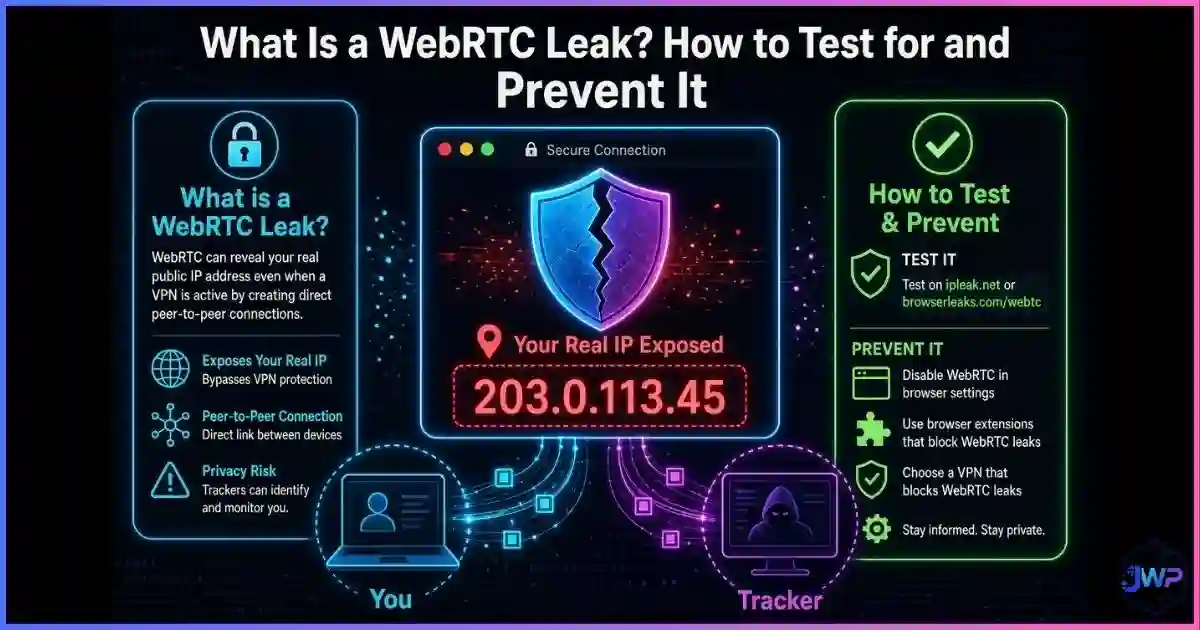
Table of Contents
What a WebRTC Leak Is (and Is Not)
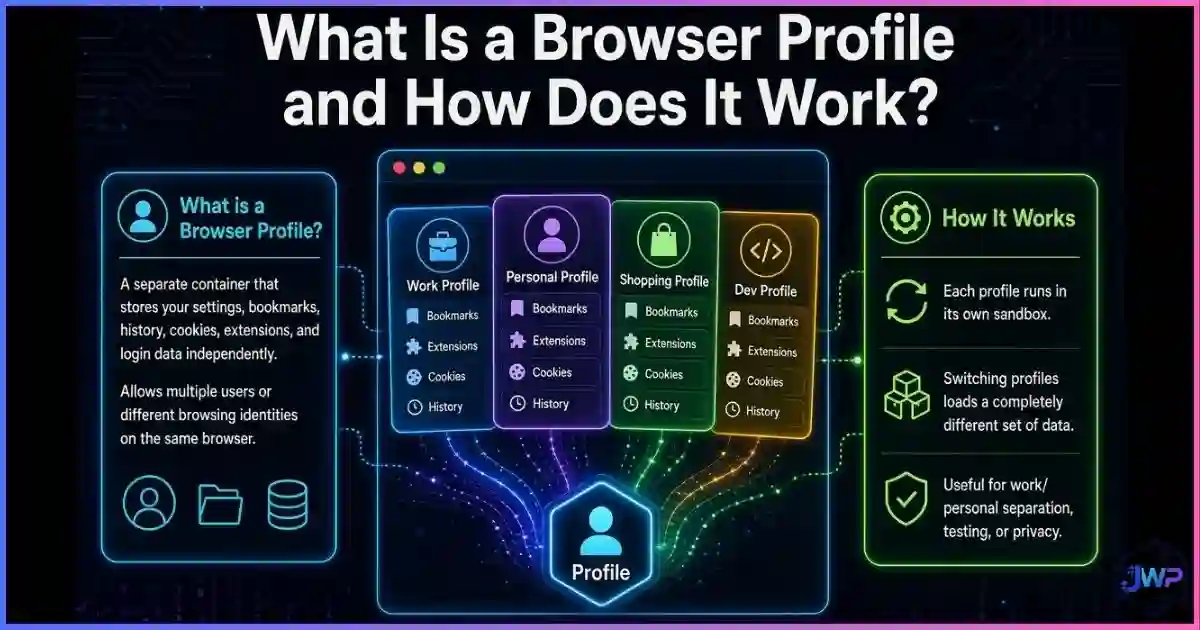
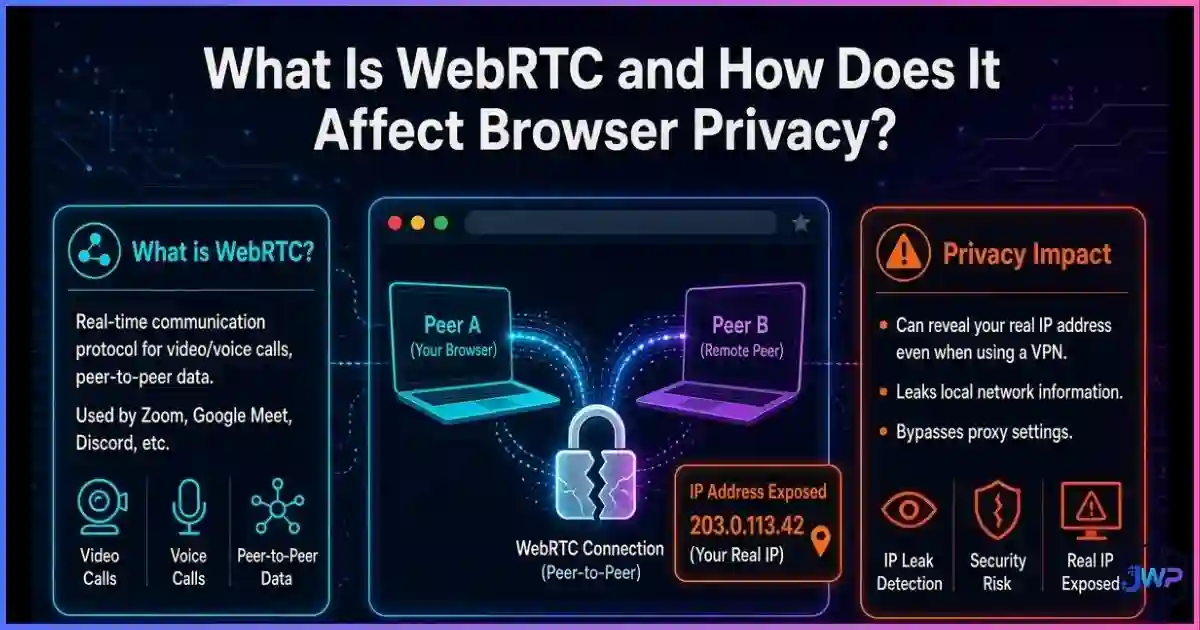
WebRTC (Web Real-Time Communication) is the W3C-standardized technology that lets browsers stream audio, video, and data peer-to-peer — the engine behind Google Meet, Discord voice, WhatsApp Web calls, and browser file sharing. To connect two devices that sit behind routers, WebRTC must discover every possible network address your device can use. That discovery process is where the leak lives. If you need the full background on the technology itself, start with our guide on what WebRTC is and how it affects browser privacy.
A WebRTC leak occurs when a website reads the addresses produced by that discovery process — called ICE candidates — and learns something you intended to keep hidden:
- Host candidates: your private LAN IPs (192.168.x.x, 10.x.x.x) — a stable internal identifier and a map of your local network.
- Server-reflexive (STUN) candidates: your true public IP as seen from the internet — the address your VPN is supposed to be hiding.
It is important to be precise about what this leak is not. It is not malware, it is not a browser bug in the classic sense, and it does not require you to click anything. It is standard behavior of a standard API being used as a side channel. That is why patching never “fixed” it — the only fixes are configuration: browser settings, extensions, VPN behavior, or per-profile policies.
The Mechanics in 60 Seconds
When a page creates an RTCPeerConnection, the browser gathers candidates using the ICE framework and two helper protocols: STUN (asks an external server “what address do you see me from?”) and TURN (a relay fallback). The gathered candidates are delivered to JavaScript through the onicecandidate event. A tracking script simply reads that event. No prompt, no visible network activity in dev tools’ main request list, no cookies involved.
| Candidate type | Contains | Leak consequence |
|---|---|---|
| host | Private LAN addresses (192.168.x.x, 10.x.x.x) | Reveals LAN topology; stable internal tracking ID |
| srflx (STUN) | Your public IP + port as seen externally | Exposes the real IP a VPN/proxy should hide |
| mDNS (modern browsers) | Random .local hostname instead of LAN IP | Neutralizes the local-IP half of the leak |
| relay (TURN) | The relay server’s address | Not a leak — it is the relay’s IP, not yours |
Modern Chrome, Edge, Safari, and Firefox now mask host candidates behind mDNS hostnames by default (Chromium made this default and removed the old toggle around Chrome 86). But mDNS does nothing for the public IP half: if your VPN fails to tunnel UDP or IPv6 correctly, STUN still answers with your real address. That is the leak people mean when they say “WebRTC leak” in 2026.
How to Test for a WebRTC Leak
Testing takes under a minute and should be done twice: once disconnected (baseline) and once connected to your VPN or proxy (verification).
- Note your real IP: with the VPN off, visit any “what is my IP” page and write the address down.
- Connect your VPN/proxy exactly as you would for real work.
- Open a WebRTC leak test — well-known options include BrowserLeaks (browserleaks.com/webrtc), IPLeak.net, and the leak test pages bundled by major VPN providers.
- Read the candidate list, not just the headline IP. Compare every address shown against the two you know (your real IP and your VPN IP).
- Repeat after changes: browser updates, VPN server switches, and OS updates can all change the outcome.
How to read your results
| What the test shows | Meaning | Action |
|---|---|---|
| Private IPs (192.168.x.x / 10.x.x.x) | Host-candidate leak; browser not mDNS-protected | Update browser; add extension or use a protected browser |
random-name.local entries | mDNS obfuscation active — local IP hidden | None; this is the modern safe default |
| Public IP = VPN/proxy IP | No public leak; tunnel handles STUN correctly | None; you are clean |
| Public IP = your real ISP IP (VPN on) | Active WebRTC/STUN leak | Apply browser + VPN fixes below immediately |
Testing five accounts? Test each profile, not just your main browser.
Incogniton gives every isolated profile its own WebRTC policy and proxy, so a leak test in one profile tells you the truth about that identity — and a failure in one can never expose the others.
Get Incogniton →Affiliate link — we may earn a commission at no extra cost to you.
WebRTC Leak Statistics & Charts
The leak is old, but it has never gone away — because it survives in misconfigured tunnels, free VPN apps, and outdated browsers. The data below shows how widespread leak failures remain.
Leak prevalence in published tests and studies
via WebRTC bug
leaking IPv6
leaking DNS
Sources: BleepingComputer reporting on the WebRTC bug known since January 2015; Ikram et al., CSIRO / ACM IMC 2016 study of 283 Android VPN apps. Free mobile VPNs are the worst offenders, but even paid desktop solutions are not automatically safe.
How well each prevention method stops WebRTC leaks (editorial scoring)
Editorial scoring based on published leak mechanics: mDNS alone only hides local IPs; full protection requires disabling WebRTC or forcing STUN through the proxy. Anti-detect profiles score high because policies are applied per identity and stay consistent.
Default WebRTC privacy posture by browser (editorial scoring)
Editorial scoring: Tor disables WebRTC entirely; Brave ships a WebRTC IP-handling policy; Firefox is fully configurable via about:config; Safari and Chromium rely on mDNS (local IPs only) with no user-facing off switch. With ~96.4% global RTCPeerConnection support (Can I Use, 2026), the exposure surface is essentially the entire web.
How to Prevent WebRTC Leaks in Every Browser
| Browser | Best control | Exact steps |
|---|---|---|
| Firefox | Full disable (native) | about:config → accept the warning → set media.peerconnection.enabled to false |
| Chrome / Edge | Extension or policy (no native off switch) | Install a leak-prevention extension (e.g., uBlock Origin’s “prevent WebRTC from leaking local IPs”, WebRTC Leak Prevent); fleets can use the WebRtcLocalIpsAllowedUrls policy |
| Brave | WebRTC IP-handling policy | Settings → Privacy/Security → WebRTC IP handling → choose “Disable non-proxied UDP” when using a proxy or VPN |
| Safari | mDNS built in; no off switch | Keep Safari updated (mDNS active); pair with a VPN that tunnels UDP/IPv6 for the public-IP half |
| Tor Browser | Disabled by default | Nothing to configure — do not “relax” Tor’s settings or you destroy its protection model |
Two practical rules. First, disable globally, allow selectively: if you take browser calls weekly, keep WebRTC on only in a dedicated browser or profile used exclusively for meetings — never in the profile you use for privacy-sensitive or multi-account work. Second, extensions are a fallback, not a foundation on Chromium: they mainly harden local-IP behavior, and Chromium removed the user-facing mDNS flag around version 86, so configuration choices are deliberately limited.
VPN-Side Prevention: Make the Tunnel Actually Cover WebRTC
Browser controls stop the browser from asking; VPN-side controls make sure that, if something does ask, the answer is the VPN’s address. You need both halves for defense in depth.
- Full UDP tunneling: STUN runs over UDP. If your client split-tunnels or drops UDP, candidates go out over the real connection. Verify your client routes UDP by default.
- IPv6 handling: IPv4-only tunnels are a classic leak path — WebRTC will happily use the IPv6 route. Choose a provider that blocks or tunnels IPv6 cleanly.
- Kill switch: during reconnect gaps, an active peer connection can re-announce your real candidates. A kill switch cuts traffic instead of leaking it.
- Built-in leak protection: some modern VPN clients ship WebRTC/DNS leak protection toggles — enable them, then re-test rather than trust the label.
If you are currently choosing a provider, prioritize leak behavior over marketing claims — our roundup of the best VPN providers is a useful starting point, and comparing an anti-detect browser vs. VPN vs. proxy will show you which layer each tool actually covers. And remember the uncomfortable truth: a VPN does not change your browser fingerprint, so a leak-free tunnel is only one layer of a complete identity.
Per-Profile WebRTC Control: The Professional Layer
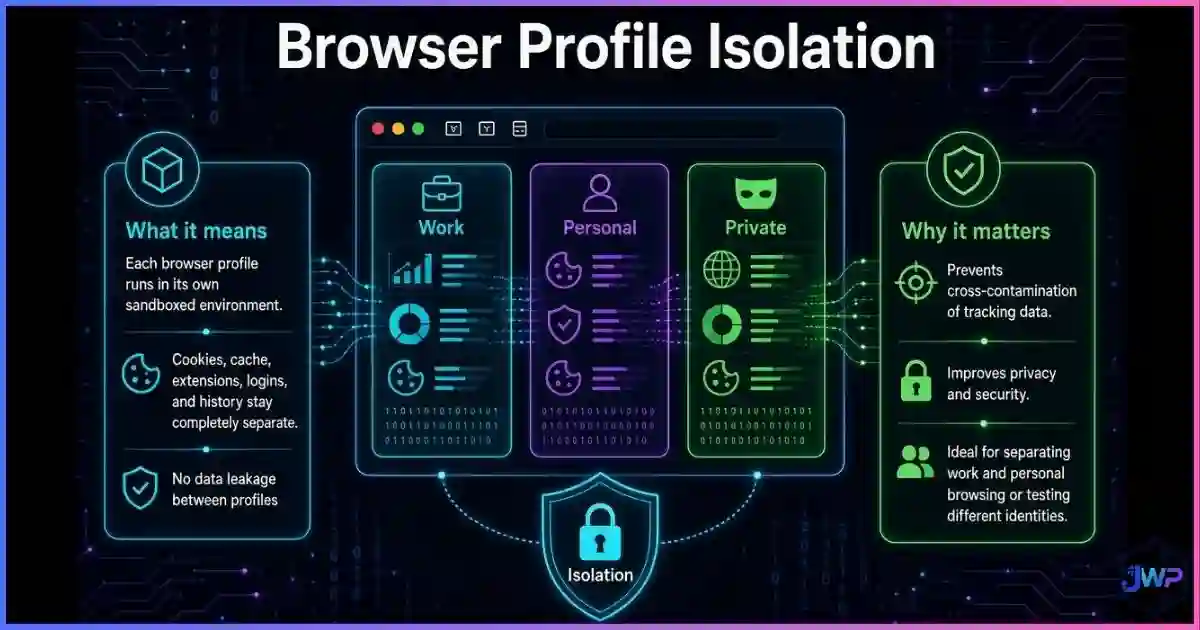
For affiliate marketers, ad buyers, e-commerce sellers, and QA teams, the question is not “on or off?” but “what should WebRTC see for this identity?” That is the core promise of browser profile isolation: each profile carries its own cookies, storage, fingerprint, proxy — and its own WebRTC policy, typically one of:
- Disabled: no peer connections at all; ideal for pure browsing identities.
- Proxy-only UDP: STUN may run, but only through the profile’s proxy, so candidates match the identity’s geolocation.
- Local IP substitution: host candidates are replaced with values consistent with the profile’s story instead of your real LAN.
Consistency is what defeats correlation. A profile claiming to be a London user on a UK residential proxy, but answering STUN with your Texas ISP address, is instantly flaggable — and one such mismatch can link every account you run, which is the exact opposite of browsing anonymously in any practical sense.
Every profile, its own network, its own clean leak test.
Incogniton pairs each isolated profile with its own proxy and WebRTC policy, so STUN candidates, timezone, and fingerprint always tell the same story — and you can verify each identity with a leak test in seconds.
Try Incogniton Free →Affiliate link — we may earn a commission at no extra cost to you.
Leak-Proof WebRTC Checklist
- Record your real public IP with the VPN off (baseline).
- Connect your VPN/proxy, then run a WebRTC leak test (BrowserLeaks, IPLeak.net, or your VPN’s test page).
- Confirm no private LAN IPs appear (mDNS
.localnames are fine). - Confirm any public/STUN address matches the proxy IP — never your ISP IP.
- Firefox users: set
media.peerconnection.enabledtofalseif calls are not needed. - Brave users: set WebRTC IP handling to “Disable non-proxied UDP” when proxying.
- Chrome/Edge users: add a leak-prevention extension and verify with a re-test.
- Multi-account users: apply per-profile WebRTC policies in an anti-detect browser (e.g., Incogniton) and test each profile.
- Re-test after browser updates, VPN server changes, and OS upgrades.
Frequently Asked Questions
Is a WebRTC leak the same as an IP leak?
Can I have a WebRTC leak while my VPN is connected?
Does incognito mode prevent WebRTC leaks?
Will disabling WebRTC break video calls?
Do mobile browsers leak WebRTC too?
What should a clean WebRTC leak test show when I use a VPN?
Sources and Research Notes
Sources & Research Notes (click to expand)
Methodologies differ across sources (security reporting, lab studies, compatibility tracking), so figures above are presented as published and should be read as directional. Open sources used:
- The Hacker News (2015). “WebRTC Vulnerability Leaks Real IP Addresses of VPN Users” — public disclosure of the STUN-based leak, January 2015. thehackernews.com
- BleepingComputer. “Many VPN Providers Leak Customer’s IP Address via WebRTC Bug” — ~20% of top VPN solutions leaking via the bug known since Jan 2015. bleepingcomputer.com
- Ikram et al. (2016). “An Analysis of the Privacy and Security Risks of Android VPN Permission-enabled Apps.” CSIRO / ACM IMC — 84% IPv6 leaks, 66% DNS leaks, 18% no encryption across 283 apps. research.csiro.au
- Can I Use (2026). “WebRTC Peer-to-Peer Connections / RTCPeerConnection” — global support ≈96.4%. caniuse.com
- MDN Web Docs. “RTCPeerConnection — Browser Compatibility” — full support across Chrome, Edge, Firefox, Opera, Safari. developer.mozilla.org
- Google Support / Chromium issue tracker. “Anonymize local IPs exposed by WebRTC” — mDNS obfuscation defaulting and flag removal around Chrome 86; Edge policy
WebRtcLocalIpsAllowedUrls. support.google.com - uBlock Origin Wiki. “Prevent WebRTC from leaking local IP address” — scope and limits of extension-based local-IP leak prevention. github.com
- W3C (2021). “WebRTC 1.0: Real-Time Communication Between Browsers” — W3C Recommendation, 26 January 2021. w3.org